How to Transcribe Spotify Podcast to Text | Simple Methods
Apr 25, 2026
7 min read
Spotify has become one of the biggest places people go to listen to podcasts, but it does not give you a way to read what is being said. There is no built-in transcript button, no copy-paste option, and no export feature for episode audio. So if you have ever wanted to pull a quote from an episode, study something a guest said, or turn the content into notes, you have to find another way.
The good news is that getting a transcript from a Spotify podcast is not complicated once you know the right approach. It just takes a couple of steps.
Why Spotify Does Not Make This Easy
Spotify is built around listening, not reading. Even though some shows on the platform do include transcripts, it is entirely up to the podcast creator whether that gets added. Most episodes simply do not have one. And even when a transcript does exist inside the app, you cannot export it or do much with it.
This is why most people end up going outside Spotify to get the job done.
What You Need Before You Start
Before jumping into any tool, there are two routes depending on where your podcast lives.
If the podcast is publicly available, meaning you can find it on other platforms or the creator has an RSS feed, you can often grab the audio file directly and upload it into a transcription tool. This is the cleanest path.
If the podcast is Spotify-exclusive and not available anywhere else, you will need to record the audio while it plays. This is a bit more involved, but it works.
Method 1: Find the Podcast Audio Outside Spotify
Since Spotify does not provide direct downloads for transcription, the easiest way is to access the same podcast from another platform.
Search the podcast on other platforms - Most podcasts are also available on Apple Podcasts, Google Podcasts, or the show’s official website.
Look for a downloadable version - Search using the episode name or show title to find a version that offers a direct download or external access.
Download the audio file - Save the episode in MP3 or M4A format so it is ready for transcription in the next step.
Method 2: Use Screen Recording to Capture the Audio
If a podcast is only available on Spotify, you can record the audio while it plays on your device.
Use a built-in recording tool - On Windows, you can use Xbox Game Bar. On Mac, QuickTime can record audio with a simple setup.
Play and record the episode - Start the recorder, then play the podcast so the audio is captured in real time.
Check your recording quality - Make sure your system settings are correct. Using headphones can help avoid unwanted background noise.
Save the recorded file - Once done, save the recording and use it for transcription in the next step.
Method 3: Transcribe the Audio with a Tool Like VoiceCraftTool’s Podcast Notes Taker
Once you have your audio file, the transcription part is where an AI tool makes the real difference.
VoiceCraftTool's Podcast Notes Taker is a good fit here because it handles the kind of speech that shows up in real podcast conversations. Podcast hosts do not talk like they are reading a script. There are pauses, tangents, and natural back-and-forth that can trip up simpler transcription software.
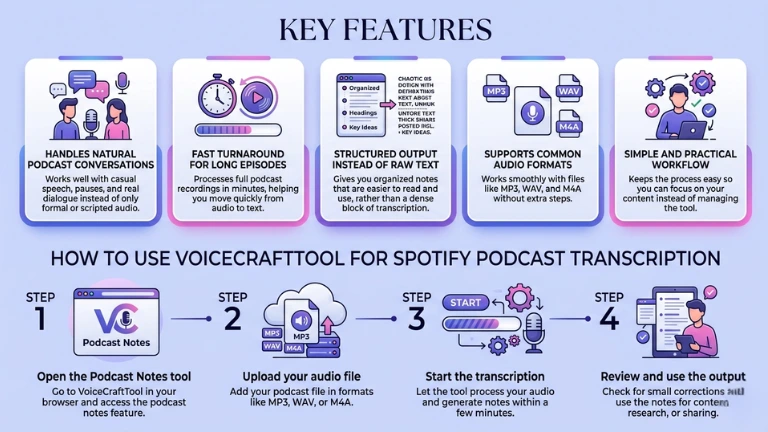
Key Features
Handles natural podcast conversations: Works well with casual speech, pauses, and real dialogue instead of only formal or scripted audio.
Fast turnaround for long episodes: Processes full podcast recordings in minutes, helping you move quickly from audio to text.
Structured output instead of raw text: Gives you organized notes that are easier to read and use, rather than a dense block of transcription.
Supports common audio formats:Works smoothly with files like MP3, WAV, and M4A without extra steps.
Simple and practical workflow:Keeps the process easy so you can focus on your content instead of managing the tool.
How to Use VoiceCraftTool for Spotify Podcast Transcription
Step 1) Open the Podcast Notes tool
Go to VoiceCraftTool in your browser and access the podcast notes feature.
Step 2) Upload your audio file
Add your podcast file in formats like MP3, WAV, or M4A.
Step 3) Start the transcription
Let the tool process your audio and generate notes within a few minutes.
Step 4) Review and use the output
Check for small corrections and use the notes for content, research, or sharing.
Common Use Cases with Spotify Podcast Transcription
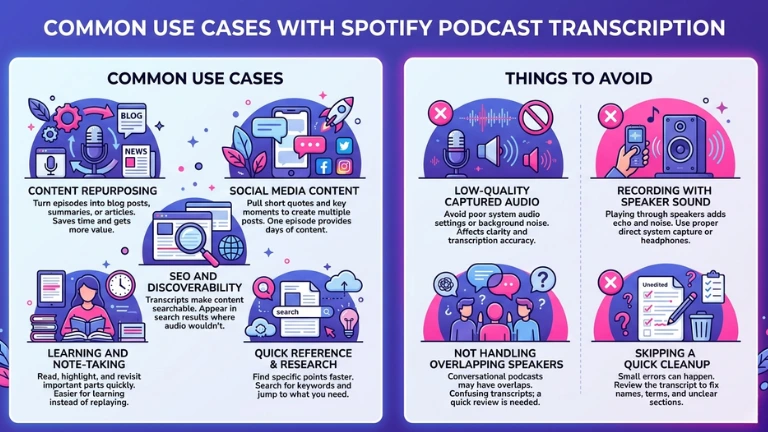
Content Repurposing
Podcast episodes can be turned into blog posts, summaries, or articles without starting from scratch. This saves time and helps you get more value from the same content.
Social Media Content
You can pull short quotes and key moments from the transcript to create multiple posts. A single episode can easily provide content for several days.
SEO and Discoverability
Transcripts make your podcast content searchable. This helps your episodes appear in search results where audio alone would not.
Learning and Note-Taking
Instead of replaying long episodes, you can read, highlight, and revisit important parts quickly. This makes podcasts much easier to use for learning.
Quick Reference and Research
Finding specific points becomes much faster with text. You can search for keywords and jump directly to what you need without going through the full audio.
Things to Avoid
Using low-quality captured audio from Spotify: If you are recording a podcast from Spotify, poor system audio settings or background noise can affect clarity. This leads to less accurate transcripts and more cleanup.
Recording with speaker sound instead of direct audio:Playing the podcast through speakers and recording it can introduce echo and noise. Using proper system audio capture or headphones gives better results.
Not handling overlapping speakers carefully:Spotify podcasts often include conversations or interviews. When speakers overlap, transcripts can get confusing, so a quick review is important.
Skipping a quick cleanup after transcription: Even with good tools, small errors can happen. Reviewing the transcript helps fix names, terms, and unclear sections before using it.
Conclusion
Getting a transcript from a Spotify podcast comes down to two things: getting the audio out of Spotify and running it through a transcription tool. The first part depends on whether the show is available elsewhere or exclusive to the platform. The second part is where a tool like VoiceCraftTool does the heavy lifting.
It is not instant, but it is genuinely simple once you do it once. And the transcript you end up with can be used in a lot more ways than just reading along.
FAQs
Can I transcribe a Spotify podcast without downloading anything?
Yes, if the same episode is available on another platform or the show's website, you can download the audio from there and upload it to a browser-based transcription tool. Nothing needs to be installed.
Is it legal to transcribe a Spotify podcast?
For personal use like study, research, or note-taking, transcribing content you have access to is generally fine. If you plan to publish or distribute the content, check the show's terms or reach out to the creator.
How long does transcription take for a Spotify episode?
For a 45-minute episode, most AI tools will have the transcript ready in three to six minutes. Longer episodes take a bit more time, but it is still a fraction of actually listening through.
Does VoiceCraftTool work with recorded audio?
Yes. If you recorded the Spotify episode using a screen recorder or audio capture tool, you can upload that file directly. MP3 and WAV formats both work without any conversion needed.
What if the transcript has errors?
A quick read-through and light editing is usually all it takes. Focus on proper nouns, names, and any technical terms that the tool may have heard differently. The rest of the text should be close enough to read and work with right away.
Did you find this helpful?
Share this article with your friends and colleagues.