Use Audio to Text AI in your browser with multilingual output and private processing.
Speak step — capture voice or transcript
Upload file
Upload audio or video, then choose the language and processing settings before transcription.
Configuration
Choose language and quality, then transcribe.
Language
AI quality
Processing
We will turn your file into readable text.
Transcript
Your file transcript appears here with options to refine, export, or reuse it.
Your transcript will appear here after transcription.
Upload a clear audio or video file, choose the language if needed, and click transcribe to turn speech into editable text.
Upload fileChoose languageTranscribe to text
Audio to Text History
Saved items for this tool (per account)
Audio to Text Feedback
Ratings and comments from people who used this tool
No feedback yet for this tool.
Convert spoken audio into clear written text
Transcribing audio manually can take a lot of time, especially when the recording is long, noisy, or in a language that needs careful listening. The Audio to Text tool helps users turn spoken words from audio files into readable text in just a few moments.
Upload your audio file, choose your preferred language settings, select the processing quality, and generate a clean transcript that you can read, edit, save, or use for your work. The tool is useful for meetings, lectures, interviews, podcasts, voice notes, research recordings, content creation, and many other audio-based tasks.
What is an Audio to Text tool?
Audio to Text is a transcription tool that converts speech from an audio file into written text. Instead of listening to a recording again and again to type everything manually, users can upload their audio and let the tool create a text transcript automatically.
The tool can auto detect the spoken language or allow users to select a language manually from many languages across the world. This makes it useful for multilingual transcription, global content, academic recordings, business meetings, and personal voice notes.
Upload your audio and get text
Audio files
Upload your recorded audio files and turn them into written text that is easier to read, edit, search, and share.
Spoken content
Convert lectures, meetings, interviews, podcasts, webinars, calls, voice notes, or recorded conversations into clear text.
Multilingual speech
Use auto language detection or select the spoken language manually when you already know the language of the audio.
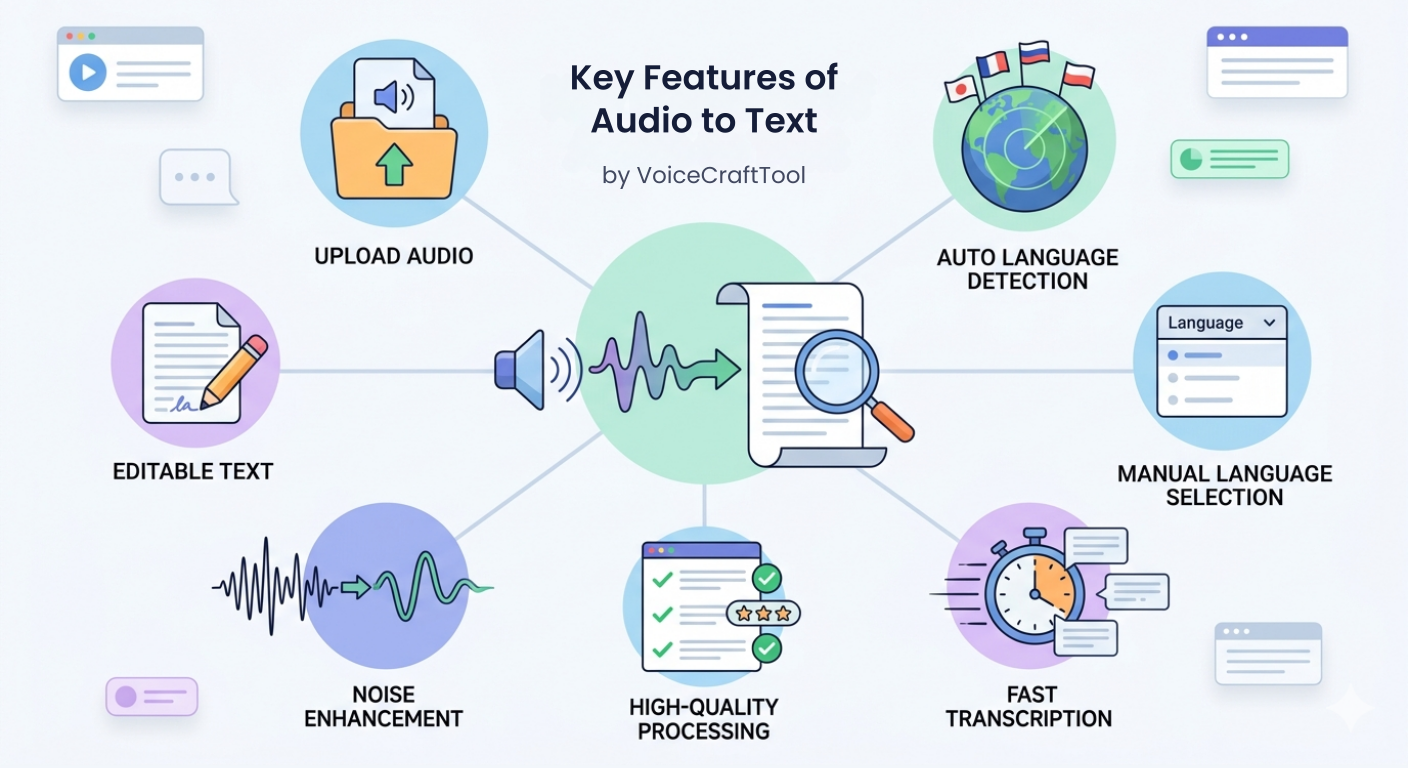
Key features of Audio to Text
Simple audio upload
The tool has a clean and easy interface. Users only need to upload the audio file, start the process, and get the text output in a short time.
Automatic language detection
The tool can detect the language of the spoken audio automatically, which is helpful when the user does not want to select the language manually.
Manual language selection
Users can also choose the language themselves from multiple languages worldwide. This is useful when the audio language is already known and the user wants more controlled transcription.
Fast audio transcription
The tool quickly converts speech into text, making it useful when users need a transcript without spending hours typing manually.
High-quality processing
Users can select high-quality processing for deeper and more focused transcription results. This mode may take more time, but it is better for important recordings, detailed conversations, or professional use.
Noise enhancement option
The tool can enhance the audio in terms of noise, helping the transcription process when the recording has background sound, low clarity, or uneven voice quality.
Editable text output
Once the audio is converted into text, users can review the transcript, correct small details, format the content, and use it according to their needs.
Choose the right processing mode
Fast
Best for quickly converting clear audio into text when you need a simple transcript in less time.
Balanced
Best for regular transcription needs. It gives a good mix of speed and quality, making it useful for meetings, voice notes, lectures, and common audio files.
High Quality
Best for detailed transcription where accuracy and clarity matter more. This mode may take more time, but it gives more focused results for important audio files.
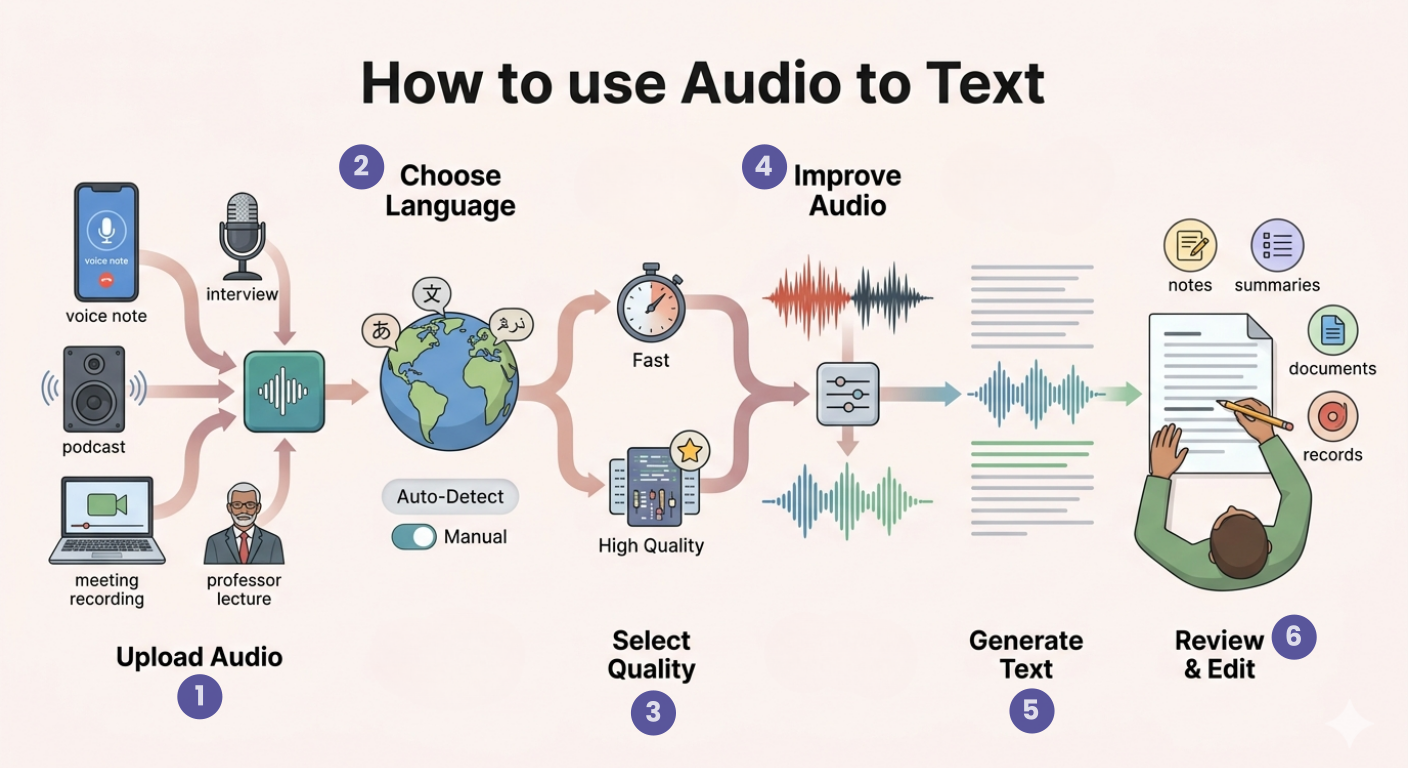
How to use Audio to Text
Step 1: Upload your audio file
Add your audio recording, voice note, meeting audio, podcast clip, lecture, interview, or any supported audio file.
Step 2: Choose language settings
Let the tool auto detect the spoken language or manually select the language from the available options.
Step 3: Select processing quality
Choose the transcription quality based on your need. Use faster processing for simple files or high-quality processing for more detailed results.
Step 4: Enable noise enhancement if needed
If your audio has background noise or unclear sound, use the noise enhancement option to improve the transcription process.
Step 5: Generate the text
Start the process and let the tool convert your audio into readable written text.
Step 6: Review and edit
Read the final transcript, correct names or technical terms if needed, and use the text for notes, documents, content, summaries, or records.
Why use an Audio to Text tool?
Audio files are not always easy to search, scan, edit, or reuse. If important information is locked inside a recording, users often have to listen to the same file multiple times to find the right part. This can waste time and make work slower.
Audio to Text helps by converting spoken content into written form. Once the audio is transcribed, users can quickly read the content, copy important points, create summaries, prepare documents, repurpose content, or keep a written record of conversations and ideas.
It is especially useful for users who deal with meetings, lectures, interviews, research discussions, podcasts, voice notes, or multilingual audio content.
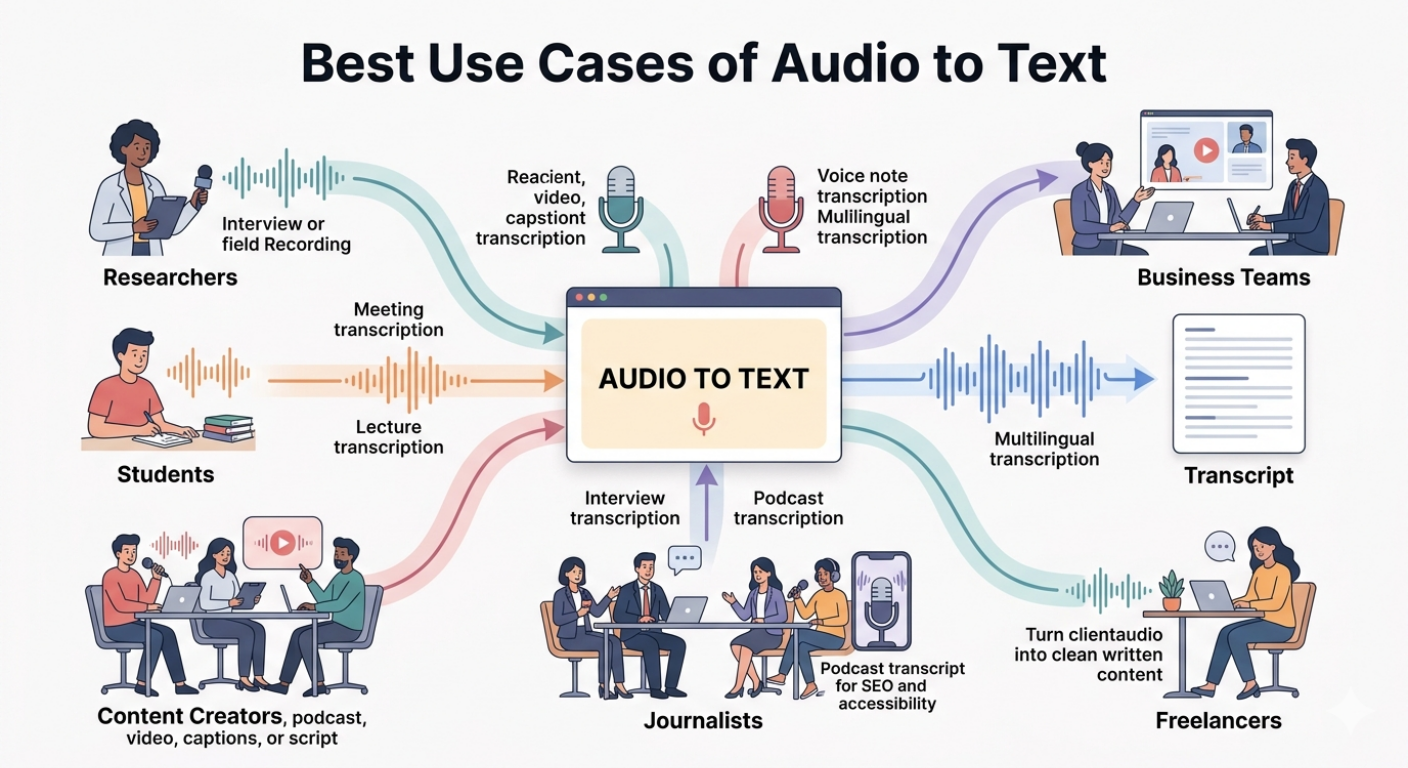
Best use cases
Researchers: Convert interviews, field recordings, discussions, or research audio into written transcripts for analysis and documentation.
Students: Transcribe lectures, study recordings, class discussions, and academic voice notes into readable study material.
Content creators: Turn podcasts, videos, voice recordings, and spoken ideas into text for blogs, captions, scripts, newsletters, or social media content.
Business teams: Convert meetings, calls, webinars, and team discussions into written notes, records, or follow-up documents.
Journalists: Transcribe interviews, press briefings, audio notes, and recorded conversations into editable text.
Podcasters: Convert podcast episodes into transcripts for accessibility, SEO, repurposing, and content planning.
Freelancers: Use the tool to transcribe client audio, interviews, notes, or project discussions into clean written content.
Meeting transcription
Convert business meetings, team calls, planning discussions, and online sessions into written notes that are easier to review and share.
Lecture transcription
Turn lectures, classes, seminars, and study recordings into text so students can revise the material more easily.
Interview transcription
Transcribe research interviews, journalism interviews, client discussions, or recorded Q&A sessions into readable text.
Podcast transcription
Create podcast transcripts that can be used for blog posts, show notes, SEO content, subtitles, or accessibility.
Voice note transcription
Convert personal voice notes, ideas, reminders, or recorded thoughts into written text for easier organization.
Multilingual transcription
Transcribe audio in different languages using auto language detection or manual language selection for better control.
Tips for better audio transcription
● Use clear audio recordings whenever possible for better transcription quality.
● Select the correct language manually if you already know the spoken language.
● Use high-quality processing for important interviews, meetings, lectures, or professional recordings.
● Enable noise enhancement when the audio has background sounds or unclear speech.
● Review the final transcript carefully, especially for names, numbers, technical terms, and industry-specific words.
● Break very long recordings into smaller sections if you want easier review and editing.
● Add punctuation, headings, or formatting after transcription if the text will be used in a report, article, or document.
FAQs
What is audio to text transcription?
Audio to text transcription is the process of converting spoken words from an audio recording into written text. It helps users read, edit, search, and reuse spoken content more easily.
How do I convert audio to text online?
Upload your audio file, choose the language settings, select the processing quality, and start the transcription process. The tool will convert the spoken audio into written text.
Can the tool detect the audio language automatically?
Yes, the tool can auto detect the spoken language. Users can also manually select the language if they already know which language is used in the audio.
Can I transcribe noisy audio?
Yes, the tool includes a noise enhancement option that can help improve transcription when the audio has background noise or unclear sound. However, clearer recordings usually give better results.
What type of audio can I convert to text?
You can use the tool for meetings, lectures, interviews, podcasts, webinars, voice notes, calls, research recordings, and other spoken audio files.
Is high-quality processing better for transcription?
High-quality processing is better when accuracy and detail are important. It may take more time, but it gives more focused results for important or complex audio recordings.
Do I need to edit the transcript after converting audio to text?
It is always good to review the transcript after conversion. You may need to correct names, technical terms, numbers, punctuation, or small speech recognition mistakes before using the final text.
Next in the studio
Related tools
Next steps in the Speak → Craft → Hear studio — each card shows why it fits.