Freelancers often receive client feedback, project ideas, requirements, and revision points during calls or while working. If these details are not recorded properly, they can easily….
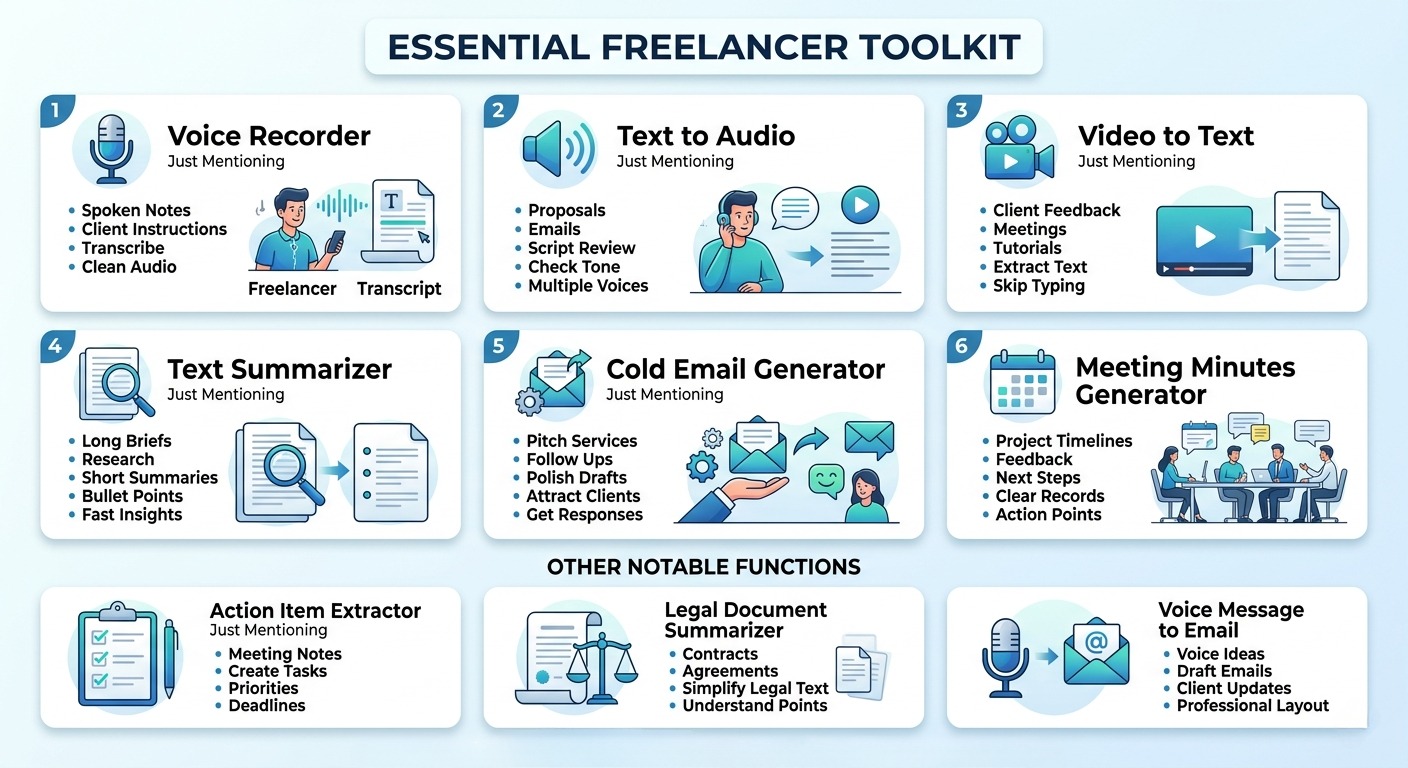
Freelancers often manage client calls, project notes, proposals, emails, revisions, deadlines, and different types of written or spoken content while working independently. Because of that, their work is not only about completing the main service, but also about understanding client requirements clearly, organizing communication, preparing professional responses, tracking tasks, and saving time on repeated writing or documentation work.
Tools Overview
Tool
Purpose
Best use case
Voice Recorder
Record ideas, calls, and notes clearly
Saving client requirements or quick project thoughts
Text to Audio
Listen to written content in natural voice
Reviewing proposals, emails, or scripts before sending
Text Summarizer
Shorten long text into clear points
Understanding briefs, notes, or research faster
Cold Email Generator
Create professional outreach emails
Pitching services or contacting new clients
Meeting Minutes Generator
Turn meetings into organized notes
Keeping a clear record of client discussions
Action Item Extractor
Extract tasks, priorities, and deadlines
Managing revisions, feedback, and project next steps
Legal Document Summarizer
Simplify complex legal text
Reviewing contracts or agreements more easily
Voice Message to Email
Turn voice notes into formatted emails
Sending client updates or follow-ups faster
All the important functions for a Freelancers
Record client notes and project ideas
Problem
Freelancers often receive client feedback, project ideas, requirements, and revision points during calls or while working. If these details are not recorded properly, they can easily be missed or forgotten.
Solution
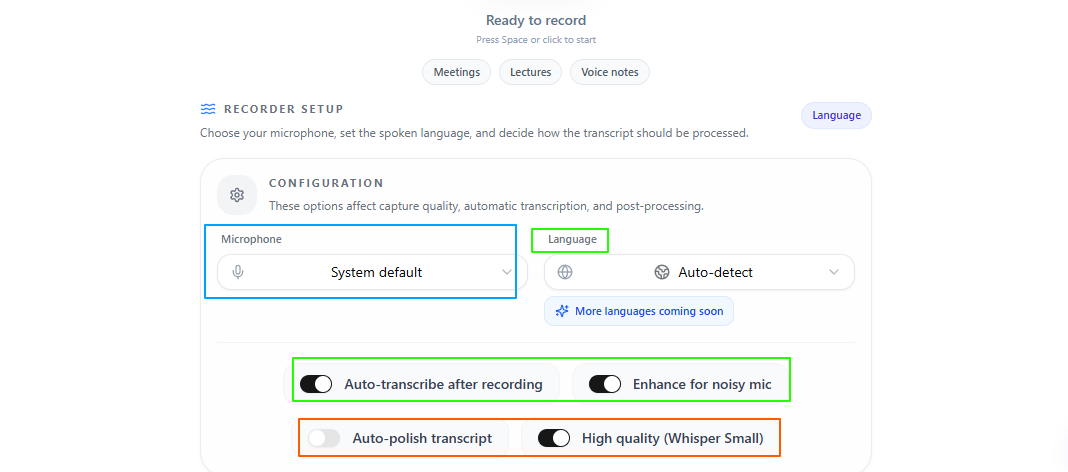
The Voice Recorder helps freelancers save spoken notes, client instructions, and project ideas clearly. It can also transcribe and polish the recording, making the content easier to review, use in emails, or turn into task notes.
Features:
Clean recording
Records voice notes with a simple and clean interface.
Mic selection
Lets users choose the best microphone for recording.
Auto noise enhancement
Helps reduce background noise for clearer audio.
High-quality recording
Supports clear voice capture, including low whisper recording.
Auto transcription
Turns recorded voice into written text.
Transcript polishing
Makes the transcript cleaner and easier to read.
Language detection
Can automatically detect the spoken language.
Multilingual support
Lets users manually select from many languages worldwide.
Tips to remember
Record important client instructions during or after calls.
Turn on transcription when you need written notes.
Use noise enhancement in busy places.
Review the polished transcript before using it.
Select the language manually if auto detection is not accurate.
Generate AI voice for text listening and recordings
Problem
Freelancers often write proposals, emails, scripts, client updates, or project content that needs to sound clear and professional. Reading the same text again and again can make it harder to notice weak flow, unclear wording, or unnatural sentences.
Solution
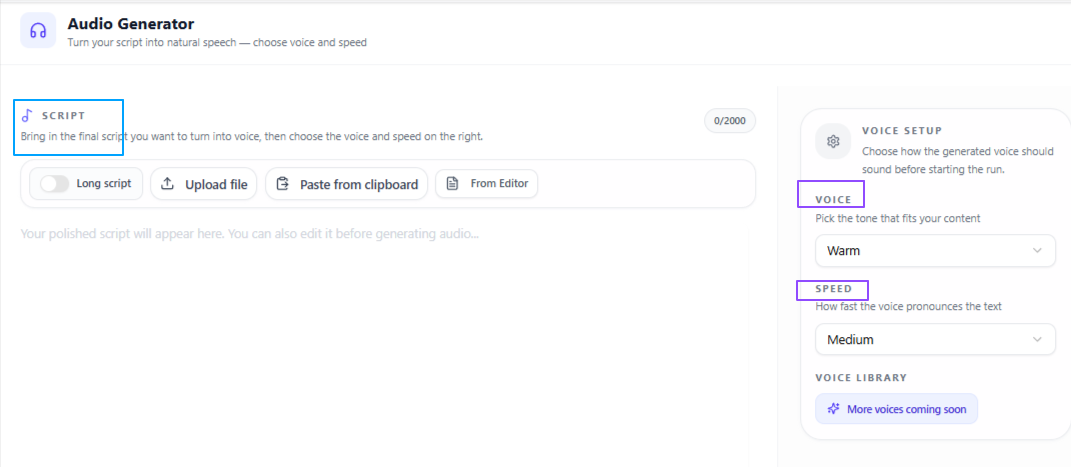
The Text to Audio tool helps freelancers turn written text into natural-sounding audio. This makes it easier to listen to proposals, emails, or project drafts before sending them, so they can check the tone, flow, and clarity in a different way.
Features:
Flexible input
Users can paste text, write it directly, upload a text file, or bring text from the site’s editor tool.
Voice selection
Different voice styles such as warm, deep, and soft are available.
Male and female voices
Users can choose between male and female voice options based on the tone they need.
Speed control
Speech speed can be selected as slow, medium, or fast.
Tips to remember
Use this before sending important proposals or client emails.
Try medium speed first for normal review.
Use slow speed when checking detailed or serious content.
Test different voices to match the tone of the content.
Listen once fully before making final edits.
Turn client videos and recorded discussions into editable text
Problem
Freelancers sometimes receive project details, feedback, tutorials, meetings, or reference material in video form. Going through the full video again and again can take time, especially when they only need the spoken content for notes, tasks, emails, or project work.
Solution
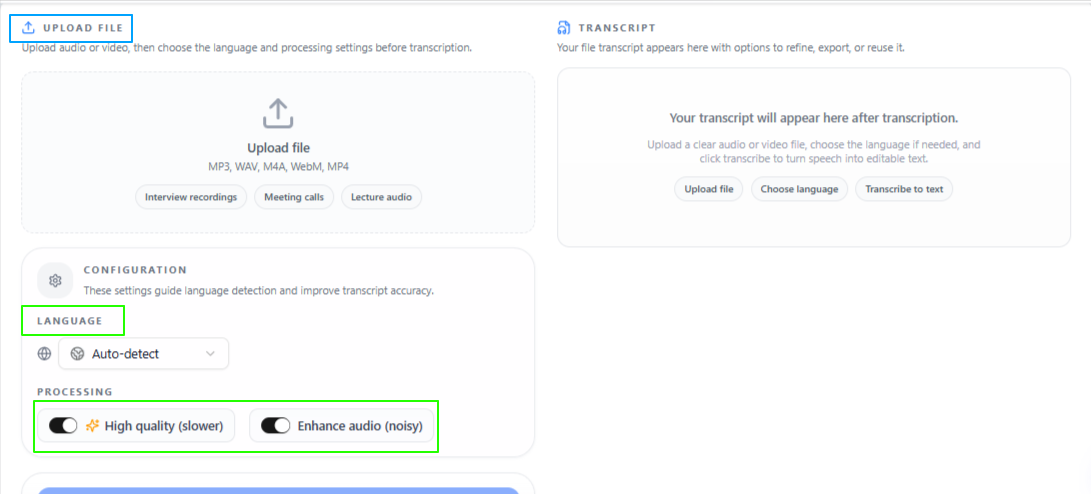
The Video to Text tool helps freelancers convert spoken video content into readable text. This makes it easier to review client instructions, extract useful points, reuse important details, and work with video-based information without manually typing everything.
Features:
Simple workflow
Users can upload the video, start the process, and get the text in a short time.
Auto language detection
Can automatically detect the spoken language in the video.
Manual language selection
Lets users select the language from many languages worldwide.
Processing options
Allows users to choose the processing level based on the quality they need.
High-quality processing
Gives deeper and more focused results, but may take more time.
Audio enhancement
Helps improve speech clarity by reducing noise in the audio.
Tips to remember
Use this when client information is shared in video format.
Choose high-quality processing for important client material.
Turn on audio enhancement if the video has background noise.
Select the language manually if auto detection is not accurate.
Review the final text before using it in tasks, emails, or notes.
Simply understand long client briefs and project notes
Problem
Freelancers often receive long briefs, research material, client instructions, documents, or feedback notes. Reading everything in detail every time can slow down the work, especially when they only need the main points to move forward.
Solution
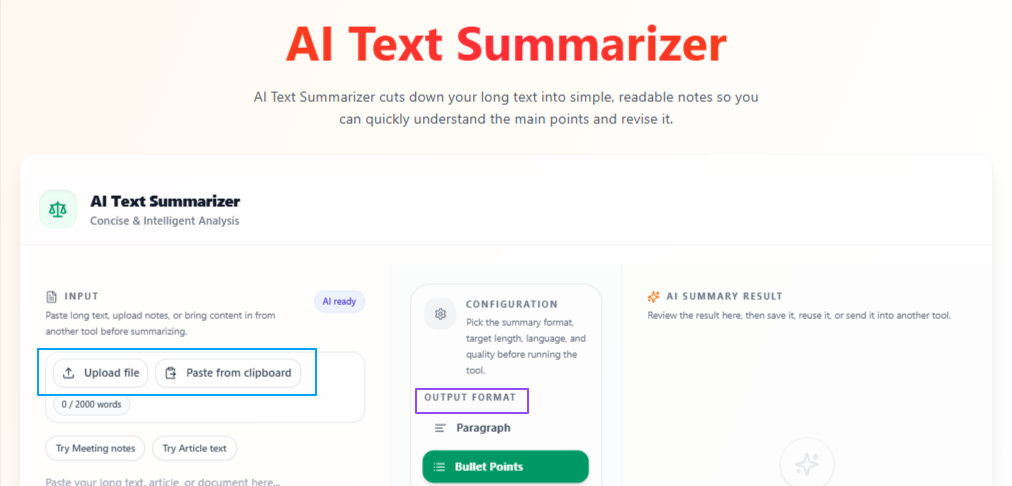
The Text Summarizer helps freelancers turn long text into shorter and clearer output. It makes client briefs, notes, and documents easier to understand, so freelancers can quickly find the important points and plan their work with less manual reading.
Features:
Flexible input
Users can paste text, write it directly, or upload a file.
Output format options
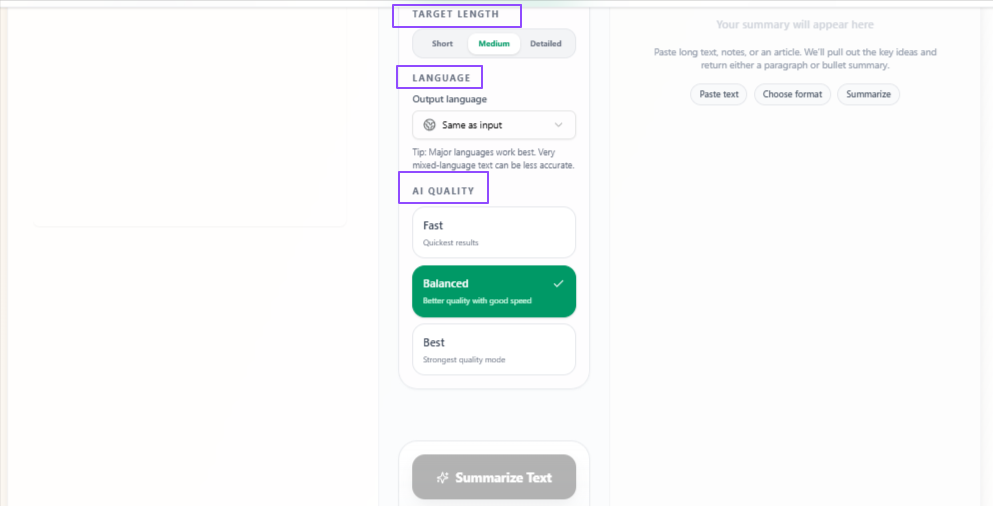
The summary can be generated in paragraph form or bullet points.
Target length control
Users can choose short, medium, or detailed summaries.
Language flexibility
The output language stays the same as input by default, but users can select another language if needed.
Quality control
Fast gives quicker output, Balanced gives quality with speed, and Best gives more focused results.
Tips to remember
Use bullet points when you need quick takeaways.
Use detailed summaries for important client briefs.
Choose paragraph format when you want smoother reading.
Use Best mode for complex documents or serious project material.
Review the summary once before making final decisions from it.
Write strong outreach emails for leads
Problem
Freelancers often need to contact new clients, pitch their services, or follow up with leads, but writing a cold email that feels clear, professional, and engaging can take time. A weak email may not explain the offer properly or may fail to get the client’s attention.
Solution
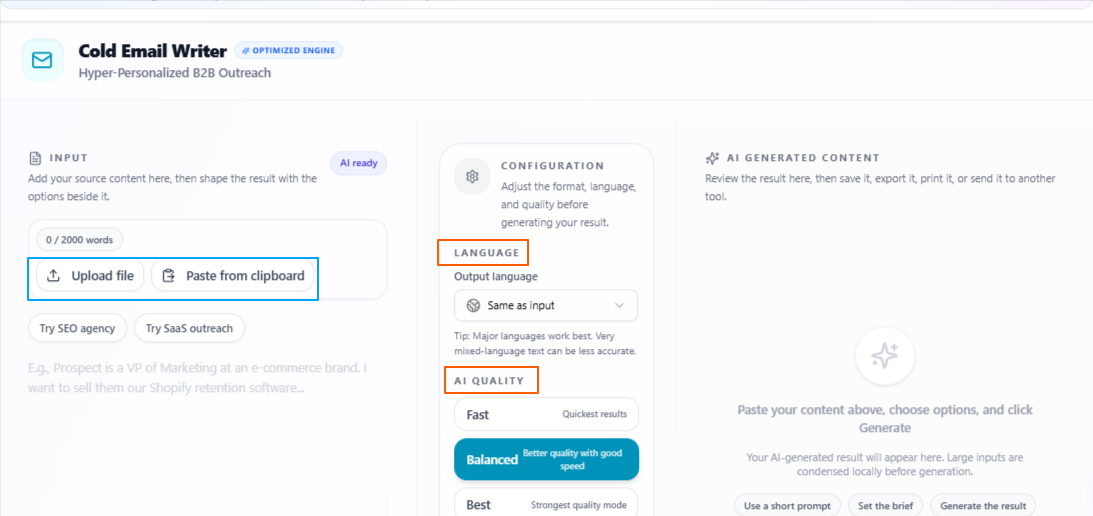
The Cold Email Generator helps freelancers turn rough ideas or source content into a more polished outreach email. It makes it easier to write client-focused emails for pitching services, starting conversations, and improving the chances of getting a response.
Features:
Flexible input
Users can upload source content, paste details, or write the email idea they have in mind.
Professional email writing
Creates a clear and well-structured cold email for outreach.
Sales-focused output
Helps write emails that are more engaging and useful for finding new clients.
Language flexibility
The output language stays the same as input by default, but users can select another language if needed.
Quality control
Fast gives quicker output, Balanced gives quality with speed, and Best gives more focused and deeply prepared results.
Tips to remember
Add clear details about your service before generating the email.
Use Balanced for regular outreach emails.
Use Best when contacting an important client or company.
Review the email so it still sounds natural and personal.
Keep client meetings organized with clear notes
Problem
Freelancers often discuss project requirements, feedback, timelines, and next steps during client meetings. If the meeting points are not organized properly, important details can be missed or become hard to track later.
Solution
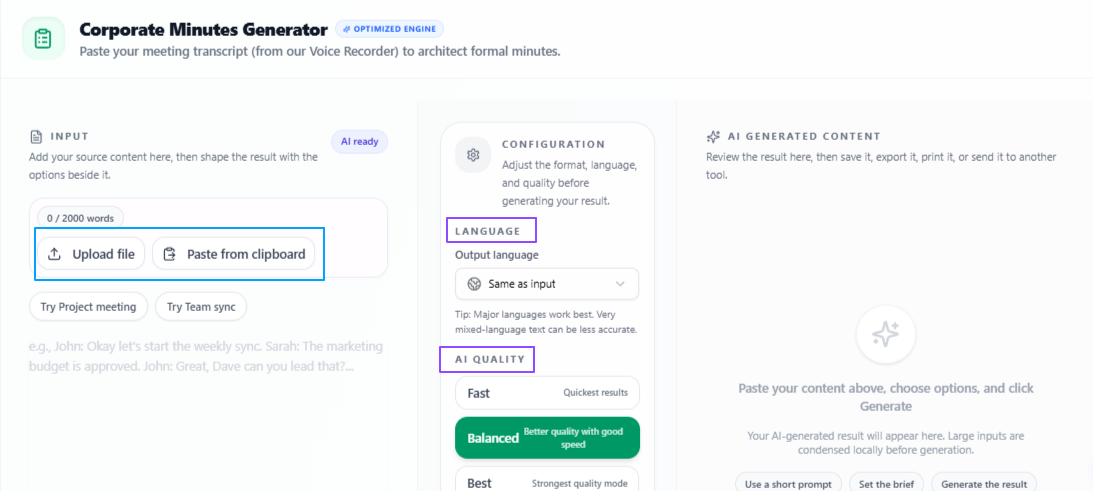
The Meeting Minutes Generator helps freelancers turn meeting content into clear minutes and important points. It makes client discussions easier to review, share, and use for planning the next steps of a project.
Features:
Flexible input
Users can upload or paste their meeting content.
Meeting minutes creation
Turns meeting content into organized notes and clear discussion points.
Important point extraction
Highlights the main points from the meeting so they are easier to review.
Language flexibility
The output language stays the same as input by default, but users can select another language if needed.
Quality control
Fast gives quicker output, Balanced gives quality with speed, and Best gives more focused and deeply prepared results.
Tips to remember
Use it after client meetings to keep a clean record.
Add complete meeting content for better minutes.
Use Best mode for important project or contract discussions.
Share the minutes with clients when confirmation is needed.
Review the notes once before using them for planning.
Other Notable Functions
Freelancers can also use some additional tools for tasks that may not happen every day but are still important in client work, project handling, and communication.
Action Item Extractor
This helps freelancers turn meeting notes, client feedback, or project content into clear tasks. It can organize work by priority level and mention deadlines, making it easier to know what needs to be done first.
Key features:
Priority level selection
Deadline mention
Actionable task output
Same-language output by default
Fast, Balanced, and Best quality modes
Legal Document Summarizer
Freelancers sometimes need to review contracts, agreements, terms, or client documents before starting work. This tool helps simplify complex legal text into easier language, so the main points are easier to understand.
Key features:
Simple legal summaries
Easier explanation of complex documents
Same-language output by default
Option to choose a different output language
Fast, Balanced, and Best quality modes
Voice Message to Email
This helps freelancers turn a recorded email idea or uploaded voice note into a properly written email. It is useful for sending client updates, follow-ups, explanations, or proposals without writing everything manually.
Key features:
Record or upload voice input
Converts spoken purpose into formatted email
Professional and relevant email output
Same-language output by default
Fast, Balanced, and Best quality modes
Conclusion
Overall, these use cases show how freelancers can use VoiceCraftTool to manage the practical work around client communication, project notes, outreach, meetings, and document review more easily. From recording important ideas to summarizing briefs, writing better emails, creating meeting notes, and organizing next steps, these tools help reduce the extra manual effort that often slows freelance work down, so freelancers can stay more focused on delivering quality work and handling clients in a clearer, more organized way.
Next step
Put this workflow to work
Use the tools directly once you finish reading, so the guide turns into action instead of just reference material.