Fill in a few easy fields, pick an interview-ready template, polish with AI, and download a professional PDF resume — no design skills required.
Satellite tool — plugs into Speak → Craft → Hear when useful
Resume Generator
Studio
Structured inputs to a PDF-ready resume
Input
Fill the tabs — CV updates on the right.
AI ready
Navy SidebarAdd job postAdd details
Optional. Fills the form from a PDF or Word file. You can also drop a file on the form below.
Resume template
Navy Sidebar
Configuration
Language and quality — template is chosen in the form.
Language
Tip: Major languages work best. Very mixed-language text can be less accurate.
AI Quality
Free drafts fast. Premium/Ultimate unlock clearer, publish-ready results on Plus.
Your CV
Updates as you type.
Navy Sidebar
Live
Resume Generator History
Saved items for this tool (per account)
Resume Generator Feedback
Ratings and comments from people who used this tool
No feedback yet for this tool.
Creating a professional resume sounds simple until you actually have to make one.
You may already know your education, experience, skills, languages, and achievements. The difficult part is deciding what information belongs on the resume, how it should be written, where everything should go, and which design looks appropriate for the job.
The AI Resume Generator makes this process easier. Add your information into clearly defined fields, upload an existing resume when needed, choose a template and language, and watch your resume take shape in the live preview.
You can download the resume you build yourself or use AI to improve it before creating the final version.
What Is an AI Resume Generator?
An AI Resume Generator helps turn your personal, educational, and professional information into a structured resume without requiring you to design the document from scratch.
Instead of starting with an empty page, the tool gives you dedicated fields for the information commonly required in a resume, such as:
Personal and contact information
Professional experience
Education
Skills
Languages
Professional links
Other relevant career information
As you add your details, the resume is built alongside the form so you can immediately see how your information appears in the selected template.
You stay in control of the information while the tool handles the structure and visual presentation.
Add Your Resume Information
You do not need to remember every section a professional resume may require.
The generator provides organized fields that guide you through the information you can add.
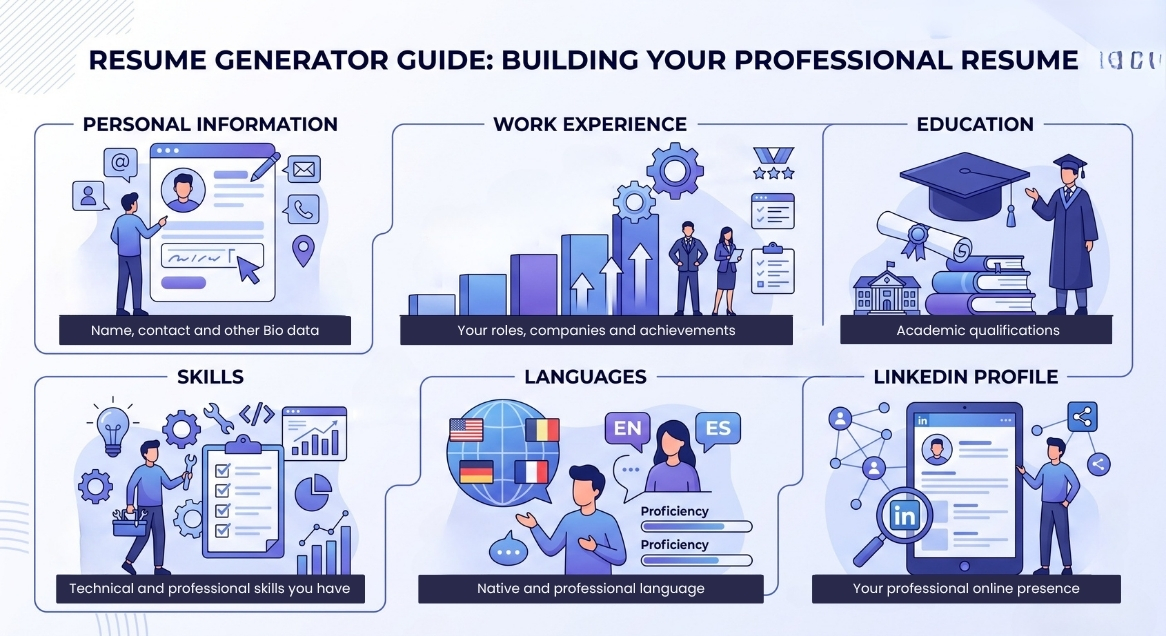
Personal Information
Add the basic details you want employers or recruiters to see, such as your name, professional title, contact information, and other relevant details.
Because the fields are already provided, you do not have to decide where each piece of information should go.
Work Experience
Add your previous roles, companies, employment periods, responsibilities, achievements, and other relevant professional experience.
You can build this section around the experience that is most useful for the jobs you plan to apply for.
Education
Enter your qualifications, institutions, study areas, and other educational information.
Your education is automatically placed into the structure of the selected resume template.
Skills
Add the technical, professional, or general skills that represent your capabilities.
This can include software skills, industry knowledge, communication skills, management abilities, or other relevant strengths.
Languages
List the languages you know and any relevant proficiency information.
This is especially useful for international roles or jobs where multilingual ability matters.
LinkedIn Profile
Add your LinkedIn profile link so it can be included with your professional information.
This gives recruiters another place to review your professional background when appropriate.
Use an Existing Resume as a Reference
Already have a resume?
You can upload your previous or existing resume instead of treating every new resume as a completely separate task.
The uploaded resume can provide useful reference information while you prepare the new version.
This is helpful when your current resume contains previous experience, education, skills, or other details that you do not want to manually reconstruct from memory.
Always review imported or reused information to make sure it is still accurate and relevant.
Choose a Resume Template That Fits You
A resume for a corporate position may need a very different appearance from one used by a designer, freelancer, graduate, or experienced professional.
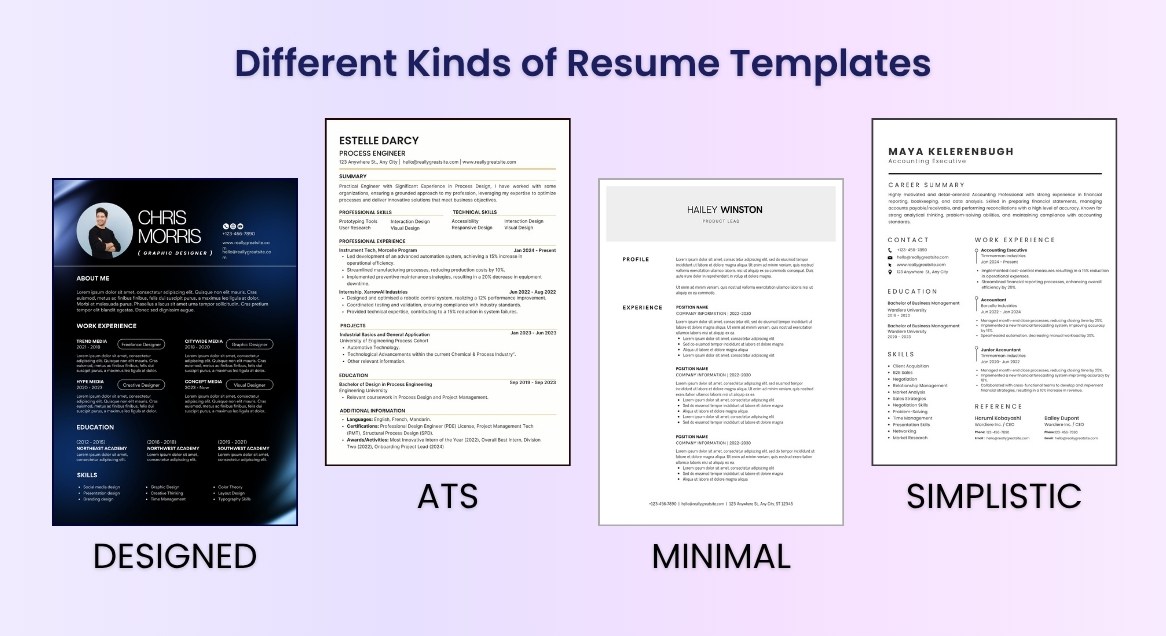
The AI Resume Generator provides multiple template styles so you are not forced into one visual format.
Professional Designed Templates
Choose a more visually styled resume with professional use of layout, typography, and color.
These templates can work well when presentation and personal branding are important.
Formal ATS-Focused Templates
Select a cleaner and more conventional layout when you want the resume structure to remain straightforward and easy to scan.
These templates are designed with ATS-conscious formatting in mind, although compatibility can still vary between applicant tracking systems and employers.
Minimalist Templates
Use a simple layout that keeps attention on your experience, education, and skills without unnecessary visual elements.
This works well for users who prefer a modern but restrained appearance.
Simple Resume Templates
Choose a straightforward format when clarity matters more than decorative design.
These templates can be useful for students, early-career applicants, general job applications, and professionals who prefer a traditional resume.
See Your Resume While You Build It
You do not have to finish every field before discovering what your resume looks like.
As you add or change information, the resume preview appears alongside your input.
This allows you to see:
How each section appears
How your information fits into the layout
Whether a section feels too long or too short
How the selected template looks with your actual information
What the resume may look like before downloading it
This live preview removes much of the trial and error involved in formatting a resume manually.
If something does not look right, you can adjust the information while you are still building it.
Create Your Resume in Different Languages
Select the language that matches the resume you want to create.
This can be useful when applying for roles in different countries, preparing resumes for international employers, or maintaining different versions of your professional profile.
After generating the resume, review job titles, company names, technical terminology, qualifications, and translated professional terms carefully.
Download What You Build or Improve It with AI
You are not required to use AI on every part of your resume.
Once you have entered your information and reviewed the live preview, you have two ways to continue.
Download Your Current Resume
If you are satisfied with the resume shown in the preview, you can download the version you have already built.
This is useful when your information is complete and you prefer to keep your own wording.
Improve the Resume with AI
If the information is correct but the wording could be stronger, you can use the AI improvement option before creating the final version.
AI can help refine how the supplied information is presented and make the content more suitable for a professional resume.
The final resume should still be reviewed by you. Make sure AI improvements accurately represent your real experience, responsibilities, qualifications, and achievements.
Key Features
Guided Resume Fields
Add your information through dedicated sections instead of figuring out the resume structure yourself.
Existing Resume Upload
Use a previous resume as an additional source when creating your updated version.
Multiple Resume Templates
Choose from professionally styled, formal, ATS-focused, minimalist, and simple resume designs.
Live Resume Preview
See your resume update while you enter your information.
AI Resume Improvement
Refine your resume content with AI before creating the final version.
Direct Download Option
Download the resume you have built without having to use AI improvement.
LinkedIn Profile Support
Include your LinkedIn profile with your professional information.
Multiple Language Options
Create resume versions suitable for different languages and application needs.
How to Use the AI Resume Generator
Step 1: Add Your Information
Enter your personal details, experience, education, skills, languages, and other relevant information into the provided fields.
You can also add your LinkedIn profile and upload an existing resume when useful.
Step 2: Choose a Template and Language
Select a resume design that fits your profession, experience level, or preferred style.
Then choose the language you want to use for the resume.
Step 3: Review the Live Preview
Watch the resume update as you enter your information.
Check the structure, section lengths, wording, and overall appearance before moving forward.
Step 4: Download or Improve with AI
If the preview already meets your needs, download the resume.
If you want help refining the content, use the AI improvement option first and then review the final result before using it for an application.
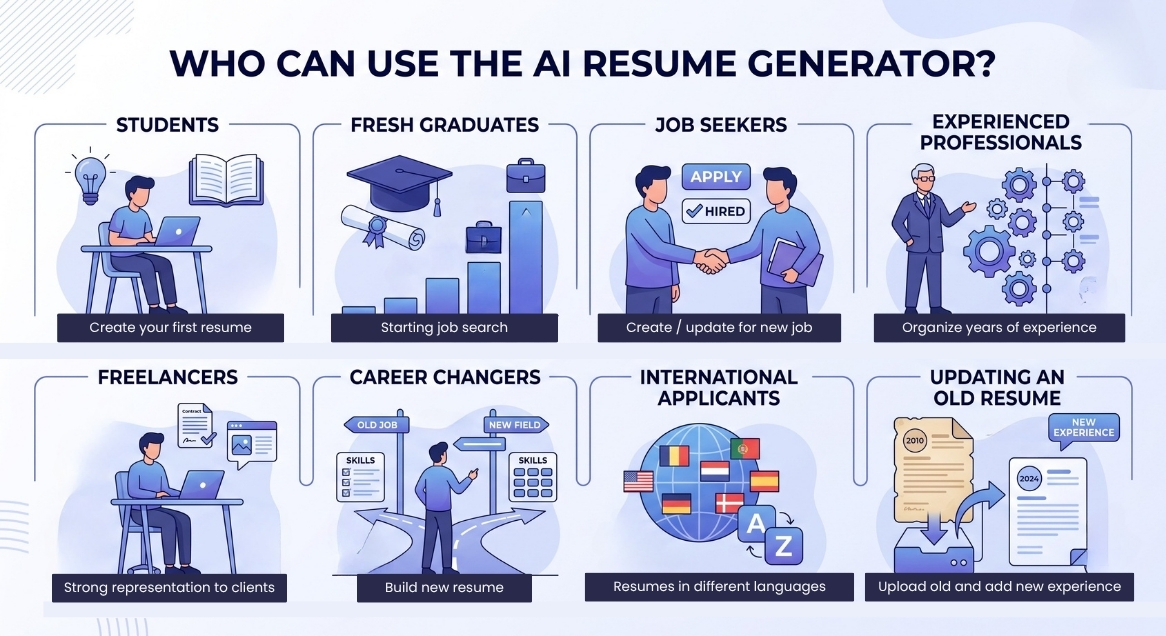
Who Can Use the AI Resume Generator?
Students
Create a first resume without having to understand professional resume design or build every section manually.
Students can organize education, skills, languages, projects, internships, and early experience into a clear structure.
Fresh Graduates
Turn academic experience, internships, skills, and early career information into a resume suitable for starting a job search.
The guided fields can also help reduce uncertainty about what information should be included.
Job Seekers
Create or update a resume for new applications without spending time manually redesigning the document.
Different template options also make it easier to prepare a style that matches the type of role being targeted.
Experienced Professionals
Organize years of experience, responsibilities, skills, and education into a more structured resume.
An existing resume can also be used as a reference when preparing an updated version.
Freelancers
Create a professional resume that presents skills, previous work, experience, and relevant professional links for clients or contract opportunities.
Career Changers
Build a new resume around transferable experience, education, and skills when moving into another profession or industry.
International Applicants
Create resumes in different languages and select a template suitable for the type of employer or application.
Requirements can differ between countries, so applicants should still review the expectations of the specific market and employer.
Professionals Updating an Old Resume
Upload an older resume, add newer experience and skills, choose a fresh template, and prepare an updated version without rebuilding everything manually.
Tips for Creating a Better Resume
Keep all dates, qualifications, job titles, and company names accurate.
Focus on experience and skills that are relevant to the jobs you are targeting.
Use specific responsibilities and achievements instead of vague descriptions where possible.
Avoid adding skills you cannot genuinely demonstrate.
Keep your LinkedIn profile updated if you include its link.
Choose a template that fits the type of role and industry.
Use a simpler layout when applying through systems that may parse resume content automatically.
Review any information taken from an older resume before reusing it.
Check AI-improved wording to make sure it does not exaggerate your experience.
Proofread the final resume for spelling, grammar, formatting, and incorrect dates.
Create different resume versions when applying for substantially different types of roles.
Review the requirements of the employer or job application before submitting your resume.
Resume Builder FAQ
Can I use AI to create my resume?
AI can help organize, improve, and rewrite the information you provide for your resume. You should still review the final version to make sure your experience, skills, education, and achievements are accurate and not exaggerated.
Will an AI-generated resume pass ATS?
A resume is not automatically rejected by an applicant tracking system because AI was used to create it. Clear formatting, readable text, standard section headings, and relevant information are generally more important. If ATS compatibility is a priority, choosing a simple or ATS-focused template is usually the safer option.
Should I use a designed resume or a simple ATS resume?
It depends on the type of job and how you are applying. A simple or ATS-focused resume may work better for applications submitted through recruitment systems, while a professionally designed resume can be useful for creative, freelance, or presentation-focused roles.
Should my resume be one page or two pages?
There is no fixed rule for everyone. Students, fresh graduates, and people with limited experience can often use one page, while experienced professionals may need two pages to present relevant information properly. Avoid removing useful experience just to force everything onto one page.
Do I need a different resume for every job application?
You do not have to rebuild your resume completely each time, but it is helpful to adjust it for the role you are applying for. Highlight the experience, skills, and achievements that are most relevant to the job instead of using exactly the same version everywhere.
What should I include if I have no work experience?
You can focus on education, skills, internships, academic projects, certifications, volunteer work, languages, and other relevant activities. A good resume does not require you to invent experience. It should present the abilities and experience you already have in the clearest way possible.
Can AI improve my resume without changing my actual experience?
Yes. AI can help improve wording, structure, and clarity while keeping the underlying information the same. Always review AI-improved sections and remove anything that introduces a skill, responsibility, achievement, qualification, or result that is not true.
Next in the studio
Related career tools
Next steps in the Speak → Craft → Hear studio — each card shows why it fits.