Teachers often get useful lesson ideas, classroom reminders, explanation points, or student feedback thoughts during the day, but writing everything down immediately is not....
Teachers often work with lessons, class recordings, study material, student explanations, notes, assignments, and daily teaching tasks while trying to keep everything clear, organized, and useful for learning. Because of that, their work is not only about teaching in the classroom, but also about preparing material, simplifying difficult topics, turning spoken lessons into usable notes, creating audio support for students, and managing follow-up tasks in a way that saves time without reducing the quality of learning.
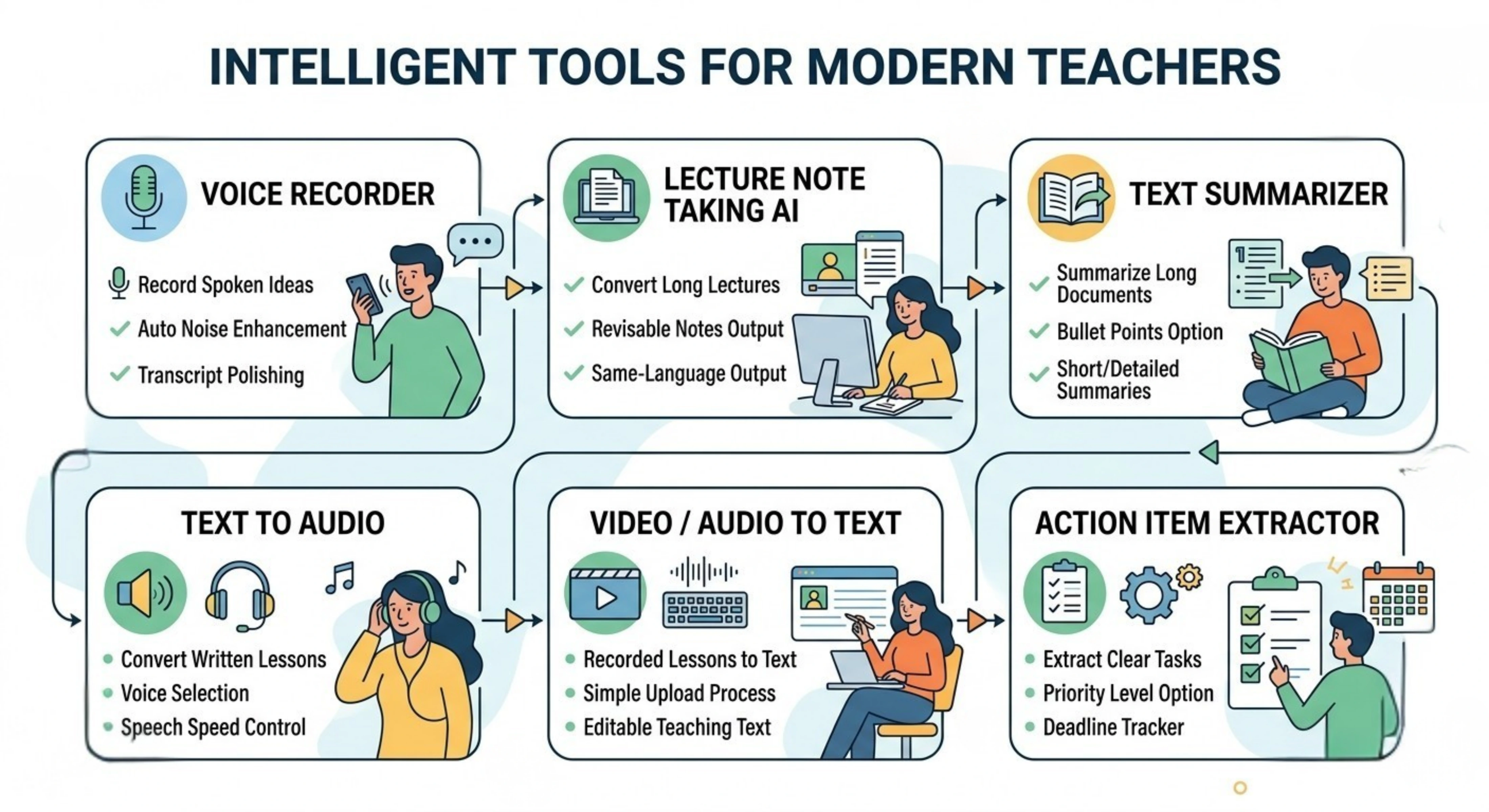
Tools Overview
Tool
Purpose
Best Use Case
Voice Recorder
Records clear teaching notes and spoken ideas
Saving lesson ideas, explanations, or feedback quickly
Lecture Notes Taker
Turns lectures into organized notes
Creating study notes from classes, videos, or audio lessons
Text Summarizer
Shortens long educational content
Summarizing chapters, articles, or teaching resources
Text to Audio
Converts text into spoken audio
Creating audio lessons or revision material for students
Video to Text
Turns recorded lessons into text
Transcribing online classes, lectures, or explanations
Action Item Extractor
Converts content into clear tasks
Making follow-up tasks from meetings, plans, or discussions
Script Editor
Improves teaching scripts and lesson flow
Preparing better scripts for lectures, videos, or presentations
All the important functions for a Teacher
Record lectures or important points
Problem
Teachers often get useful lesson ideas, classroom reminders, explanation points, or student feedback thoughts during the day, but writing everything down immediately is not always practical. Basic recordings can also become hard to use later if the audio is unclear or if the teacher has to listen again just to find one important point.
Solution
Voice Recorder helps teachers save their spoken ideas in a clearer and more usable way. They can record lesson thoughts, class explanations, quick reminders, or feedback notes, and then turn those recordings into readable text with transcription and transcript polishing options.
Features:
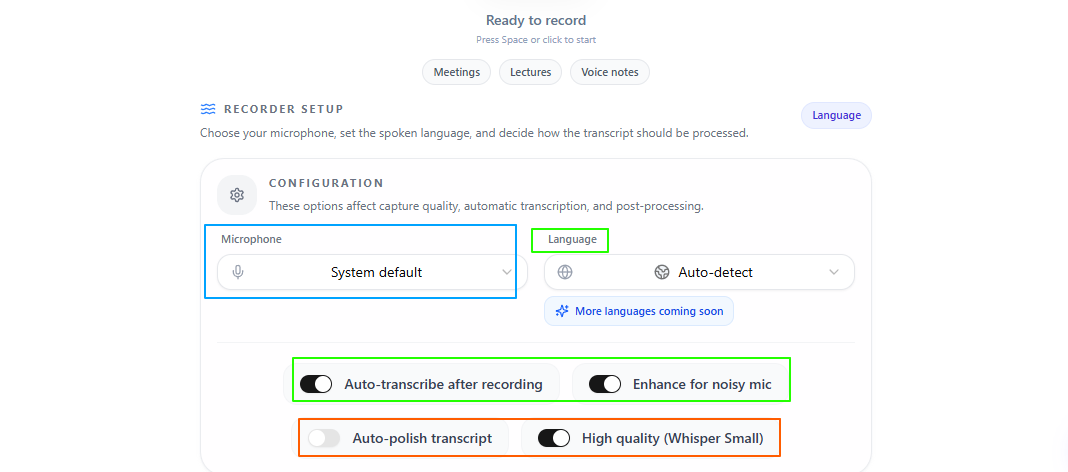
Clean voice recording
Teachers can record spoken notes, lesson ideas, or explanations through a simple and easy interface.
Mic selection
Teachers can choose the microphone that best fits their recording setup.
Auto noise enhancement
Background sound can be reduced to make the recorded voice clearer.
High-quality recording
The tool supports clear voice capture, even when the speech is quiet or low.
Auto transcription
Spoken content can be turned into text along with the recording.
Transcript polishing
The transcribed text can be cleaned and made easier to read.
Language detection
The spoken language can be detected automatically.
Manual language selection
Teachers can also select the language themselves from multiple languages worldwide.
Tips to remember
Use it when a lesson idea comes suddenly and you do not want to lose it.
Turn on transcription when you need written notes along with the recording.
Use noise enhancement when recording in a classroom, staff room, or busy space.
Select the correct microphone before recording if more than one option is available.
Use transcript polishing when the recorded note needs to be turned into cleaner teaching material.
Review the final transcript before using it in lesson notes, class material, or student feedback.
Turn lectures into clear notes students can revise easily
Problem
Teachers often have long lectures, recorded classes, training sessions, or lesson explanations that contain useful learning material, but the full content can be difficult for students to revise later. Manually converting a lecture into clean notes also takes extra time, especially when the teacher wants the notes to be organized and easy to remember.
Solution
Lecture Note Taking AI helps teachers turn lecture content into accessible and revisable notes. They can upload a lecture in video, audio, or text form, and the tool prepares clearer notes that students can review, memorize, and use for study without going through the full lecture again.
Features:
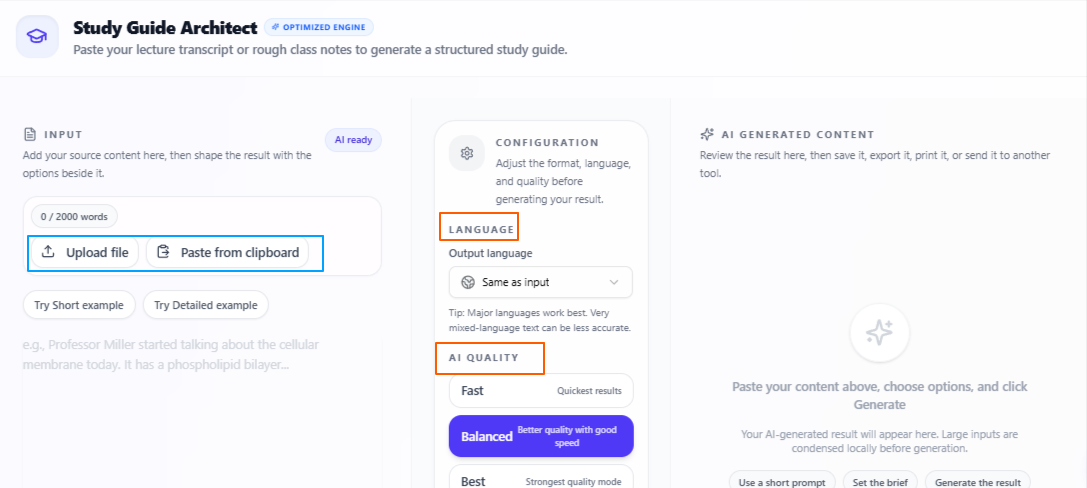
Flexible lecture input
Teachers can upload lecture content in the form of video, audio, or text.
Revisable notes output
The tool turns lecture material into notes that are easier for students to read, revise, and remember.
Same-language output
The notes are generated in the same language as the input by default.
Output language selection
Teachers can also select a different output language when they need notes for multilingual students.
Quality Control:
Fast mode gives quicker results when teachers need notes in less time. Balanced mode keeps a practical mix of speed and quality for regular classroom use. Best mode takes more time but gives more focused and deeply prepared notes.
Tips to remember
Use it after recorded lectures to create notes students can revise later.
Upload text-based lecture material when you already have rough class notes or scripts.
Use Fast mode when you need quick notes for simple lessons.
Use Balanced mode for regular teaching and study material.
Use Best mode when the lecture is important and needs more careful note preparation.
Change the output language only when students need the notes in another language.
Review the final notes once before sharing them with students.
Make long teaching material easier to review and explain
Problem
Teachers often work with long chapters, articles, lesson references, student material, or educational documents, but going through the full text every time can take too much time. It can also be difficult to quickly pull out the main points when preparing lessons, revision material, or classroom explanations.
Solution
Text Summarizer helps teachers turn long written content into a shorter and clearer version. They can paste text, write directly, or upload a file, then choose whether the summary should appear as paragraphs or bullet points based on how they want to use it for teaching or student revision.
Features:
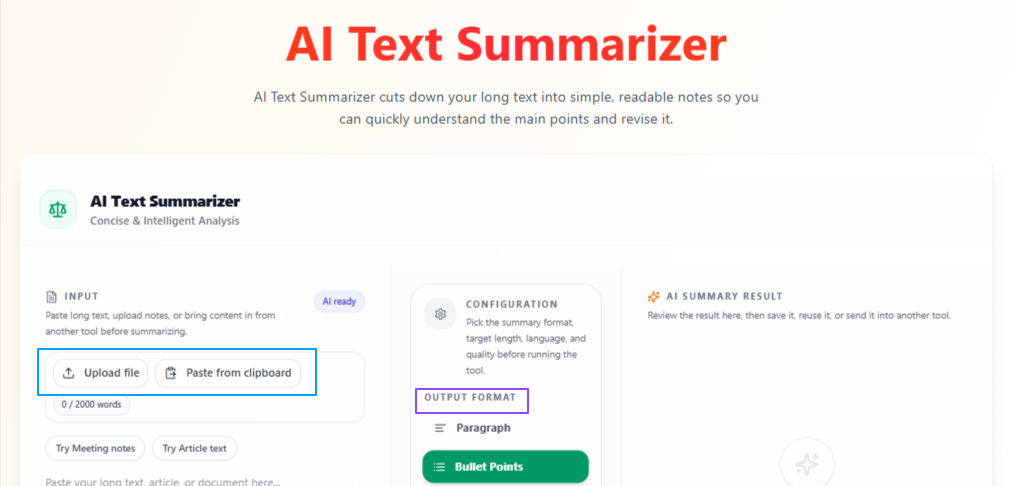
Flexible text input
Teachers can paste text, write directly in the tool, or upload a file.
Paragraph summary option
The output can be created in paragraph form when teachers want a more connected and readable explanation.
Bullet point summary option
The output can be created in bullet points when teachers need quick key points for revision or class discussion.
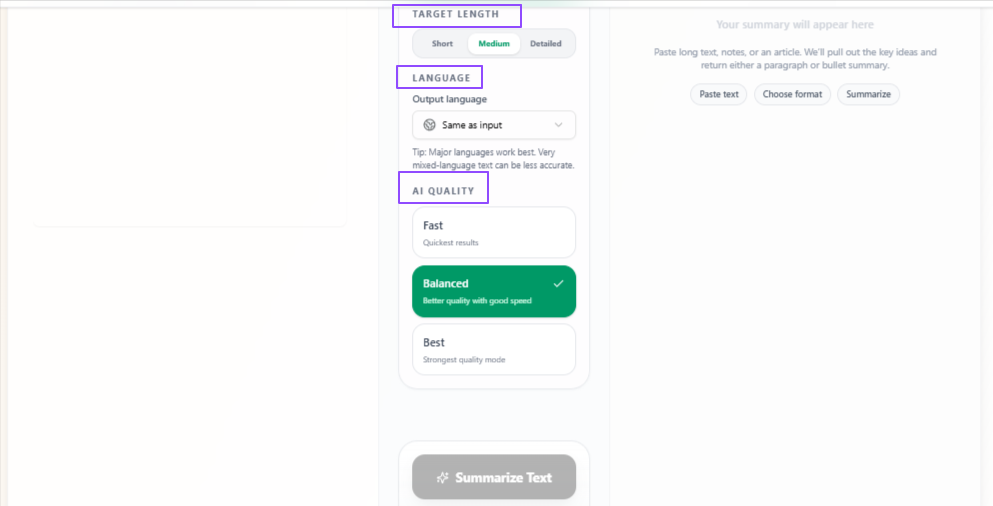
Target length control
Teachers can choose short, medium, or detailed summaries based on how much information they want to keep.
Same-language output
The summary stays in the same language as the input by default.
Output language selection
Teachers can also select another output language when needed.
Tips to remember
Use bullet points when you need quick revision notes.
Use paragraph format when you want a smoother explanation for students.
Choose short summaries for quick review.
Choose detailed summaries when the topic needs more context.
Use Balanced mode for regular lesson preparation.
Use Best mode when summarizing important study material.
Review the summary once before using it in class notes or student material.
Create audio lessons from written teaching material
Problem
Teachers often prepare written lesson content, explanations, revision notes, or study material, but students may not always want to read everything in text form. Some students understand better by listening, and teachers may also need audio material for online learning, revision support, or accessibility.
Solution
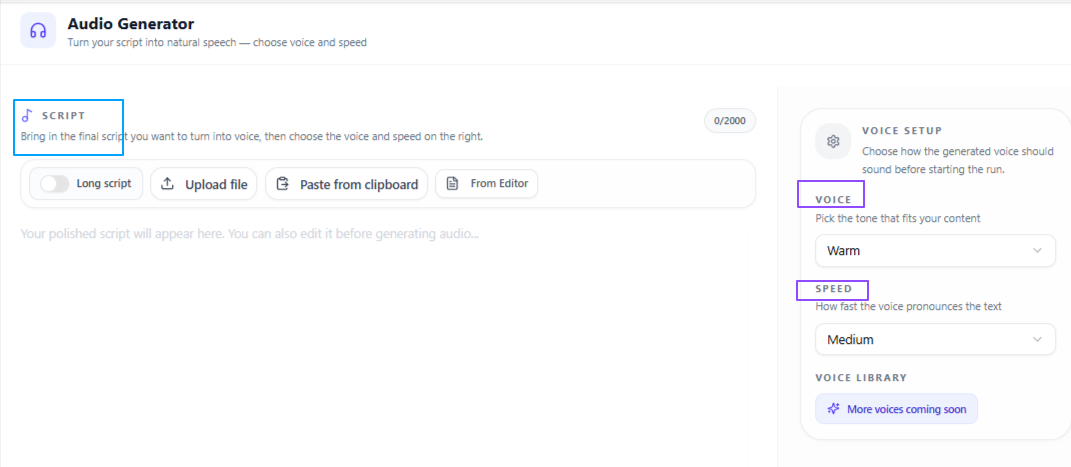
Text to Audio helps teachers turn written content into spoken audio. They can paste text, write directly, upload a text file, or bring content from the site’s editor tool, then choose a suitable voice and speech speed based on the type of lesson or learning material they want to create.
Features:
Flexible text input
Teachers can paste text, write directly, upload a text file, or use content from the site’s editor tool.
Voice selection
Teachers can choose from different voice styles such as warm, deep, or soft.
Male and female voices
The available voices are classified into male and female options.
Speech speed control
Teachers can select slow, medium, or fast speech speed based on the learning need.
Audio lesson creation
Written teaching material can be converted into spoken audio for students to listen to.
Tips to remember
Use slow speed when the topic is difficult or students need more time to understand.
Use medium speed for regular lessons and revision material.
Use a softer voice for calm listening material or student revision.
Use a warmer voice for explanations that should feel more natural.
Review the text before converting it into audio.
Use it to create listening support for students who prefer audio-based learning.
Convert recorded lessons into editable teaching text
Problem
Teachers often have recorded classes, online lessons, audio explanations, or educational videos that contain useful material, but spoken content is not always easy to review, edit, or reuse. Listening again to the full recording can take extra time when the teacher only needs the written version for notes, summaries, or class material.
Solution
Video / Audio to Text helps teachers turn recorded lessons and spoken material into editable text. They can upload the video or audio, start the process, and get written output that can be used for notes, revision material, lesson summaries, or future teaching content.
Features:
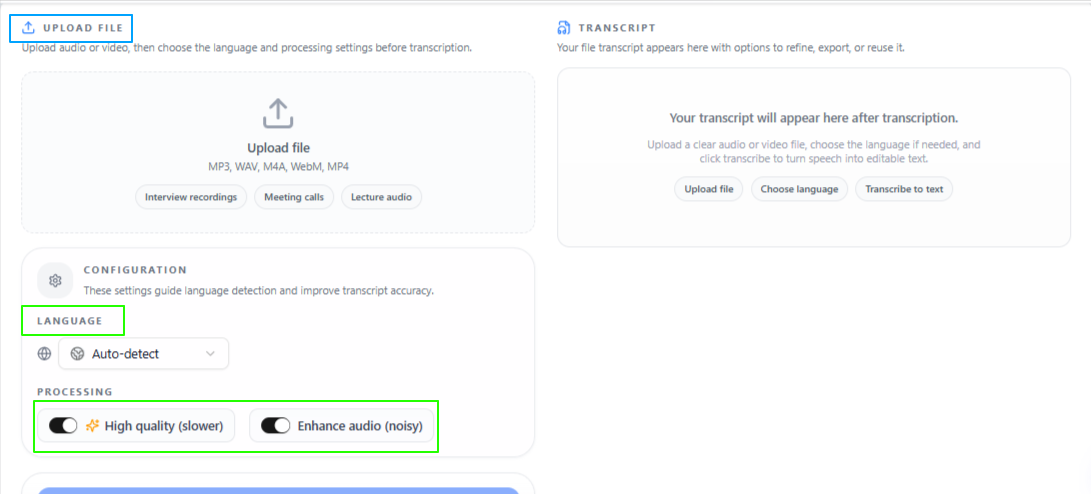
Simple upload process
Teachers can upload the video or audio file and start the process easily.
Quick text output
The tool converts spoken content into text in just a few moments.
Auto language detection
The spoken language can be detected automatically.
Manual language selection
Teachers can also select the language themselves from many languages worldwide.
High-quality processing
Teachers can choose deeper processing when they need more focused and accurate results.
Noise enhancement
The audio can be enhanced when background noise affects speech clarity.
Tips to remember
Use it for recorded lectures, online classes, or spoken explanations.
Choose high-quality processing when the lesson is important and accuracy matters more.
Use noise enhancement when the recording has classroom or background noise.
Select the language manually if auto detection may not be accurate.
Review the final text before turning it into notes or student material.
Keep the original recording when you may need to check the context later.
Turn teaching plans and discussions into clear next steps
Problem
Teachers often handle lesson planning, staff discussions, student feedback, class activities, and academic tasks at the same time. After a meeting, lecture plan, or long discussion, it can be difficult to quickly identify what needs to be done, which tasks matter first, and what deadlines should be followed.
Solution
Action Item Extractor helps teachers turn teaching-related content into clear and actionable tasks. They can upload the content and get organized action points with priority levels and deadlines, making it easier to manage classroom work, planning tasks, and follow-up responsibilities.
Features:
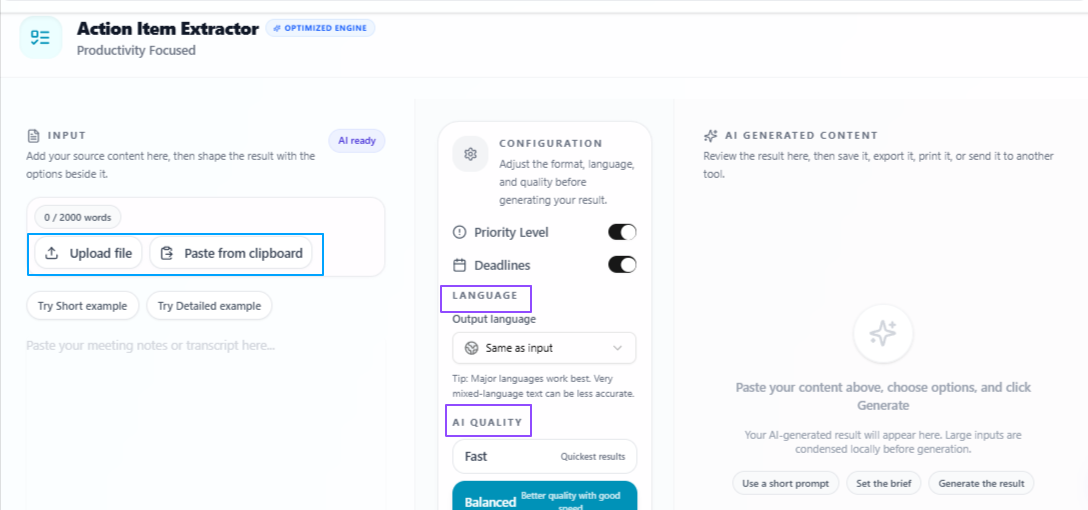
Content upload
Teachers can upload content and turn it into actionable output.
Priority level option
Tasks can be arranged based on priority so teachers can see what needs attention first.
Deadline option
The output can include ending times or deadlines for tasks when needed.
Actionable task output
The tool turns long content into clear task points that are easier to follow.
Same-language output
The output stays in the same language as the input by default.
Output language selection
Teachers can also select another output language when needed.
Tips to remember
Use it after staff meetings, class discussions, or planning sessions.
Select priority level when you want to know which tasks should come first.
Use the deadline option when tasks need to be completed within a specific time.
Use Balanced mode for regular teaching and planning work.
Use Best mode when the content is detailed and needs careful task extraction.
Review the final task list before adding it to your teaching schedule.
Improve lesson content before recording or presenting
Problem
Teachers often need scripts for lectures, online classes, explainer videos, presentations, or student guidance, but rough scripts may not always sound clear, natural, or well-structured. A script can have the right information but still need better flow, tone, and organization before it is used for teaching.
Solution
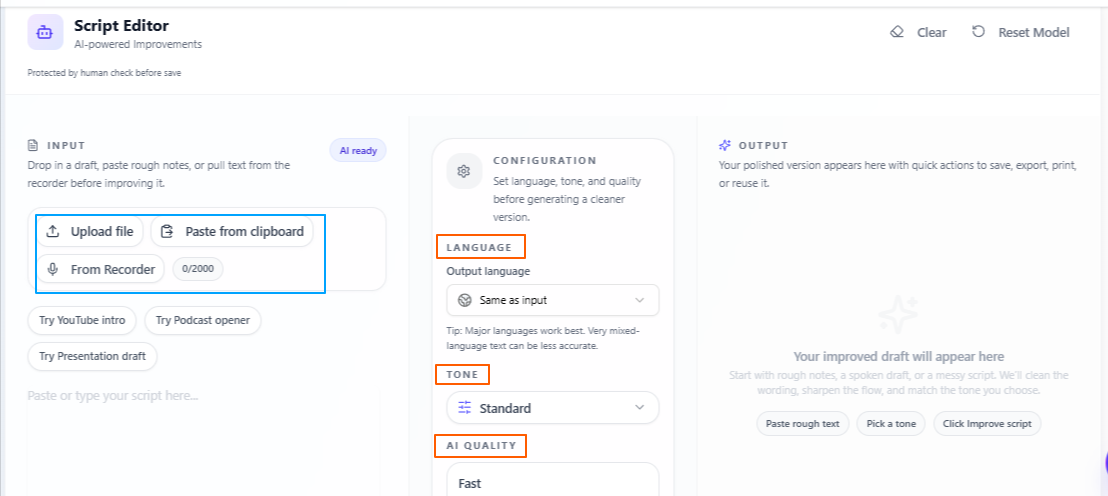
Script Editor helps teachers improve their lesson scripts and spoken teaching content. They can paste text, write directly, record at the same time, or upload a file, then refine the script for better tone, structure, and overall quality.
Features:
Flexible input options
Teachers can paste the script, write it directly, record it at the same time, or upload a file.
Script quality improvement
The tool improves the script in terms of clarity, structure, tone, and overall flow.
Tone selection
Teachers can choose different tones from the dropdown based on the type of lesson or presentation.
Text, video, and audio support
The tool can help edit script content from text, video, or audio.
Tips to remember
Use it before recording online lessons or educational videos.
Select a tone that matches the teaching purpose.
Use Balanced mode for regular lesson scripts.
Use Best mode when the script is for an important lecture or presentation.
Review the final script once to make sure it still sounds like your teaching style.
Use it when a rough explanation needs to become clearer and easier for students to follow.
Conclusion
Overall, these use cases show how teachers can use VoiceCraftTool to make their teaching work easier, clearer, and more organized. From recording ideas and turning lectures into notes to summarizing material, creating audio lessons, extracting tasks, and improving scripts, the tools help reduce repetitive preparation work and give teachers more practical support for planning, explaining, revising, and sharing learning material with students.
Next step
Put this workflow to work
Use the tools directly once you finish reading, so the guide turns into action instead of just reference material.