Convert PDF Text to Audio in Seconds | Step by Step Guide 2026
Reading long PDFs often feels slow and easy to put off, but turning them into audio makes it simple to listen anytime instead of staring at a screen. In this guide, you will learn how to convert PDF text to audio quickly and easily so you can listen to your documents wherever you are.
What You Need In Your Tool
PDF Upload Support
The tool should allow you to upload your PDF directly without needing to copy and paste the text. This makes the process faster and more practical, especially for longer documents.
Clear Text Recognition
It should be able to read the text properly from your PDF so the audio comes out smooth and understandable without missing words or breaking sentences.
Voice and Language Options
A good tool gives you different voice choices and language support so you can pick what fits your content and listening style.
Speed Control
You should be able to adjust how fast or slow the audio plays. This helps depending on whether you are learning, reviewing, or just listening casually.
Download or Listen Option
The tool should let you either listen to the audio instantly or download it so you can use it later without needing to convert again.
Convert PDF Text to Audio Using Text to Audio AI Tool by VoiceCraftTool
If you want a straightforward way to turn your PDF into audio without dealing with multiple tools or extra steps, you can use the VoiceCraftTool Text to Audio AI. It brings everything into one place so you can go from document to audio in a smooth and simple flow.

Key Features:
Direct PDF to Audio Workflow:
You can work with your content without breaking your flow. Upload your PDF or add the text and convert it in the same space without switching between tools.
Natural Voice Output:
The audio is designed to sound clear and easy to follow, which makes it useful for longer listening sessions like study material or reports.
Voice and Language Options:
You can choose from different voices and languages based on your content. This helps you match the tone whether it is formal, casual, or educational.
Speed Control
You have control over how fast or slow the audio plays, so you can adjust it depending on how you prefer to listen.
Instant Playback and Download:
Once the audio is ready, you can listen to it right away or download it to use later without needing to convert again.
How to Convert PDF Text to Audio - Simple Steps
Converting your text in PDF format to audio is quite simple with VoiceCraftTool’s Audio to Text AI. Just a simple and straight process and you get the output you need.
Step 1: Open the Tool
Go to the VoiceCraftTool Text to Audio AI in your browser. You will see a clean input area with voice and basic settings ready to use.
Step 2: Upload or Add Your PDF Content
Upload your PDF file or paste the text into the input box. This step is quick and works for both short and long documents.
Step 3: Select Voice and Adjust Settings
Choose a voice that fits your content and adjust the speed if needed. Keeping the default settings works well for most cases.
Step 4: Generate and Use the Audio
Start the conversion and wait a few seconds for the audio to be ready. You can listen instantly or download it and use it anytime.
Try it now for clean non-robotic output,PDF text to Audio.
Tips for Better Audio Output
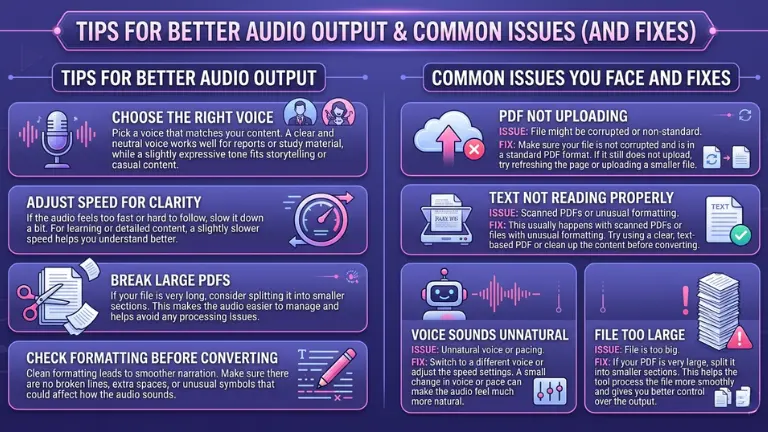
Choose the Right Voice:Pick a voice that matches your content. A clear and neutral voice works well for reports or study material, while a slightly expressive tone fits storytelling or casual content.
Adjust Speed for Clarity:If the audio feels too fast or hard to follow, slow it down a bit. For learning or detailed content, a slightly slower speed helps you understand better.
Break Large PDFs:If your file is very long, consider splitting it into smaller sections. This makes the audio easier to manage and helps avoid any processing issues.
Check Formatting Before Converting:Clean formatting leads to smoother narration. Make sure there are no broken lines, extra spaces, or unusual symbols that could affect how the audio sounds.
Common Issues You Face and Fixes
PDF Not Uploading
Make sure your file is not corrupted and is in a standard PDF format. If it still does not upload, try refreshing the page or uploading a smaller file.
Text Not Reading Properly
This usually happens with scanned PDFs or files with unusual formatting. Try using a clear, text-based PDF or clean up the content before converting.
Voice Sounds Unnatural:
Switch to a different voice or adjust the speed settings. A small change in voice or pace can make the audio feel much more natural.
File Too Large:
If your PDF is very large, split it into smaller sections. This helps the tool process the file more smoothly and gives you better control over the output.
Use Cases of VoiceCraftTool’s Text to Audio tool
Students Listening to Notes
Instead of reading long notes again and again, students can turn them into audio and listen while walking, traveling, or taking a break from screens.
Professionals Reviewing Documents
Reports, PDFs, and work documents can be converted into audio so they can be reviewed during commutes or while doing routine tasks.
Content Creators Repurposing Content
Creators can turn written content into audio formats like voiceovers, podcasts, or quick summaries without rewriting everything from scratch.
Language Learners
Listening to text in audio form helps with pronunciation and understanding. It makes learning more natural compared to only reading text.
You can turn any languages text to any language output.Try Now!
Conclusion
Converting PDF text to audio makes it much easier to go through your content without being stuck reading on a screen. Instead of delaying long documents, you can simply listen to them anytime while doing other tasks. With a simple tool and a few quick steps, you can turn any PDF into clear audio, save time, and make your reading process more flexible and consistent.
Convert your PDF or any other format text to non-robotic clean audio with VoiceCraftTool now. Try NowText to Audio AI by VoiceCraftTool