Free Online Voice Recorder: Secure, Unlimited, and Browser-Based
Jan 27, 2026
2 min read
Recording your voice should be simple. You should not need expensive software, complicated settings, or a large app just to capture an idea, lecture, meeting note, or content draft.
TheVoiceCraftTool Free Online Voice Recorderlets you record audio directly from your browser. Open the tool, allow microphone access, press record, and start speaking.
It is a practical option for students, creators, professionals, podcasters, freelancers, and anyone who wants a quick way to capture their voice online.
What Is an Online Voice Recorder?
An online voice recorder is a browser-based tool that uses your device's microphone to capture audio.
Instead of installing traditional recording software, you can record directly from your browser.
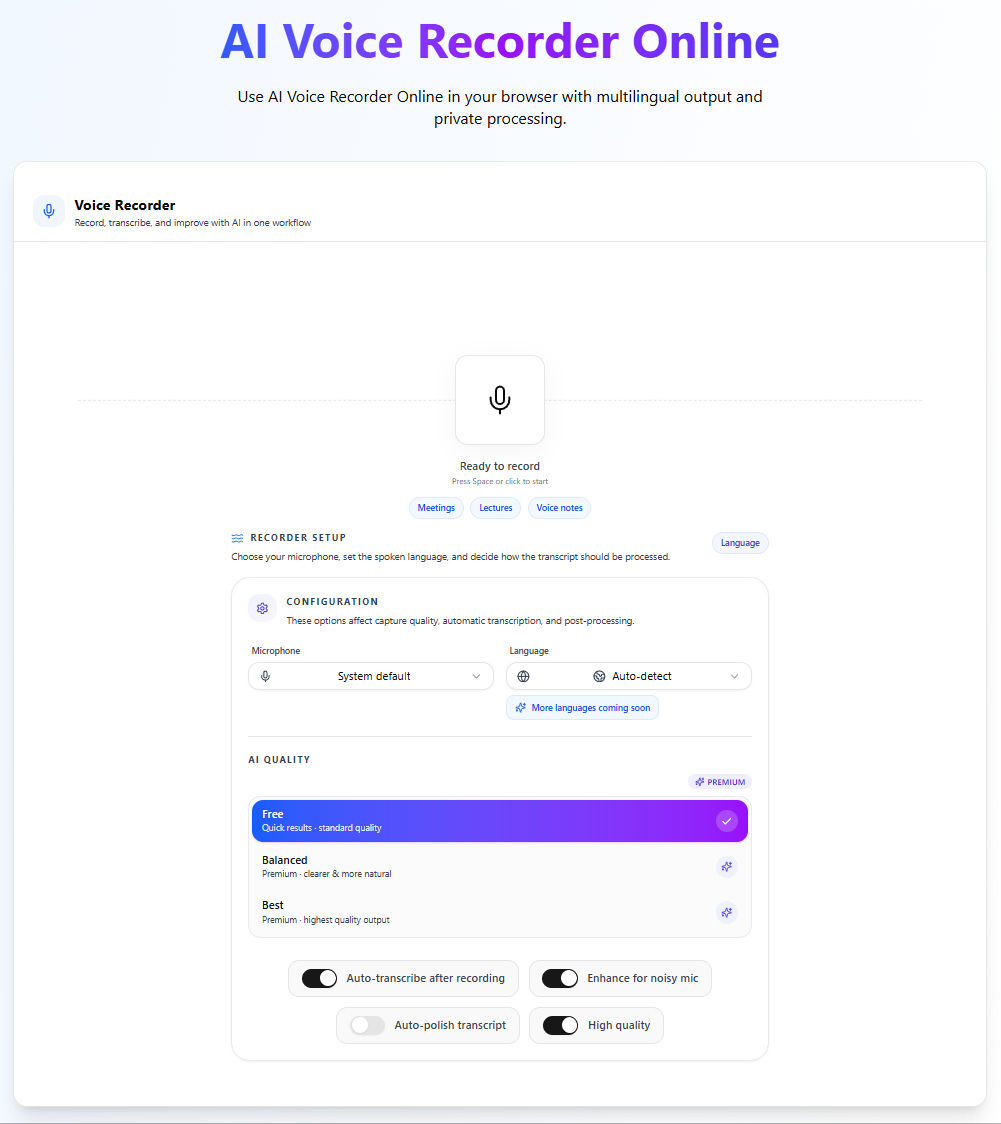
With VoiceCraftTool, the basic process is simple:
Open the Voice Recorder
Allow microphone access
Start recording
Stop when you are finished
Save or continue working with your audio
This makes voice recording faster and more accessible, especially when you only need to capture clear spoken audio.
Why Use a Browser-Based Voice Recorder?
A browser voice recorder removes many of the steps that make traditional audio software inconvenient.
No Software Installation
You do not need to download or configure complicated recording programs.
Simply open VoiceCraftTool in your browser and start recording.
This is useful when you are switching between devices or just need to record something quickly.
Record Ideas Instantly
Ideas often appear when you are not ready to sit down and type.
You might suddenly think of:
A video topic
A podcast idea
A blog section
A business idea
A meeting reminder
A social media hook
Instead of trying to remember everything, you can record your thoughts immediately.
Suitable for Short and Long Recordings
A browser recorder can work for quick voice notes as well as longer sessions such as lectures, brainstorming, interviews, or spoken content drafts.
You can focus on speaking without worrying about learning professional audio software first.
How to Record Your Voice Online in 4 Steps
Step 1: Open the Voice Recorder
Open the VoiceCraftTool Voice Recorder in your browser.
Step 2: Allow Microphone Access
Your browser will ask permission to use your microphone. Approve the request and select the correct microphone if you have more than one.
Step 3: Start Recording
Press theRecordbutton and begin speaking.
You can record a quick note, an idea, a lecture summary, or a longer piece of spoken content.
Step 4: Stop and Use Your Recording
When you are finished, stop the recording and continue with your audio according to your workflow.
There is no complicated setup required.
Online Voice Recorder vs. Traditional Recording Software
Feature
Online Voice Recorder
Traditional Software
Installation
Not required
Usually required
Learning curve
Simple
Can be complex
Quick voice notes
Ideal
Often unnecessary
Browser access
Yes
Usually no
Advanced editing
Limited
Extensive
Best for
Fast everyday recording
Professional production
If you are mixing music or working with multiple audio tracks, professional software may be more suitable.
But if you simply want to record your voice quickly, an online recorder is often the easier choice.
Who Can Use an Online Voice Recorder?
A simple browser voice recorder can be useful in many different situations.
Students
Students can record study notes, presentation practice, explanations, research thoughts, or lecture summaries.
Speaking through a topic can also make difficult concepts easier to understand.
Content Creators
Creators can record video ideas, hooks, scripts, podcast concepts, and spoken drafts.
Instead of staring at a blank page, you can explain your idea naturally and organize it afterward.
Podcasters
Use the recorder for episode ideas, introductions, questions, talking points, or rough podcast drafts before moving into full production.
Freelancers and Professionals
Record client notes, project ideas, meeting takeaways, reminders, or presentation practice.
It is often much faster to speak an idea than type it.
Job Seekers
Practice interview answers by recording yourself. Listening back can help you identify unclear answers, unnecessary filler words, or areas that need improvement.
Tips for Better Voice Recordings
A few small changes can make your recording much clearer.
Find a Quiet Space
Background noise from fans, traffic, keyboards, or conversations can reduce audio quality.
Keep the Microphone Close
Keep your microphone near enough to capture your voice clearly, but avoid speaking directly into it.
Speak Naturally
You do not need to sound like a professional broadcaster. Speak clearly and naturally, especially when recording ideas or content drafts.
Test Before Important Recordings
Record a few seconds first to confirm that your microphone is working properly.
Frequently Asked Questions
Is VoiceCraftTool's online voice recorder free?
VoiceCraftTool provides a browser-based voice recording experience designed to make recording simple and accessible without requiring traditional audio software.
Do I need to install an app?
No. You can use the recorder directly from your browser.
Can I use it for long recordings?
Yes. Browser-based recording can be useful for both quick notes and longer sessions such as lectures, interviews, or brainstorming.
Can I turn my recording into text?
Yes. VoiceCraftTool also provides audio and video transcription tools that can help convert spoken audio into text.
Can content creators use it?
Yes. Creators can use it for scripts, ideas, podcasts, hooks, spoken drafts, and other content workflows.
Start Recording Directly From Your Browser
You should not need complicated software every time you want to capture your voice.
With theVoiceCraftTool Free Online Voice Recorder, you can open your browser, allow microphone access, and start recording within seconds.
Use it for ideas, study notes, interviews, meetings, podcast drafts, scripts, or everyday voice notes. And when you want to do more with the recording, you can continue using VoiceCraftTool's transcription and AI-powered tools.
Open the Voice Recorder, press Record, and start speaking.
Did you find this helpful?
Share this article with your friends and colleagues.