How to Convert Voice mail to Email | Step by Step Guide 2026
May 7, 2026
9 min read
Most people have faced this. You need to send an update, but typing it feels slow, so you record a quick voice message instead. It is faster and easier, until you need it in writing or want to save it for later.
Voice messages are everywhere now, but email is still where work gets documented and shared. This guide shows you how to turn a voice message into a clean, readable email, step by step, without any technical complexity.
Understanding Voice Mail to Email Conversion
At its core, converting a voicemail to email means taking spoken audio and turning it into written text that can be sent or saved as an email. This can work in two ways. Either the voice message gets fully transcribed into text and formatted as an email body, or the audio file gets attached to the email alongside a written summary.
For most people and most use cases, full text conversion is the more useful option. It gives you something you can search, edit, copy, and forward without anyone needing to play an audio file.
How It Works in Simple Terms
The process is simple and follows a clear flow from voice to a ready email. Your spoken message is captured, converted into text, and then shaped into something readable and structured.
Record your voice as audio
Convert the audio into text using speech recognition
Clean and organize the text into email format
Add subject line, greeting, and sign-off
Some tools handle everything automatically, while others give you the text to format yourself. The core process remains the same in both cases.
Methods to Convert Voice Mail to Email
Manual Method
This is exactly what it sounds like. You play the voice message back, listen carefully, and type out what was said. Then you format it as an email yourself.
It works, but it is slow and easy to get wrong. You have to relisten multiple times, especially for longer messages, and there is no guarantee your typed version will match the original word for word. For anything urgent or high-volume, manual transcription is not practical.
Built-in Device or App Features
Some phones and voicemail services come with basic transcription built in. Apple's Visual Voicemail, Google Voice, and certain carrier voicemail systems can automatically generate a rough text version of your message.
These are convenient but limited. The accuracy is often inconsistent, especially with accents, background noise, or industry-specific vocabulary. They also rarely format the output into anything resembling a proper email.
AI-Based Tools
This is where the process becomes genuinely useful. AI transcription tools can take your audio file and return clean, structured text in seconds. Many of them go a step further by formatting the output as an email draft, ready to review and send.
The accuracy is significantly better than built-in phone features, and the workflow is much faster than manual transcription. For regular use, this is the method worth building into your routine.
Voice Message to Email by VoiceCraftTool
Voice Message to Email by VoiceCraftTool is designed to remove the friction between speaking and writing. Instead of spending time typing or manually formatting emails, you can simply speak or paste your thoughts and turn them into a clean, structured email.
It keeps the process simple and practical. You provide your input, and the tool handles the structure, tone, and formatting so your message is ready to send with minimal effort.
Key Features
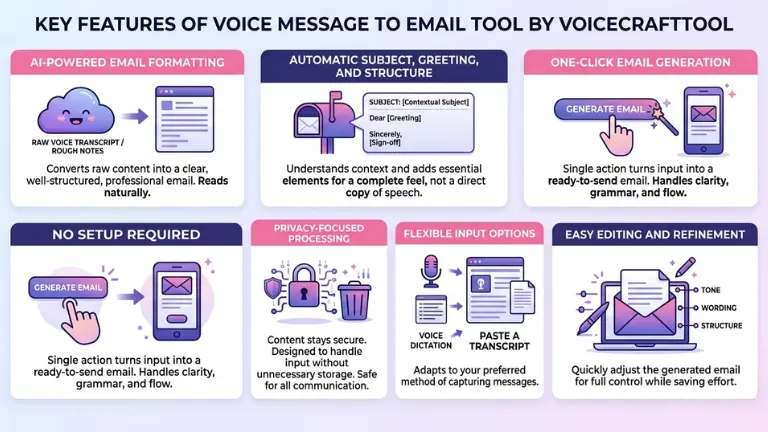
AI-Powered Email Formatting:
The tool takes raw voice transcripts or rough notes and converts them into a clear, well-structured email. It organizes your content so it reads naturally and professionally without extra editing.
Automatic Subject, Greeting, and Structure:
It understands the context of your message and adds essential email elements like a subject line, greeting, and sign-off. This makes your email feel complete rather than a direct copy of spoken words.
One-Click Email Generation:
With a single action, your input is turned into a ready-to-send email. The tool handles clarity, grammar, and flow so you do not have to rewrite everything manually.
No Setup Required:
Everything works directly in your browser. You can access the tool on both desktop and mobile without installing anything or going through complicated setup steps.
Privacy-Focused Processing:
Your content stays secure during the process. The tool is designed to handle your input without unnecessary storage, making it suitable for both personal and professional communication.
Flexible Input Options:
You can paste a transcript, type rough notes, or use voice dictation. The tool adapts to how you prefer to capture your message.
Easy Editing and Refinement:
After generating the email, you can quickly adjust the tone, wording, or structure. This gives you control while still saving most of the effort. Check this tool now at VoiceCraftTool’s Voice Message to Email
How to Use VoiceCraftTool for Converting Voice Mail to Email
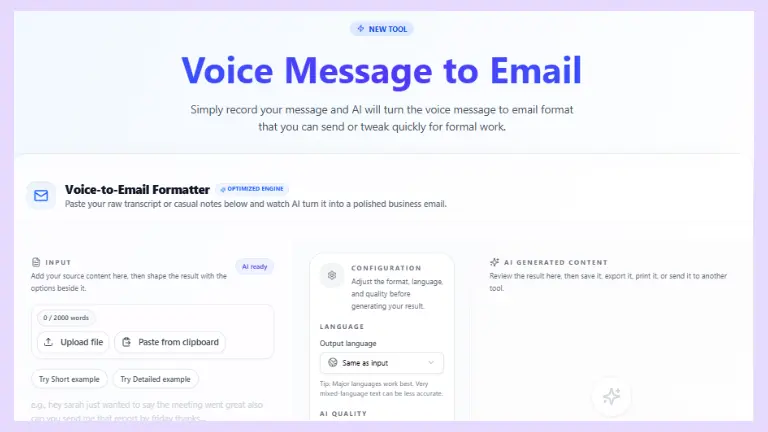
Using VoiceCraftTool to turn a voice message into an email is simple. The process is designed to save time while still giving you enough control to review and refine the final message before sending.
Step 1: Add Your Voice Content
Start by uploading your voice message, pasting a transcript, or using your spoken input as the base content. This gives the tool the raw message it needs to work with.
Step 2: Let the Tool Convert It into Email Format
Once your content is added, the tool processes it and turns it into a structured email. It organizes the message into a clearer format so it reads like an actual email instead of a spoken note.
Step 3: Review and Edit the Draft
Read through the generated email and make any quick changes you need. You can adjust wording, improve clarity, or fine-tune the tone depending on who you are sending it to.
Step 4: Copy and Send Your Email
Once everything looks right, copy the final email and send it through your preferred email client. At this stage, your voice message has been fully turned into a clean, usable written email.
Speak Clearly and at a Natural Pace: You do not need to slow down too much, but speaking at a steady, relaxed pace helps capture every word accurately. Rushing often leads to errors in transcription.
Reduce Background Noise: Noise from traffic, offices, or TV can affect accuracy. Try to record in a quiet space or move away from distractions before starting.
Keep Messages Structured: Have a simple plan before you speak. Start with the main point, add context, and end with next steps. This makes the final email easier to read and edit.
Always Do a Quick Review: Take a few seconds to check the final text. Look for mistakes in names, numbers, or key details before sending.
Real Use Cases
Work Updates and Reports
A project manager finishes a site visit and records a two-minute voice note summarizing what they saw. That gets converted into an email update sent to the whole team before they even get back to the office.
Meeting Notes and Summaries
After a call or meeting, recording a quick verbal summary of what was decided and who is responsible for what takes about 60 seconds. Converted to email, it becomes a clear follow-up record that everyone has in writing.
Customer or Client Communication
Sales teams, consultants, and freelancers often need to follow up after a conversation. Recording that follow-up verbally and converting it to a clean email is faster than sitting down to compose one from scratch.
Personal Productivity and Reminders
Even outside of work, the conversion process is useful. Voice notes about ideas, to-do items, or personal reminders become searchable text you can actually act on instead of audio files you forget to play back.
Converting a voicemail to email is simple once you know the steps. Record or upload your voice message, transcribe it, review the text, format it, and send. It is a practical habit for anyone who wants faster communication without losing clarity. Next time you need to send an update, try speaking it first. You will notice the time saved immediately.
FAQs
How do I set up voicemail to email on iPhone or Android?
Users frequently ask for carrier-specific steps (e.g., Verizon, AT&T) or Visual Voicemail setup, including enabling transcription and linking to Gmail/Outlook. Built-in features like Apple's Live Voicemail provide basic text, but accuracy varies with accents.
What are the best free apps for voice-to-text email transcription?
Queries target tools like Google Voice typing, Otter.ai, or Gmail's microphone add-ons (e.g., Vocal), focusing on accuracy, privacy, and integration without subscriptions. Free tiers often limit minutes or add watermarks.
How accurate is AI transcription for voicemails with accents or noise?
Common on Reddit (r/productivity, r/techsupport), this addresses Whisper-based tools (e.g., Rev, Vook.ai) outperforming phone defaults, with tips like noise reduction and clear speech for 90%+ accuracy.
Can I forward voicemail as audio attachment or text only?
Forums discuss VoIP services (e.g., bOnline, KrispCall) converting to MP3/WAV files or transcripts, sent via email with caller ID, timestamp, and optional summaries for business use.
What are the top VoiceCraftTool alternatives for 2026?
Searches compare VoxWrite, Dragon Anywhere, and WillowVoice for email formatting, one-click drafts, and browser-based dictation, emphasizing no-setup options for mobile/desktop.
How to transcribe and format voice notes into professional emails?
Quora threads seek workflows: record → transcribe (e.g., via sidebar extensions) → auto-add subject/greeting → edit/send, ideal for sales follow-ups or meeting summaries.
Is voicemail-to-email secure and private?
Privacy concerns arise on forums about data storage in cloud tools; local processing options like browser-based AI are preferred for sensitive work comms.
Why is my voicemail transcription inaccurate or missing?
Troubleshooting questions cover background noise, jargon, or outdated carrier features, with fixes like third-party apps or VoIP upgrades for better speech recognition.
Did you find this helpful?
Share this article with your friends and colleagues.