
User Guide for Content Creators
Content creators often have a good idea for a script, but the writing may still feel rough, unstructured, or not strong enough in tone. This can become a problem when preparing videos, voiceovers.....
Content creators often have to turn ideas into scripts, voiceovers, captions, short clips, posts, and platform-specific content while also trying to stay consistent and save time. Because of that, a lot of their work is not only about creating, but also about refining raw ideas, converting content into different formats, improving delivery, and making the same content usable across multiple channels.
Tools Overview
All the important functions for a Content Creator
Record content without noise and losing quality
Problem
Content creators often record ideas, drafts, or voice notes while working, but basic recordings can pick up background noise, unclear sound, or weak audio quality. This makes it harder to reuse those recordings later for scripts, captions, planning, or polished content.
Solution
The Voice Recorder helps content creators capture spoken content in a clearer and more usable way. Along with recording, it can also transcribe and polish the spoken content, which makes it easier to review, edit, and turn into other forms of content later.
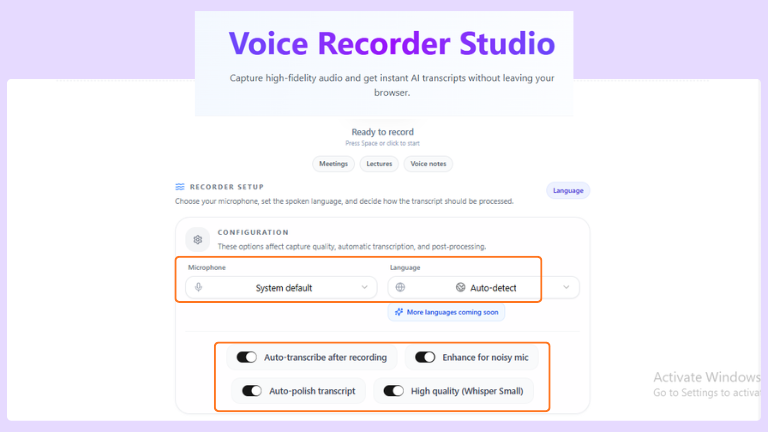
Features:
Clean recording: Records voice content in a simple and easy-to-use way with a clean interface.
Mic selection: Lets users choose the microphone that works best for their recording setup.
Auto noise enhancement: Helps improve audio clarity by reducing unwanted background noise.
High-quality recording: Supports clear voice capture, including low whisper recording.
Auto transcription: Can turn spoken content into text along with the recording.
Transcript polishing: Helps make the transcribed text cleaner and more readable.
Language detection: Can automatically detect the spoken language during use.
Multilingual support: Users can also manually select from many languages worldwide.
Tips to remember
Choose the correct microphone before starting if multiple mic options are available.
Use noise enhancement when recording in a place with background sound.
Turn on transcription if you want the recording in text form as well.
Review the polished transcript once before using it in scripts or captions.
Check the language setting carefully when recording multilingual content.
Create AI voice for faceless content (AI voice generation)
Problem
Content creators often write scripts, captions, outlines, or long-form content, but it is not always easy to judge how that content will sound when spoken. Sometimes they also want to listen to their written material while reviewing, planning voiceovers, or checking the overall flow before publishing.
Solution
The Text to Audio (voice generator) tool helps content creators turn written content into spoken audio in a simple and flexible way. This makes it easier to review script flow, test how content sounds, and use written material in an audio-friendly format without reading everything manually each time.
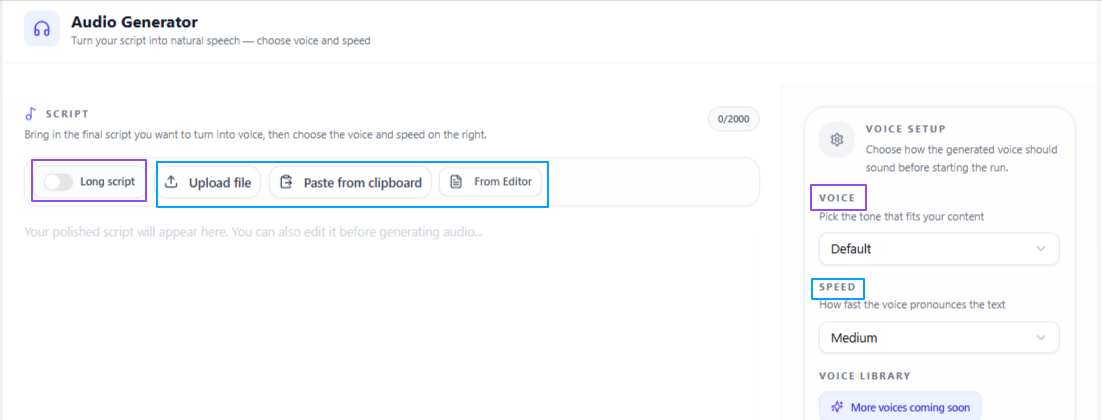
Features:
Flexible input: Users can paste or write text directly, upload a text file, or bring text from the site’s editor tool.
Voice selection: Different voice styles such as warm, deep, and soft are available for different content needs.
Male and female voices: Users can choose between male and female voice options based on the tone they want.
Speed control: Speech speed can be adjusted as slow, medium, or fast for better listening comfort or content testing.
Tips to remember
Use a slower speed when reviewing important scripts or longer written content.
Try different voice styles to see which one matches your content tone better.
Listen once fully before finalizing a script for voiceover use.
Use the editor input option when you already have your script prepared on the site.
Test medium speed first if you are unsure which playback pace fits your content best.
Improve your script before finalizing
Problem
Content creators often have a good idea for a script, but the writing may still feel rough, unstructured, or not strong enough in tone. This can become a problem when preparing videos, voiceovers, or spoken content, where the script needs to sound clear, engaging, and properly organized before it is used.
Solution
The Script Editor helps content creators improve their script in a more polished and usable way. It works on written, recorded, audio, or video-based input and helps make the script better in tone, structure, and overall quality, so the content feels more prepared before recording or publishing.
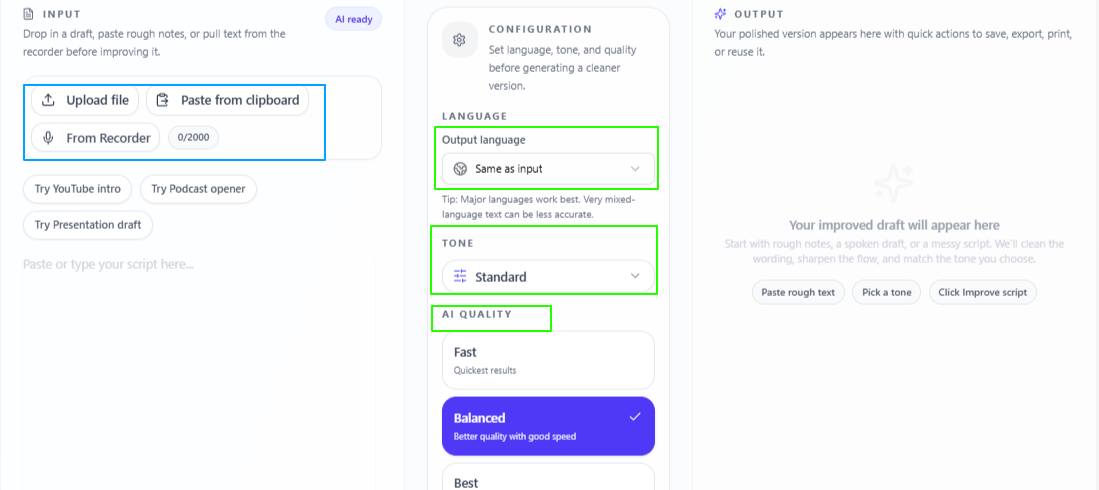
Features:
Flexible input: Users can paste, write, record at the same time, or upload a file to work on the script.
Script improvement: Helps improve the script in terms of tone, structure, and overall script quality.
Tone selection: Different tone options can be selected from the dropdown based on the content style needed.
Quality control: Users can choose Fast for quick output, Balanced for a mix of speed and quality, or Best for more focused and deeply prepared results.
Tips to remember
Use Fast when you want a quick cleanup of your script.
Use Balanced for regular content work when you want both speed and decent quality.
Use Best when the script is important and needs deeper refinement.
Choose the tone carefully based on the type of content you are creating.
Review the final script once before recording to make sure it still sounds natural to you.
Repurpose your one good working content for other platforms
Problem
Content creators often put a lot of effort into making one good script or piece of content, but then still need to reshape it separately for different platforms. This takes extra time because each platform needs a different style, format, or content angle, even when the main idea is the same.
Solution
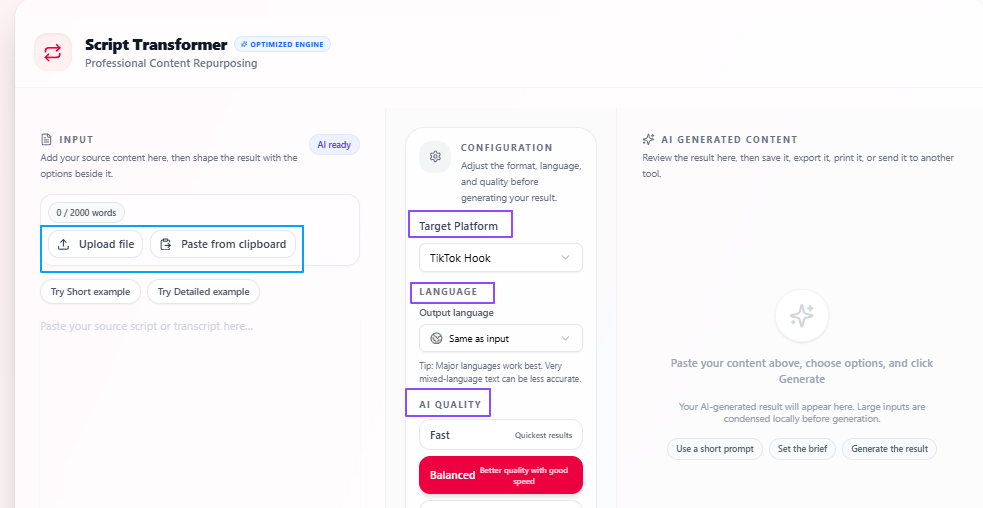
The Content Repurposing tool helps content creators reuse one script or content piece in multiple ways for different platforms. Instead of rewriting everything from scratch, they can quickly turn the same content into formats like TikTok hooks, LinkedIn posts, Twitter threads, and more, while keeping the process simple and more manageable.
Features:
Platform-based repurposing: Turns one piece of script content into formats for different platforms such as TikTok, LinkedIn, Twitter, and more.
Simple input process: Users can upload or paste their content and get the output through a clean and easy workflow.
Personalized configurations: Lets users select settings based on how they want the repurposed content to be generated.
Language flexibility: The output language stays the same as the input by default, but users can choose a different output language if needed.
Quality control: Users can choose Fast for quicker output, Balanced for a mix of speed and quality, or Best for more focused and deeply prepared results.
Tips to remember
Use Balanced for regular repurposing when you want both speed and quality.
Use Best when the content is important and needs more polished output.
Choose the platform format carefully so the output matches where you want to publish it.
Change the output language only when you need the repurposed version for a different audience.
Review the final content once before posting to make sure it fits your style and platform tone.
Create scroll-stopping hooks
Problem
Content creators may have a good script or a strong content idea, but the opening line is often what decides whether people keep watching, reading, or scrolling away. Writing hooks again and again can take time, and it is not always easy to come up with opening lines that feel engaging, relevant, and strong enough for different types of content.
Solution
The Social Hook Generator helps content creators come up with stronger hook options from their existing script or content. By analyzing the input, it suggests opening lines that are more engaging and relevant, which makes it easier to start content in a way that can attract attention more effectively.
Features:
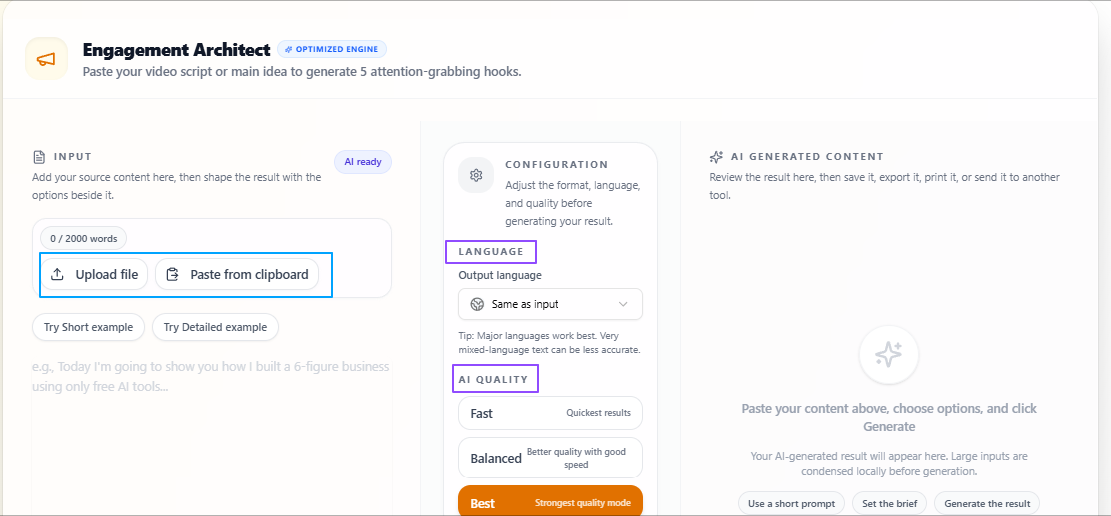
Flexible input: Users can upload a content script file or simply paste their content into the tool.
Hook generation: Analyzes the content and suggests suitable hook options that are engaging, relevant, and performance-focused.
Language flexibility: The output language stays the same as the input by default, but users can choose a different output language if needed.
Quality control: Users can choose Fast for quicker output, Balanced for a mix of speed and quality, or Best for more focused and deeply prepared hook suggestions.
Tips to remember
Use Balanced when you want good hook options without waiting too long.
Use Best when the opening line matters a lot for an important post or video.
Paste enough content context so the suggested hooks stay relevant to your actual topic.
Change the output language only when you want hooks for a different audience.
Review the final hooks and choose the one that best matches your tone and platform.
Transcribe the videos you need to study for content creation
Problem
Content creators often have useful content inside videos, but working with that content again can be difficult when it only exists in spoken form. Going back through a full video to pick lines, ideas, captions, or reusable parts takes extra time, especially when the creator wants to turn that content into text for editing, planning, or republishing.
Solution
The Video to Text tool helps content creators convert spoken video content into readable text in a simple way. This makes it easier to review what was said, reuse important parts, and turn video-based content into captions, scripts, notes, or other written formats without manually typing everything.
Features:
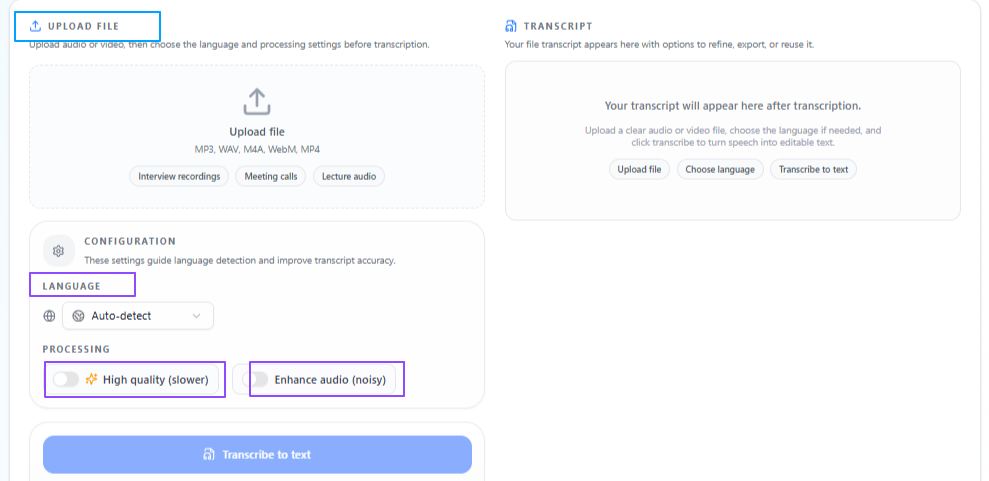
Simple workflow: Users can upload the video, start the process, and get the text in a short time.
Language detection: The tool can automatically detect the spoken language in the video.
Manual language selection: Users can also choose the language themselves from many languages worldwide.
Processing options: Different processing settings are available based on the level of output quality needed.
High-quality processing: A deeper and more focused processing option is available for better results, though it may take more time.
Noise enhancement: Users can choose audio enhancement to improve the clarity of speech when background noise is present.
Tips to remember
Use high-quality processing when the video is important and you want better text output.
Turn on noise enhancement if the video has background sound or unclear audio.
Select the language manually if auto detection may not be accurate for your content.
Review the generated text once before using it for captions, scripts, or repurposed content.
Use shorter or cleaner video files when you want quicker and more manageable results.
Create creative & artistic stories from ideas
Problem
Content creators do not always start with a full script or a fully developed concept. Sometimes they only have a rough idea, a random thought, or a basic creative direction, but turning that into a proper story can take time, especially when they want the story to fit a certain genre, perspective, or length.
Solution
The Story Generator helps content creators build story-based content from simple prompts and early ideas. Instead of starting from nothing, they can shape a basic thought into a more complete story that fits the style, narrative point of view, and length they want, making the creative process easier to move forward.
Features:
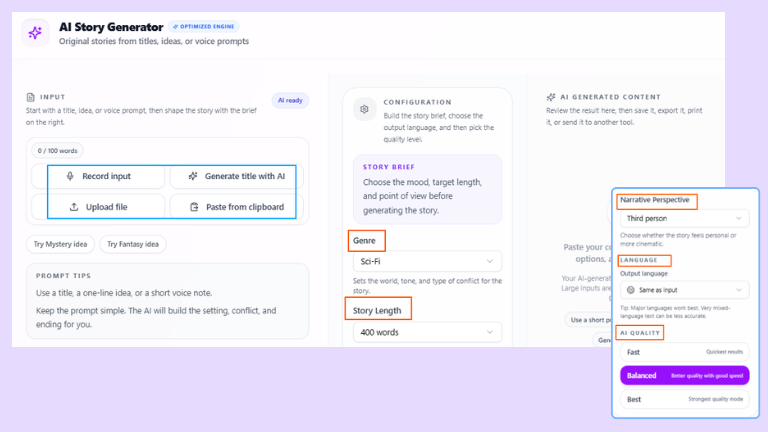
Idea-based generation: Users can enter a basic idea or thought as the main prompt for the story.
Genre selection: Different genres can be selected depending on the kind of story or creative direction needed.
Narrative control: Users can choose the narrative style, such as first person or third person.
Length options: Story length can be selected in different ranges based on the content need.
Language flexibility: The output language stays the same as the input by default, but users can choose a different output language if needed.
Quality control: Users can choose Fast for quicker output, Balanced for a mix of speed and quality, or Best for more focused and deeply prepared results.
Tips to remember
Use a clear core idea in the prompt so the story stays closer to your intended direction.
Choose the genre carefully because it strongly affects the tone and feel of the output.
Select first person or third person based on how personal or narrative-driven you want the story to sound.
Use Balanced for regular creative work and Best when the story needs more depth and refinement.
Review the final story once and adjust it if you want it to match your content style more closely.
Summarize the content stuff to analyze it quickly
Problem
Content creators often work with long scripts, transcripts, research notes, articles, or rough drafts, but they do not always need the full text every time. When reviewing ideas, planning content, or extracting the main message, going through everything line by line can take extra time and slow down the creative process.
Solution
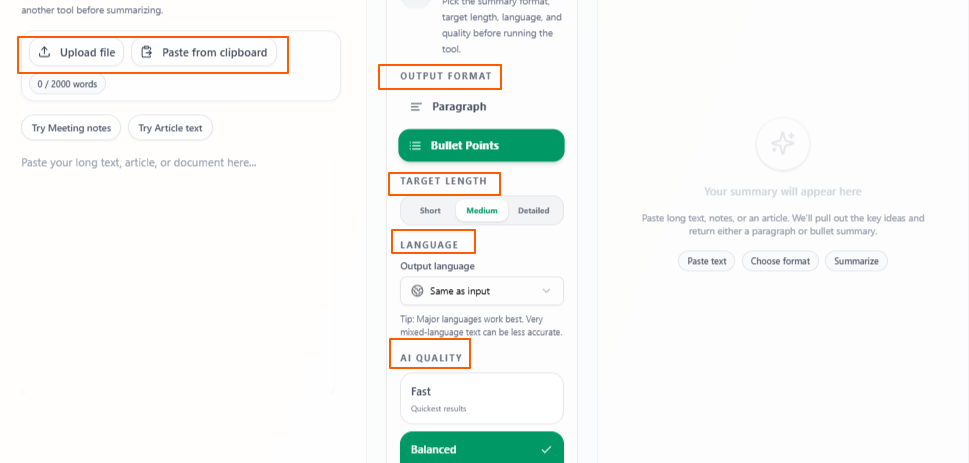
The AI Text Summarizer helps content creators shorten long text into clearer and more manageable output. This makes it easier to review key points, understand the main idea faster, and reuse important information without reading the full content again every time.
Features:
Flexible input: Users can paste text, write it directly, or upload a file for summarizing.
Output format options: The result can be generated in paragraph form or bullet points based on the user’s preference.
Target length control: Users can choose short, medium, or detailed output depending on how much information they want to keep.
Language flexibility: The output language stays the same as the input by default, but users can choose a different output language if needed.
Quality control: Users can choose Fast for quicker output, Balanced for a mix of speed and quality, or Best for more focused and deeply prepared summaries.
Tips to remember
Use bullet points when you want quick takeaways from long content.
Use paragraph format when you want a smoother summary to read.
Choose short for fast understanding and detailed when you need more context.
Use Balanced for everyday work and Best when the summary is important.
Review the final summary once before using it in scripts, posts, or planning.
Conclusion
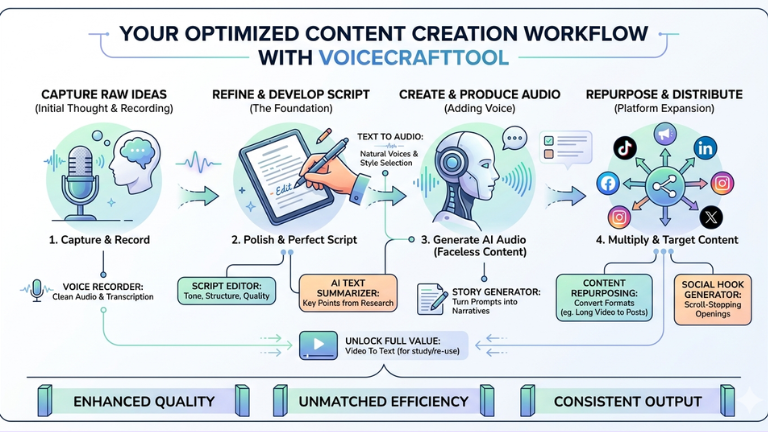
Overall, these use cases show how content creators can use VoiceCraftTool to handle the practical work around content creation more easily, from recording ideas clearly to improving scripts, repurposing content, generating hooks, and summarizing long material faster. It helps reduce the extra manual effort that often slows creators down, so they can stay more focused on creating, refining, and publishing content in a more organized way.
Put this workflow to work
Use the tools directly once you finish reading, so the guide turns into action instead of just reference material.
Content Creators who want a cleaner path from recordings to usable output.