
User Guide for Entrepreneurs and Small Business Owners
Entrepreneurs and small business owners often need to reach new customers, introduce their services, pitch an offer, or follow up with potential clients. But writing a....

Entrepreneurs and small business owners often handle many parts of the business themselves, from sales outreach and client communication to meetings, hiring, marketing content, and business proposals. Because of that, their work is not only about running the business, but also about writing clearly, following up properly, reviewing conversations, presenting offers, and turning everyday business information into useful content without spending too much time on manual writing and editing.
Tools Overview
All the important functions for Entrepreneurs and Small Business Owners
Reach new leads with clear and professional outreach emails
Problem
Entrepreneurs and small business owners often need to reach new customers, introduce their services, pitch an offer, or follow up with potential clients. But writing a cold email that sounds professional, direct, and interesting can take time. If the message is too weak, too generic, or not clear enough, it may not get the attention of the reader.
Solution
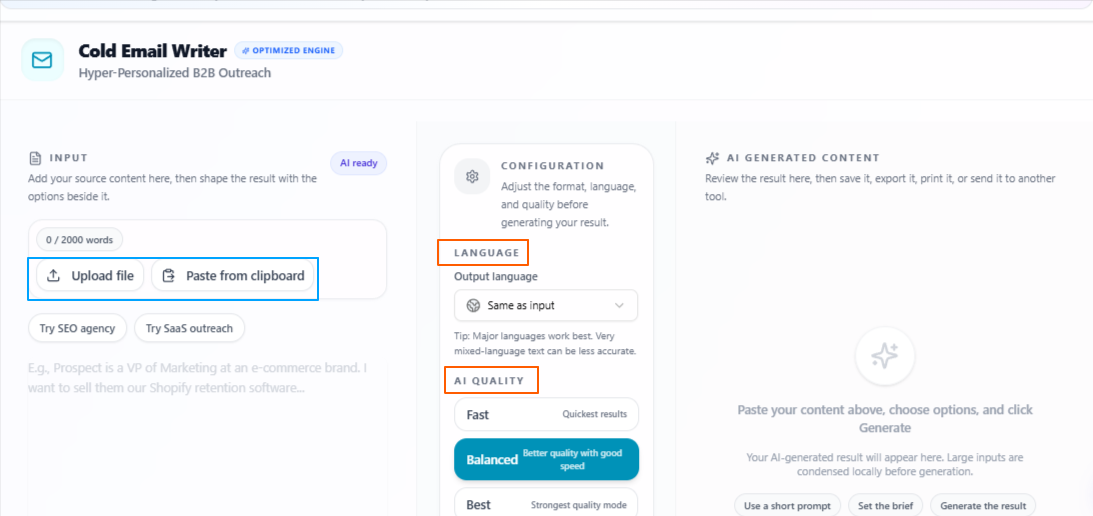
The Cold Email Generator helps business owners turn a simple idea, rough notes, or source content into a more polished cold email. It helps create outreach emails that are clear, professional, and focused on driving sales, so users do not have to start from a blank page every time they want to contact a new lead.
Features
Flexible input:
Users can upload source content, paste existing details, or simply write the idea they have in mind for the cold email.
Professional email generation:
The tool creates a strongly written cold email that is focused on grabbing attention and communicating the offer clearly.
Sales-focused output:
The generated email is written in a way that helps support lead generation, service pitching, follow-ups, or customer outreach.
Language flexibility:
The output language stays the same as the input by default, but users can also select a different language if they want to reach another audience.
Quality control:
Users can choose Fast for quicker output, Balanced for a mix of speed and quality, or Best when they want a more focused and deeply prepared cold email.
Tips to remember
Add clear details about your offer before generating the email.
Mention the target audience or type of customer you want to reach.
Use Balanced for regular outreach emails.
Use Best when the email is important or going to a high-value lead.
Review the final email once to make sure it still sounds natural and matches your business tone.
Prepare grant proposals from research or project details
Problem
Entrepreneurs and small business owners may sometimes need funding support for a project, research idea, social impact plan, product development, or business growth activity. But writing a grant proposal can be difficult because it needs to be properly structured, clear, and detailed enough to explain the purpose, value, and expected outcome of the work.
Solution
The Grant Proposal Writer helps users turn their research data, project details, or business idea into a properly written proposal. Instead of trying to organize everything manually, users can upload files or paste their information directly, and the tool helps shape it into a more complete and presentable grant proposal.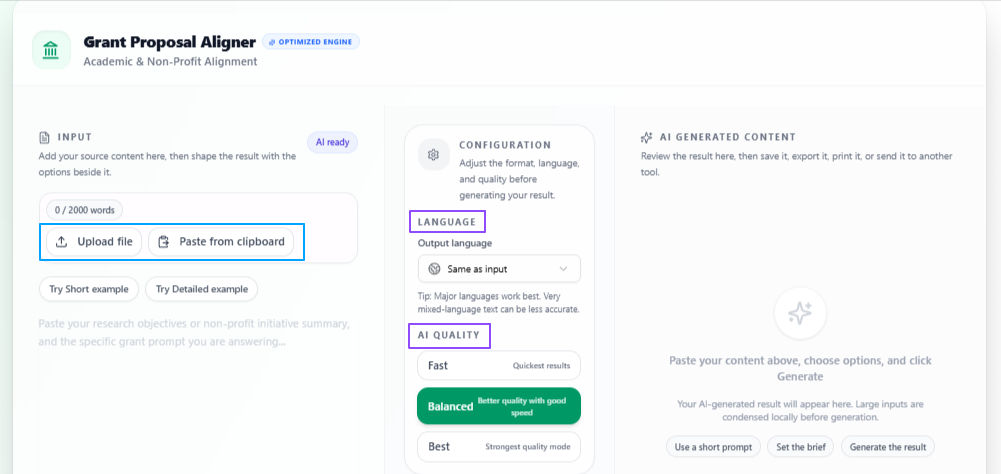
Features
Flexible input:
Users can upload research data files or paste the project information directly into the tool.
Proposal writing support:
The tool helps turn the provided information into a properly written grant proposal that can support the next step of the research, project, or business idea.
Clear structure:
The output is prepared in a more organized way so the proposal can explain the purpose, need, and expected outcome more clearly.
Language flexibility:
The output language stays the same as the input by default, but users can also select a different language if they need the proposal for another audience.
Quality control:
Users can choose Fast for quicker output, Balanced for a mix of speed and quality, or Best when they want a more focused and deeply prepared proposal.
Tips to remember
Add clear details about the project, research, or business idea before generating the proposal.
Include the purpose, expected outcome, and any important background information.
Upload supporting data if it helps explain the project better.
Use Balanced for regular proposal drafts.
Use Best when the proposal is important and needs deeper preparation.
Create better property listings from real estate details
Problem
Entrepreneurs and small business owners working in real estate often need to present properties in a way that looks clear, attractive, and useful for potential buyers or renters. But writing listing content can take time, especially when the details are only available as rough notes, property data, or basic information. If the listing does not explain the property well, it may fail to attract the right leads.
Solution
The Real Estate Listing Generator helps users turn real estate data into more relevant and lead-focused listing content. Instead of writing every property description manually, users can upload the property details and get listing content that is clearer, more organized, and better prepared for marketing or publishing.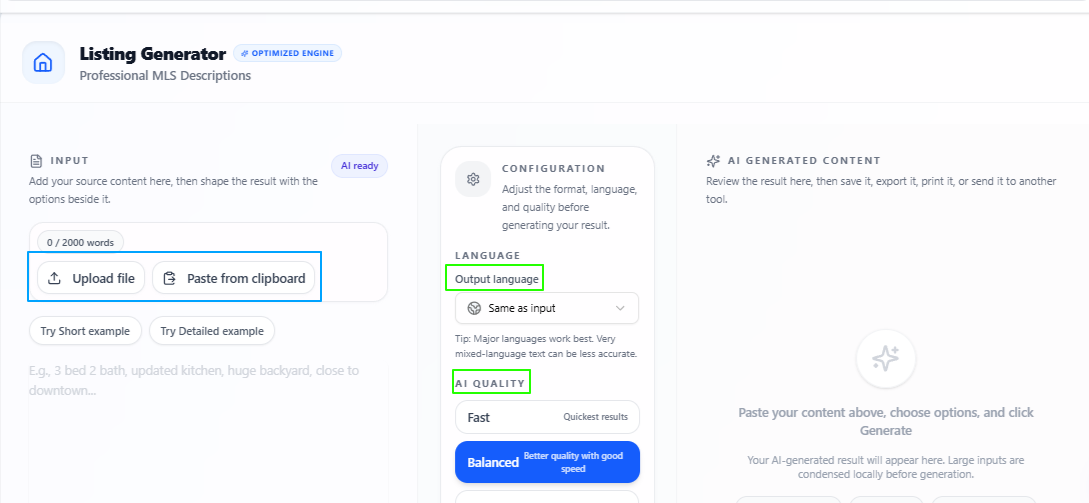
Features
Real estate data input:
Users can upload property details or real estate information that they want to turn into listing content.
Listing content generation:
The tool creates property listing content that explains the property in a more useful and presentable way.
Lead-focused writing:
The output is written to help attract interested buyers, renters, or clients by presenting the property details more clearly.
Language flexibility:
The output language stays the same as the input by default, but users can also select a different language if they want to target another audience.
Quality control:
Users can choose Fast for quicker output, Balanced for a mix of speed and quality, or Best when they want more focused and deeply prepared listing content.
Tips to remember
Add complete property details before generating the listing.
Include important information such as location, size, rooms, price, and key features.
Mention the target audience if the property is better suited for families, investors, renters, or businesses.
Use Balanced for regular listings.
Use Best when the property is high-value or needs stronger marketing content.
Improve sales conversations after every call
Problem
Entrepreneurs and small business owners often handle sales calls themselves or manage a small sales team. But after a call ends, it can be difficult to clearly understand what worked, where the conversation became weak, what objections were missed, or how the pitch could be improved. Without reviewing the call properly, the same mistakes can happen again in future sales conversations.
Solution
The Sales Call Analyzer helps users review their sales calls from a professional sales perspective. Users can upload the call audio, paste a call transcript, or add a sales script, and the tool gives a complete analysis of the call’s strengths and the areas that can be improved. This makes it easier to improve sales communication, handle objections better, and make future calls more effective.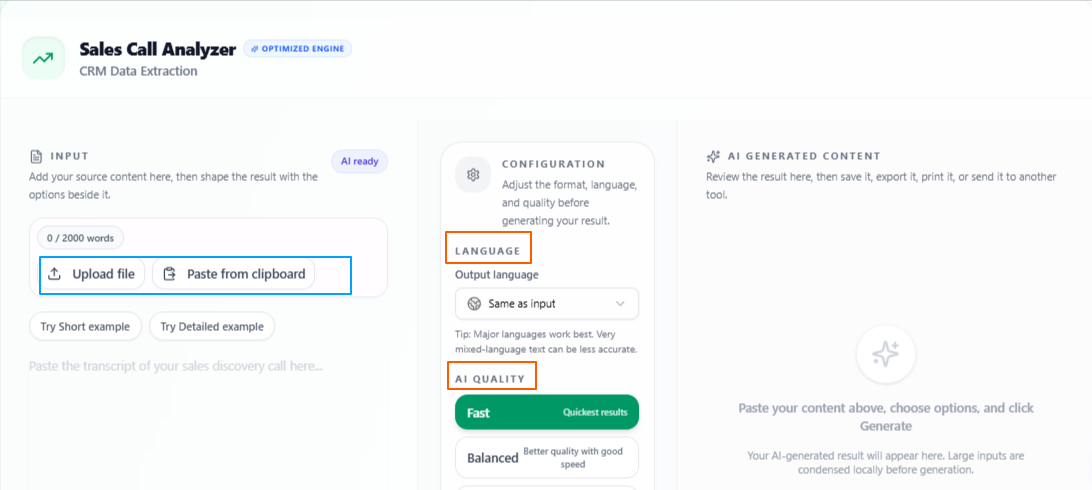
Features
Flexible input:
Users can upload a sales call audio file, paste the call transcription, or add the call script directly into the tool.
Professional sales analysis:
The tool reviews the call from a sales perspective and explains what worked well in the conversation.
Improvement suggestions:
The output also highlights weak points, missed opportunities, and areas where the pitch or communication can be improved.
Language flexibility:
The output language stays the same as the input by default, but users can also select a different language if they need the analysis in another language.
Quality control:
Users can choose Fast for quicker output, Balanced for a mix of speed and quality, or Best when they want a more focused and deeply prepared sales call analysis.
Tips to remember
Upload a clear audio file or paste a complete transcript for better analysis.
Use the tool after important client calls or sales meetings.
Check both the strengths and improvement points before making changes to your pitch.
Use Balanced for regular sales call reviews.
Use Best when analyzing an important call, training material, or high-value sales conversation.
Keep business meetings organized with clear notes
Problem
Entrepreneurs and small business owners often attend client meetings, team discussions, planning calls, or project update sessions where many points are discussed at the same time. But after the meeting, it can be difficult to remember every decision, important point, task, or follow-up. If the notes are not organized properly, useful information can easily get missed.
Solution
The Meeting Minutes Generator helps users turn meeting content into clear meeting minutes and important points. Users can upload or paste their meeting content, and the tool prepares the main discussion details in a more organized way, making it easier to review what was discussed and what needs to be done next.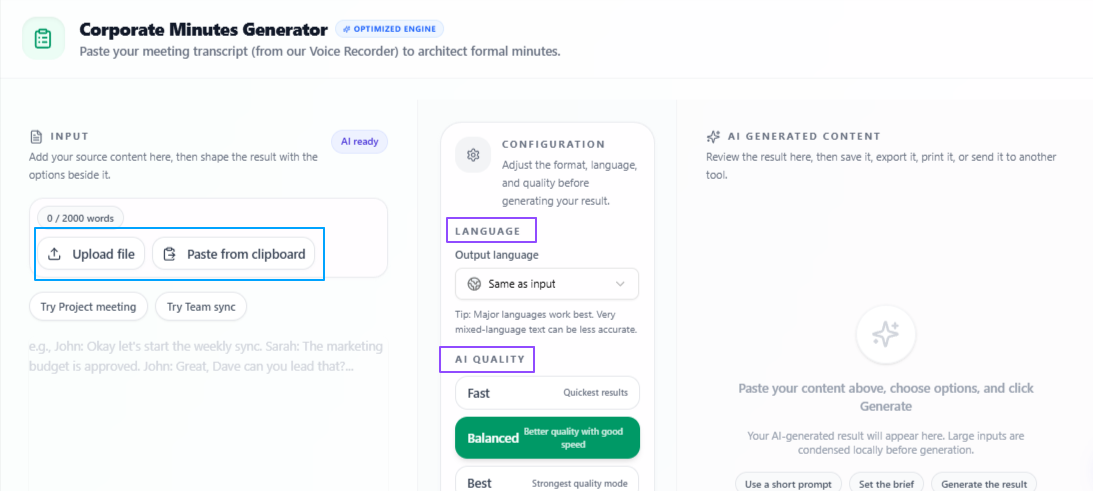
Features
Flexible input:
Users can upload their meeting content or paste the meeting text directly into the tool.
Meeting minutes creation:
The tool turns meeting content into clear and organized minutes that are easier to read, save, and share.
Important point extraction:
It highlights the main points from the discussion so users do not have to go through the full meeting content again.
Language flexibility:
The output language stays the same as the input by default, but users can also select a different language if they need the minutes for another audience.
Quality control:
Users can choose Fast for quicker output, Balanced for a mix of speed and quality, or Best when they want more focused and deeply prepared meeting minutes.
Tips to remember
Add complete meeting content so important details are not missed.
Use it after client meetings, team calls, planning sessions, or project discussions.
Review the final minutes once before sharing them with others.
Use Balanced for regular meeting notes.
Use Best when the meeting includes major decisions or important follow-ups.
Reuse one business content idea across different platforms
Problem
Entrepreneurs and small business owners often create one useful piece of content, such as a business update, product announcement, offer, script, or educational post. But sharing the same idea on different platforms usually needs extra work because each platform has its own style, length, and format. Rewriting the same content again and again can take time away from other business tasks.
Solution
The Content Repurposing tool helps users turn one script or content piece into different formats for multiple platforms. Users can upload or paste their content, select the needed configurations, and get platform-ready versions such as TikTok hooks, LinkedIn posts, Twitter threads, and more. This makes it easier to stay active on different channels without creating everything from zero each time.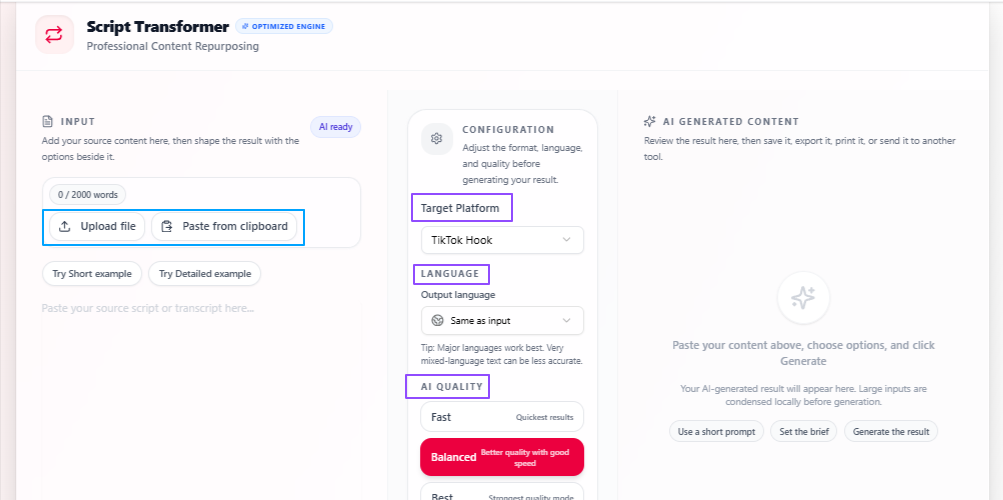
Features
Platform-based repurposing:
The tool can reshape one piece of content into formats for different platforms such as TikTok, LinkedIn, Twitter, and more.
Simple input process:
Users can upload their content or paste it directly into the tool through a clean and simple workflow.
Personalized configurations:
Users can select the settings they need so the repurposed content matches the platform, audience, or content style better.
Language flexibility:
The output language stays the same as the input by default, but users can also select a different language if they want to reach another audience.
Quality control:
Users can choose Fast for quicker output, Balanced for a mix of speed and quality, or Best when they want more focused and deeply prepared repurposed content.
Tips to remember
Start with a clear content piece so the repurposed versions stay focused.
Choose the right platform format before generating the output.
Use LinkedIn-style output for professional updates and Twitter threads for short idea-based content.
Use Balanced for regular business content repurposing.
Use Best when the content is important for a campaign, launch, or major announcement.
Create stronger openings for business content
Problem
Entrepreneurs and small business owners often post content to promote their services, share offers, announce updates, or explain business ideas. But even when the main content is useful, the opening line may not be strong enough to make people stop and read. Writing different hooks again and again can take time, especially when the content needs to feel relevant, clear, and engaging.
Solution
The Social Hook Generator helps users create suitable hook options from their existing content. Users can upload a script file or paste their content, and the tool analyzes it to suggest opening lines that are more engaging, relevant, and useful for business posts, short videos, ads, or promotional content.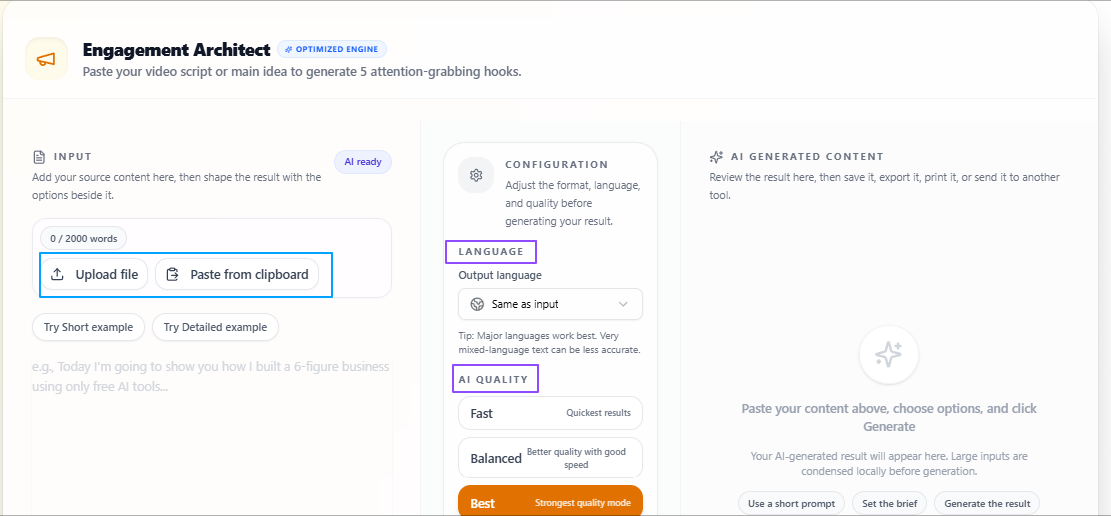
Features
Flexible input:
Users can upload a content script file or paste their content directly into the tool.
Content-based hook suggestions:
The tool analyzes the given content and suggests hook options that match the topic and message.
Engaging and relevant output:
The generated hooks are written to help the content start with more impact and attract attention from the right audience.
Language flexibility:
The output language stays the same as the input by default, but users can also select a different language if they want hooks for another audience.
Quality control:
Users can choose Fast for quicker output, Balanced for a mix of speed and quality, or Best when they want more focused and deeply prepared hook suggestions.
Tips to remember
Paste enough content so the hook suggestions understand the full idea.
Use it for social posts, launch updates, short videos, offers, or business announcements.
Choose the hook that matches your brand tone and audience.
Use Balanced for regular content hooks.
Use Best when the hook is for an important post, ad, or campaign.
Hire the right people with clear job descriptions
Problem
Entrepreneurs and small business owners often need to hire employees, freelancers, assistants, sales staff, or team members while managing many other business tasks. But writing a clear job description can take time because the role needs to explain responsibilities, skills, expectations, and candidate requirements properly. If the job post is unclear, it may attract the wrong applicants or create confusion for candidates.
Solution
The Job Description Generator helps users turn basic role details into a clean and formatted job description. Instead of writing the full job post manually, users can enter the main information about the role, and the tool prepares a more organized description that can help attract relevant candidates.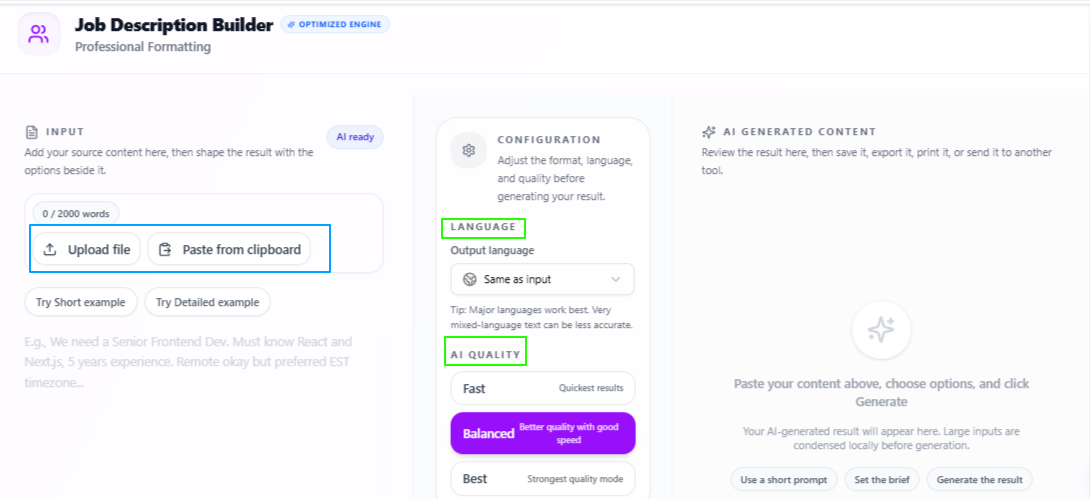
Features
Basic role input:
Users can enter the important details about the position, such as role title, responsibilities, required skills, and experience level.
Formatted job description:
The tool creates a clean and properly structured job description that is easier to read and publish.
Candidate-focused writing:
The output helps explain the role clearly so relevant candidates can better understand whether they are suitable for the position.
Language flexibility:
The output language stays the same as the input by default, but users can also select a different language if they need the job description for another audience.
Quality control:
Users can choose Fast for quicker output, Balanced for a mix of speed and quality, or Best when they want a more focused and deeply prepared job description.
Tips to remember
Add clear details about the role before generating the job description.
Mention responsibilities, required skills, work type, and experience level.
Keep the requirements realistic so the post attracts suitable candidates.
Use Balanced for regular hiring posts.
Use Best when hiring for an important or senior role.
Other Notable Tools
Along with the main business-focused tools, entrepreneurs and small business owners can also use these additional VoiceCraftTool features for everyday communication, planning, content review, and voice-based work.
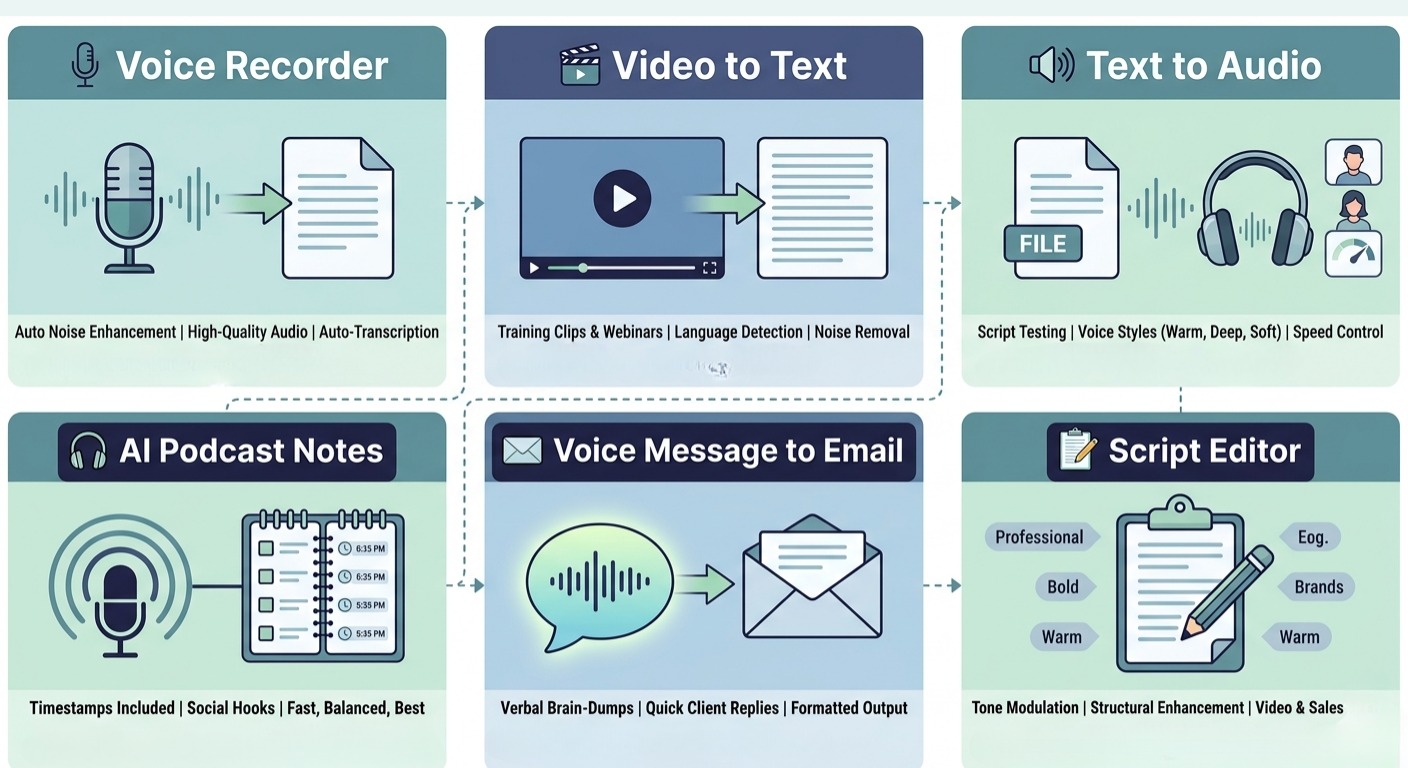
Voice Recorder
Voice Recorder helps users capture clear voice notes, ideas, quick reminders, client thoughts, or business planning notes without losing quality. It supports mic selection, auto noise enhancement, high-quality recording, low whisper recording, auto transcription, transcript polishing, language auto-detection, and manual language selection from many worldwide languages.
Video to Text
Video to Text helps users turn spoken video content into readable text. This is useful for converting business videos, training clips, webinars, interviews, product explainers, or recorded discussions into text that can be reviewed, edited, summarized, or reused later. It also supports language detection, manual language selection, high-quality processing, and audio noise enhancement.
Text to Audio
Text to Audio helps users listen to written business content instead of only reading it. Entrepreneurs can use it to test how scripts, product messages, emails, announcements, or training content sound when spoken. It supports text input, file upload, editor-based input, different voice styles such as warm, deep, and soft, male and female voices, and slow, medium, or fast speech speed.
AI Podcast Notes
AI Podcast Notes helps users turn podcast content into organized notes. Business owners can upload a podcast file or paste podcast text and get useful notes from it. It can also include timestamps and social hooks, which makes it helpful for reviewing business podcasts, interviews, founder talks, training sessions, or marketing discussions. The tool also supports language selection and quality controls such as Fast, Balanced, and Best.
Voice Message to Email
Voice Message to Email helps users turn spoken thoughts into a properly formatted email. Instead of writing the email manually, users can simply explain the topic, purpose, and message through voice, and the tool converts it into a clear email. This is useful for quick client replies, follow-ups, internal communication, or business updates. It also supports language flexibility and quality controls.
Script Editor
Script Editor helps improve business scripts, video scripts, audio scripts, or written content before publishing or recording. Users can paste, write, record, or upload the input, then select the tone they need. It improves the content in terms of tone, structure, and overall script quality, making it useful for business videos, explainers, sales scripts, founder messages, and marketing content.
Conclusion
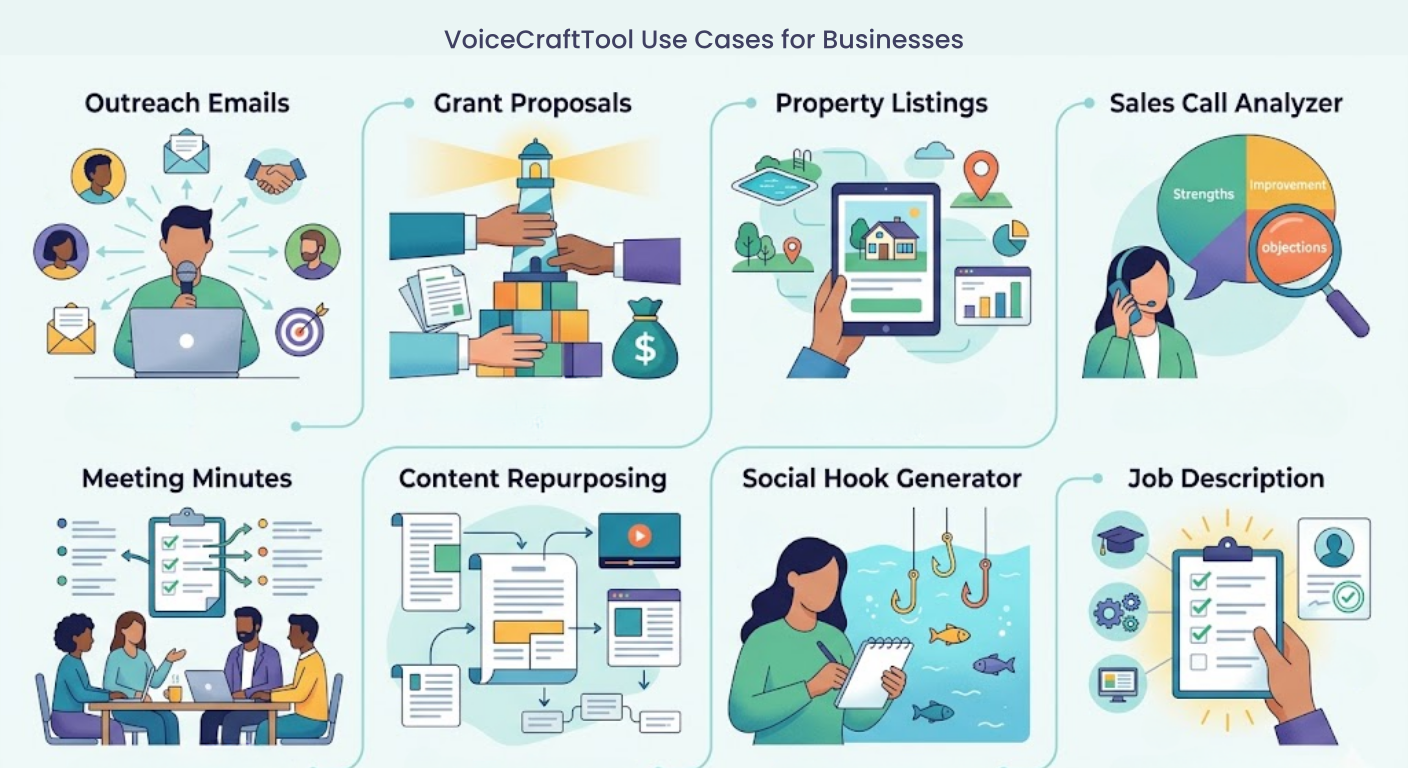
Together, these use cases show how entrepreneurs and small business owners can use VoiceCraftTool to handle practical business tasks more easily, from writing cold emails and proposals to creating listings, reviewing sales calls, organizing meetings, repurposing content, improving hooks, and preparing job descriptions. It helps reduce the time spent on manual writing and review work, so business owners can focus more on sales, communication, hiring, and growing their business in a more organized way.
Put this workflow to work
Use the tools directly once you finish reading, so the guide turns into action instead of just reference material.
Entrepreneurs and Small Business Owners who want a cleaner path from recordings to usable output.