Legal documents are often long, formal, and difficult to review quickly when a legal professional needs to understand the key points, important clauses, obligations, risks, or
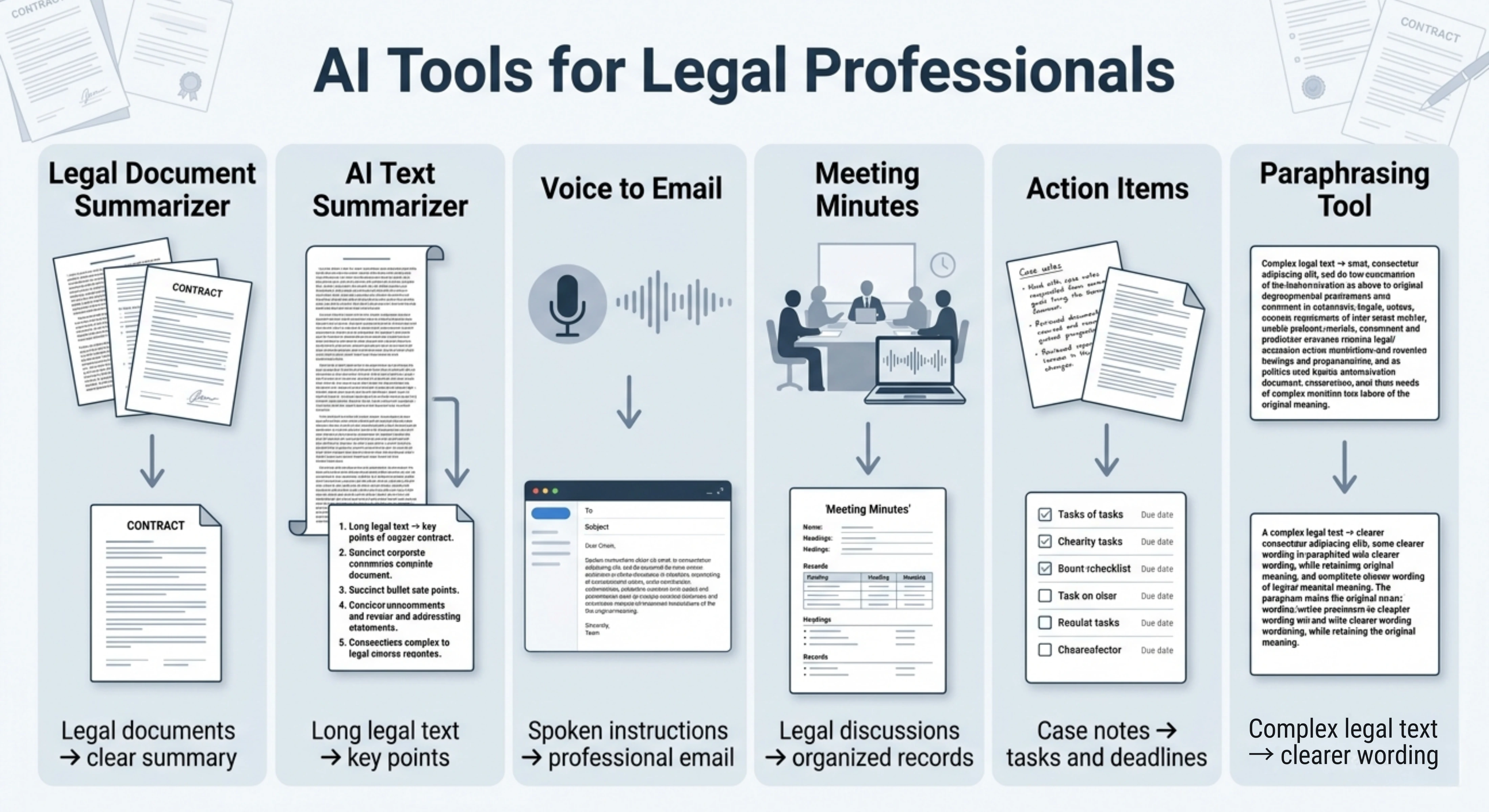
Legal professionals often work with long documents, detailed case notes, client communications, meeting discussions, and written records that need to be reviewed, summarized, organized, or rewritten with care. VoiceCraftTool helps support this work by turning legal text, spoken notes, recorded instructions, and meeting content into clearer summaries, emails, minutes, action points, and refined writing that can be reviewed and adjusted for professional use.
Tools Overview
Tool
For legal professionals
Main options
Legal Document Summarizer
Simplifies long legal documents into clear summaries.
Upload or paste text, choose language, select quality mode.
AI Text Summarizer
Summarizes case notes, research, and long legal text.
Bullet or paragraph format, short to detailed length, quality modes.
Voice Message to Email
Turns spoken notes or instructions into professional emails.
Record or upload audio, choose language, select quality mode.
Meeting Minutes Generator
Creates clear minutes from legal meetings and discussions.
Upload or paste meeting content, key points, quality modes.
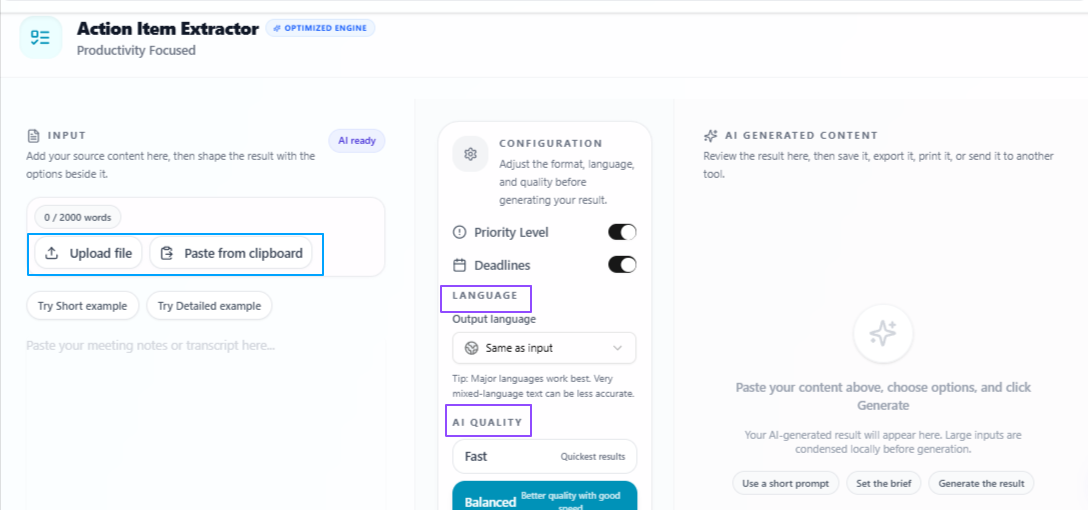
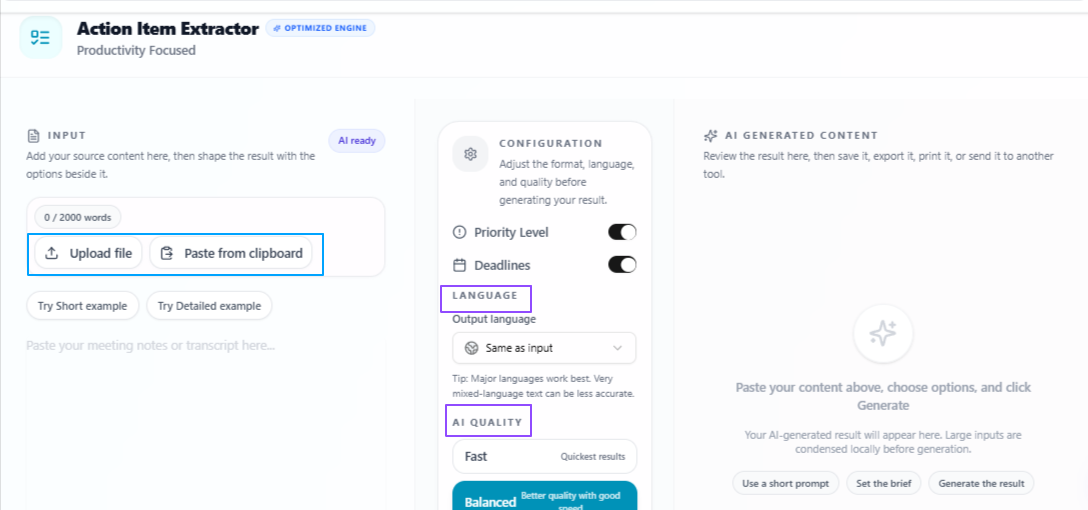
Action Item Extractor
Finds tasks, priorities, and deadlines from legal content.
Priority level, deadline option, language selection.
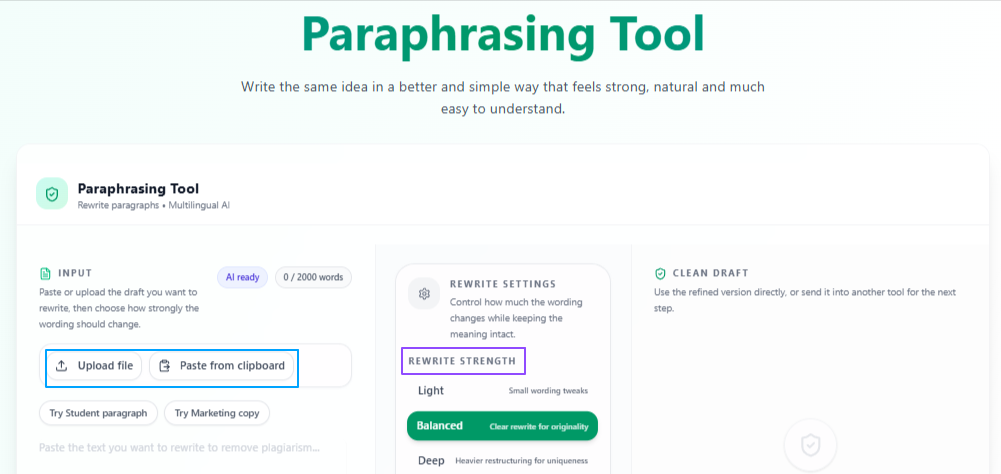
Paraphrasing
Rewrites legal text while keeping the meaning clear.
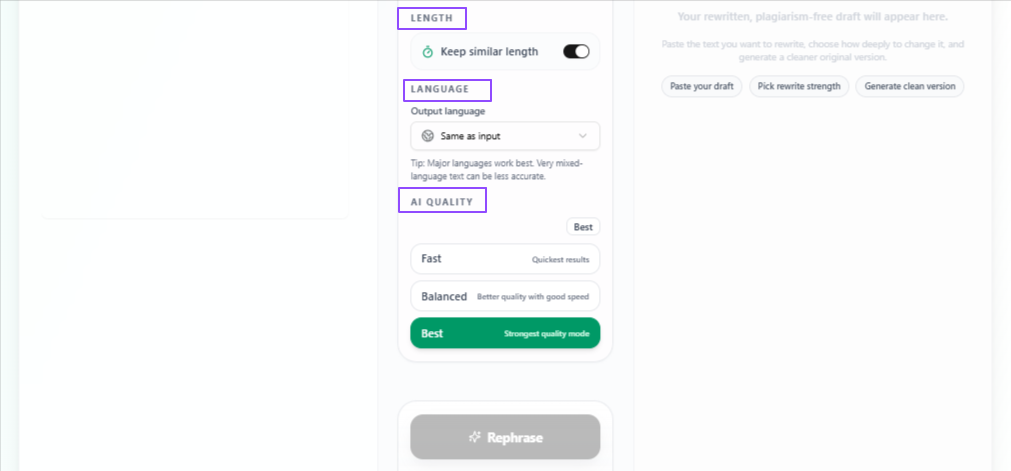
Same or varied length, Light, Balanced, or Deep rewriting.
All the important functions for legal professionals
Understand complex legal documents without reading every line manually
Legal professionals often work with long agreements, contracts, case papers, policies, notices, terms, and other legal documents that take time to read carefully. A clear summary helps them understand the main points faster before reviewing the full document in detail.
Problem
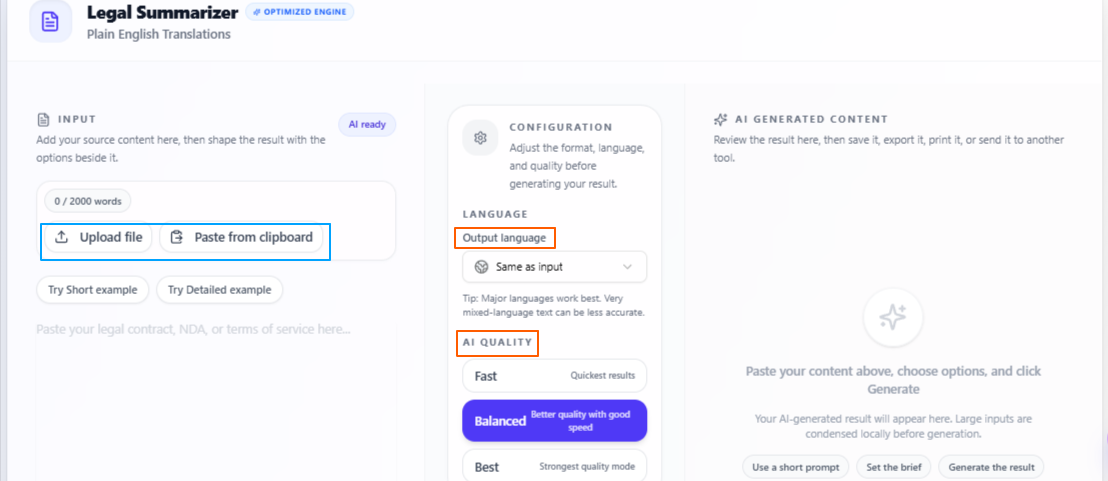
Legal documents are often long, formal, and difficult to review quickly when a legal professional needs to understand the key points, important clauses, obligations, risks, or overall meaning before going deeper into the full document.
Solution
Legal Document Summarizer will turn complex legal content into a simpler and clear summary, helping legal professionals review the document faster, identify important parts, and decide what needs closer attention.
Features
Upload or paste legal documents
Users can add contracts, agreements, legal notices, policies, case-related documents, or other written legal content.
Simple and understandable summary
The tool summarizes complex legal wording into clearer language, making the document easier to review.
Same-language output by default
The summary is generated in the same language as the input by default, so the original legal context remains natural.
Choose a different output language
Users can select another output language when they need to explain or review the content in a different language.
Quality control options
Users can choose Fast, Balanced, or Best mode depending on how quickly or deeply they want the document to be summarized.
Tips to remember
Use clear and complete document text for better summaries.
Use Best mode for important contracts, case papers, or detailed legal documents.
Review the original document before making legal decisions.
Add jurisdiction-specific or client-specific details manually where needed.
Use the summary as a review support tool, not as a replacement for professional legal judgment.
Summarize long legal text into clear and useful points
Legal professionals often need to review long case notes, legal research, client information, internal reports, written arguments, or general legal content. A clear summary helps reduce reading time and makes the main information easier to understand, organize, and use for the next step.
Problem
Long legal text can take time to review, especially when the important points are spread across detailed paragraphs, repeated information, or mixed notes that need to be understood quickly.
Solution
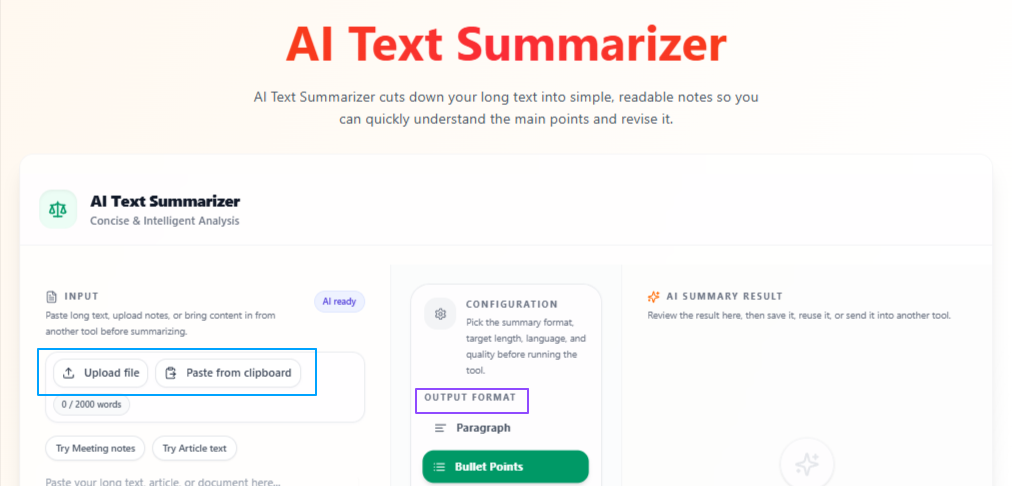
AI Text Summarizer summarizes written legal content into a shorter and clearer format, helping legal professionals understand the main points, review information faster, and prepare cleaner notes from long text or uploaded files.
Features
Paste, write, or upload text
Users can paste legal content, write text directly, or upload a file for summarization.
Paragraph or bullet-point output
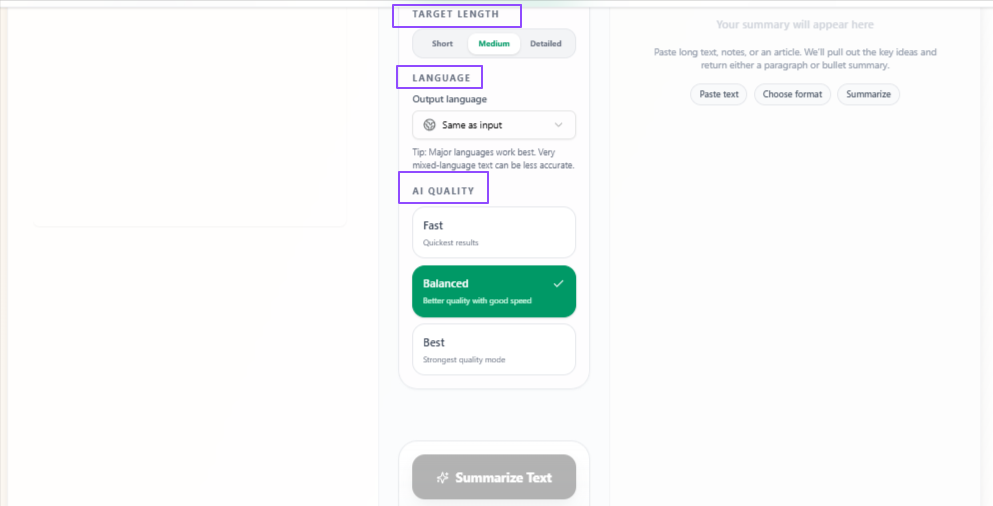
The summary can be generated as paragraphs or bullet points depending on how the user wants to review the information.
Short, medium, or detailed length
Users can choose the summary length based on whether they need a quick overview or a more complete explanation.
Same-language output by default
The summary is generated in the same language as the input by default, keeping the original context natural.
Choose a different output language
Users can select another language when they need to review or share the summary in a different language.
Quality control options
Users can choose Fast, Balanced, or Best mode depending on the level of detail and preparation needed.
Tips to remember
Use bullet points when you need quick review notes.
Use detailed length for long research, reports, or case material.
Use Best mode for important or sensitive legal content.
Review the original text before using the summary for legal work.
Add missing client, jurisdiction, or case-specific details manually.
Turn spoken legal instructions into properly written emails
Legal professionals often need to send emails after client calls, internal discussions, case updates, document reviews, or quick voice notes. Turning spoken thoughts into a clear email helps save time and makes the message easier to send, review, or adjust before sharing.
Problem
Important email instructions are often spoken quickly during calls, meetings, or voice notes, which can make it time-consuming to rewrite them into a clear, professional, and properly formatted email.
Solution
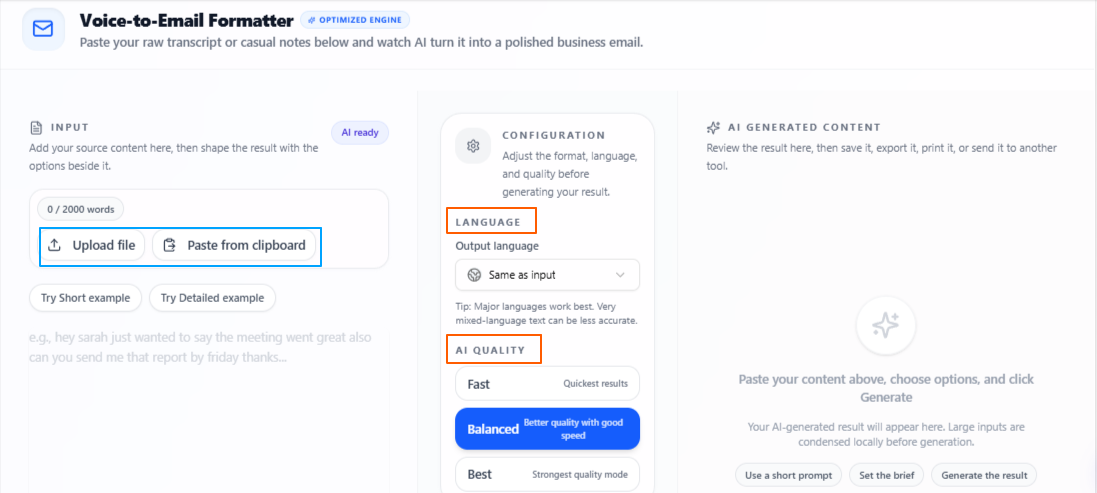
Voice message to Email tool turns recorded voice instructions or uploaded audio into a structured email, helping legal professionals convert spoken notes into clear written communication for clients, colleagues, teams, or other professional contacts.
Features
Record or upload audio
Users can record the email purpose directly or upload a recorded audio file.
Purpose-based email writing
The tool analyzes the spoken instruction and turns it into a relevant email based on the intended message.
Proper email format
The output is written in a clear email structure, making it easier to review and send.
Same-language output by default
The email is generated in the same language as the input by default, keeping the original communication style natural.
Choose a different output language
Users can select another language when they need to write or send the email in a different language.
Quality control options
Users can choose Fast, Balanced, or Best mode depending on how quickly or carefully they want the email prepared.
Tips to remember
Speak clearly and include the main purpose of the email.
Mention the recipient context, deadline, or required action in the voice note.
Use Best mode for important client or case-related emails.
Review the final email before sending it.
Add legal, client-specific, or confidential details manually where needed.
Create clear meeting records from legal discussions
Legal professionals often take part in client consultations, case review meetings, internal discussions, compliance meetings, and document review sessions where important decisions and next steps are discussed. Clear meeting minutes help keep the discussion organized and make it easier to remember what was covered, agreed, or assigned.
Problem
Legal meetings can include many details, decisions, questions, follow-ups, and responsibilities, which can be difficult to organize manually after the meeting ends.
Solution
AI Meeting Minutes Generator turns uploaded or pasted meeting content into organized meeting minutes, helping legal professionals keep a clear record of important points, discussion details, decisions, and next steps.
Features
Upload or paste meeting content
Users can add meeting notes, transcripts, discussion text, or copied meeting content.
Organized meeting minutes
The tool turns raw meeting content into a clearer meeting minutes format.
Important points extraction
Key discussion points are highlighted so the main information is easier to review.
Same-language output by default
The minutes are generated in the same language as the input by default, keeping the original discussion context natural.
Choose a different output language
Users can select another language when minutes need to be reviewed or shared in a different language.
Quality control options
Users can choose Fast, Balanced, or Best mode depending on the level of detail needed.
Tips to remember
Add complete meeting notes or transcript text for better minutes.
Mention names, roles, or responsibilities clearly where possible.
Use Best mode for important client, case, or compliance meetings.
Review the minutes before sharing them with others.
Add confidential, legal, or case-specific details manually where needed.
Turn legal content into clear tasks and deadlines
Legal professionals often receive important instructions from meetings, client notes, emails, case discussions, document reviews, and internal updates. Clear action items help make the next steps easier to follow, especially when tasks have different priorities, deadlines, or responsible follow-up points.
Problem
Legal content can include many instructions, follow-ups, responsibilities, and deadlines mixed inside long notes or discussions, making it easy to miss an important task or delay the next step.
Solution
Action Item Extractor gives you actionable points from uploaded or pasted content, helping legal professionals identify what needs to be done, what should be handled first, and which tasks may need deadline-based attention.
Features
Upload or paste content
Users can add meeting notes, case discussions, client instructions, email text, or document-related content.
Actionable output
The tool turns general content into clear tasks that are easier to review and complete.
Priority level option
Users can select priority settings so the output can organize tasks by importance.
Deadline option
Users can include deadline handling so time-sensitive tasks are easier to notice.
Same-language output by default
The action items are generated in the same language as the input by default, keeping the original context natural.
Choose a different output language
Users can select another language when tasks need to be reviewed or shared in a different language.
Quality control options
Users can choose Fast, Balanced, or Best mode depending on how quickly or carefully they want the tasks extracted.
Tips to remember
Add clear content with instructions, dates, and responsibilities where possible.
Use priority level when there are many tasks to handle.
Use the deadline option for time-sensitive legal work.
Review the extracted action items before assigning or completing tasks.
Add case-specific, client-specific, or legal deadline details manually where needed.
Rewrite legal text while keeping the meaning clear
Legal professionals often need to improve the wording of emails, notes, explanations, summaries, internal messages, client communication, and formal written content. Clear paraphrasing helps make the text easier to read while keeping the original meaning, tone, and purpose connected to the legal context.
Problem
Legal writing can sometimes be too complex, repetitive, unclear, or difficult for clients and team members to understand, especially when the same idea needs to be presented in a cleaner or more suitable way.
Solution
Paraphrasing Tool rephrases legal text into clearer wording, helping legal professionals improve communication, adjust tone, reduce repetition, and prepare content that is easier to review, share, or refine.
Features
Upload, paste, or write content
Users can upload a file, paste existing text, or write content directly into the tool.
Same or varied length
Users can keep the output close to the original length or allow the tool to adjust the length as needed.
Light rewriting
Useful when the text only needs small wording changes while staying very close to the original version.
Balanced rewriting
Useful when the text needs moderate improvement in clarity, flow, and structure.
Deep rewriting
Useful when the content needs stronger restructuring while keeping the main meaning connected to the original text.
Same-language output by default
The rewritten text is generated in the same language as the input by default, keeping the original context natural.
Choose a different output language
Users can select another language when they need to rewrite or prepare the content for a different audience.
Quality control options
Users can choose Fast, Balanced, or Best mode depending on how quickly or carefully they want the text rewritten.
Tips to remember
Use Light rewriting when the original wording should stay mostly unchanged.
Use Deep rewriting when the text needs stronger restructuring.
Review the rewritten text before using it in legal communication.
Keep legal terms, names, dates, and case details accurate.
Use the output as writing support, not as a replacement for legal review.
Conclusion
Together, these functions help legal professionals handle written and spoken legal content with more clarity and organization. They support daily work such as summarizing documents, preparing emails, recording meeting points, extracting tasks, and improving written communication while keeping the final review and legal judgment in the hands of the professional.
Next step
Put this workflow to work
Use the tools directly once you finish reading, so the guide turns into action instead of just reference material.