
User Guide for Non-profit Teams
Non-profit teams often work with long reports, research notes, donor updates, meeting documents, program details, and policy material. These documents may contain useful information, but reading everything....
Non-profit teams often work with grant applications, donor communication, campaign messages, research material, meeting notes, volunteer tasks, and community updates while trying to keep their mission clear and their work organized. Their work is not only about creating awareness, but also about explaining impact, preparing useful documents, turning discussions into action, reaching supporters, and making sure important information is easy to understand and use.
Tools Overview
All the important functions for a Non-profit Team
Turn research and project details into a clear funding proposal
Problem
Non-profit teams often work on important research, community programs, social projects, or impact-based initiatives, but preparing a grant proposal from that material can take time. The available data may be useful, but it can feel scattered, informal, or difficult to present in a proper proposal format that is clear enough for funding applications.
Solution
The Grant Proposal Writer helps non-profit teams turn research data, project details, or uploaded files into a properly written grant proposal. Users can upload their research data files or paste the information directly, and the tool organizes the content into a more complete proposal that can support the next step of applying for grants, funding, or project support.
Features
Research data input
Users can upload research data files or paste the project information directly into the tool.
Grant-focused writing
The tool turns the provided data into a properly written proposal that is suitable for grant and funding purposes.
Clear proposal structure
It helps organize the research, purpose, expected outcome, and project direction in a cleaner way.
Support for nonprofit projects
The output can be useful for community programs, research initiatives, awareness projects, and social impact work.
Language flexibility
The output language stays the same as the input by default, but users can also select another language if needed.
Quality control
Users can choose Fast for quick proposal output, Balanced for a mix of speed and quality, or Best for deeper and more focused results.
Tips to remember
Add complete research or project details before generating the proposal.
Include the purpose, target audience, expected outcome, and funding need if available.
Use Balanced for regular proposal drafts.
Use Best when preparing a proposal for an important grant opportunity.
Review the final proposal to make sure the facts, numbers, and project details are accurate.
Adjust the proposal tone if the funding organization requires a specific format or style.
Make long reports and documents easier to understand
Problem
Non-profit teams often work with long reports, research notes, donor updates, meeting documents, program details, and policy material. These documents may contain useful information, but reading everything in full can take time, especially when the team only needs the main points for review, planning, or communication.
Solution
The Text Summarizer helps non-profit teams turn long content into shorter and easier-to-review summaries. Users can paste the text, write the content directly, or upload a file, and the tool summarizes the material in a clearer format. The output can be selected as paragraphs or bullet points, and the summary length can be short, medium, or detailed depending on the need.
Features
Flexible content input
Users can paste text, write content directly, or upload a file as the base for the summary.
Paragraph or bullet output
The summary can be generated in paragraph form or bullet points, depending on how the team wants to review the information.
Target length control
Users can choose Short, Medium, or Detailed based on how much information they want in the final summary.
Useful for nonprofit documents
The tool can help summarize reports, research files, donor updates, campaign material, meeting notes, and program documents.
Language flexibility
The output language stays the same as the input by default, but users can also select another language if needed.
Quality control
Users can choose Fast for quick summaries, Balanced for a mix of speed and quality, or Best for deeper and more focused results.
Tips to remember
Use bullet points when you need a quick internal review.
Use paragraphs when the summary needs to sound more formal or report-like.
Choose Short for quick understanding of the main idea.
Choose Detailed when summarizing important reports or research documents.
Use Balanced for regular nonprofit documents and meeting notes.
Review the final summary to make sure important facts, figures, and context are not missing.
Turn meetings and discussions into clear next steps
Problem
Non-profit teams often handle meetings, campaign discussions, volunteer planning, donor conversations, and program updates where many important tasks are mentioned. After the discussion ends, it can be easy to miss follow-ups, forget priorities, or lose track of deadlines that are important for the team’s work.
Solution
The Action Item Extractor helps non-profit teams turn uploaded content into clear and actionable tasks. Users can upload meeting notes, discussion content, planning material, or any written information, and the tool extracts the useful action points from it. Priority level and deadline options can also be used to organize tasks in a more practical way.
Features
Content upload
Users can upload their content and use it as the base for extracting action items.
Actionable output
The tool turns general notes, discussions, or planning content into clear tasks that are easier to follow.
Priority level
Users can select priority settings so the output can show tasks in a more useful order.
Deadline support
The deadline option helps mention ending times or due points for the extracted tasks.
Useful for nonprofit coordination
The tool can help organize volunteer tasks, campaign actions, donor follow-ups, team responsibilities, and program planning steps.
Language flexibility
The output language stays the same as the input by default, but users can also select another language if needed.
Quality control
Users can choose Fast for quick task extraction, Balanced for a mix of speed and quality, or Best for deeper and more focused results.
Tips to remember
Upload complete meeting notes or planning content for better task extraction.
Use priority level when there are many tasks in the content.
Use deadlines when the work is time-sensitive.
Use Balanced for regular team meetings and volunteer planning.
Use Best when extracting tasks from important donor, board, or campaign discussions.
Review the final action list and assign each task to the right person or team.
Reach donors, partners, and supporters with clearer outreach
Problem
Non-profit teams often need to contact donors, sponsors, partners, volunteers, and community supporters, but writing the first outreach message can take time. The email needs to sound clear, respectful, and purposeful while explaining the cause or request without feeling too long, unclear, or overly promotional.
Solution
The Cold Email Generator helps non-profit teams turn rough ideas, source content, or basic outreach direction into a professional email. Users can upload content, paste existing material, or write the idea they have in mind, and the tool creates a stronger email that can be used for donor outreach, partnership requests, sponsorship communication, volunteer engagement, or campaign support.
Features
Flexible input
Users can upload source content, paste existing material, or write the basic idea for the outreach email.
Professional email writing
The tool turns rough information into a clear and polished email suitable for nonprofit communication.
Attention-focused opening
It helps create a stronger start so the email can quickly explain the purpose of the message.
Supporter-focused structure
The output helps present the cause, request, impact, or opportunity in a more organized way.
Useful for nonprofit outreach
The tool can help with donor emails, sponsor requests, partnership messages, volunteer invitations, and community support campaigns.
Language flexibility
The output language stays the same as the input by default, but users can also select another language if needed.
Quality control
Users can choose Fast for quick email output, Balanced for a mix of speed and quality, or Best for deeper and more focused results.
Tips to remember
Add clear details about the cause, campaign, or request before generating the email.
Keep the goal clear, such as asking for support, booking a meeting, inviting volunteers, or starting a partnership.
Use Balanced for regular outreach emails.
Use Best when writing to important donors, sponsors, or partner organizations.
Review the final email to make sure it sounds respectful and natural.
Personalize the opening line before sending it to a specific donor, sponsor, or organization.
Share one message across different platforms more easily
Problem
Non-profit teams often create one strong message for a campaign, awareness topic, donation appeal, event, or impact story, but each platform needs a different style. A message that works for a LinkedIn post may not work as a TikTok hook, Twitter thread, or short social caption, so rewriting the same content for every platform can take extra time.
Solution
The AI Content Repurposing tool helps non-profit teams turn one script or message into content for different platforms. Users can upload or paste their content, select the needed configurations, and get platform-ready versions that can be used for awareness campaigns, donor updates, community posts, volunteer communication, or social impact storytelling.
Features
Simple content input
Users can upload their script content or paste it directly into the tool.
Platform-based repurposing
The tool can turn one piece of content into formats such as TikTok hooks, LinkedIn posts, Twitter threads, and more.
Personalized configurations
Users can select the options they need before generating the repurposed content.
Useful for nonprofit communication
The tool can help reuse donation appeals, awareness messages, campaign updates, event announcements, and impact stories across different channels.
Time-saving content workflow
It helps teams avoid rewriting the same message from scratch for every platform.
Language flexibility
The output language stays the same as the input by default, but users can also select another language if needed.
Quality control
Users can choose Fast for quick repurposing, Balanced for a mix of speed and quality, or Best for deeper and more focused results.
Tips to remember
Start with a clear main message before repurposing it.
Use different versions for different platforms instead of posting the same text everywhere.
Keep donation appeals, campaign updates, and impact stories focused on one main point.
Use Balanced for regular social content and awareness posts.
Use Best when preparing content for an important campaign, fundraiser, or public announcement.
Review each platform version to make sure the tone fits the audience and channel.
Improve nonprofit scripts before sharing them with people
Problem
Non-profit teams often prepare scripts for fundraising videos, awareness campaigns, event messages, donor updates, volunteer instructions, or community announcements. The main idea may already be there, but the script can still feel unclear, too long, weak in tone, or unorganized when it is reviewed or spoken out loud.
Solution
The Script Editor helps non-profit teams improve their script content by making it clearer in tone, structure, and overall quality. Users can paste the script, write it directly, record it at the same time, or upload a file, and the tool edits the content into a more polished version that is easier to use for videos, audio, events, campaigns, and public communication.
Features
Flexible script input
Users can paste the script, write it directly, record it at the same time, or upload a file.
Script quality improvement
The tool helps improve the script’s tone, structure, clarity, and overall flow.
Tone selection
Users can select different tones from the dropdown depending on the purpose of the message.
Useful for nonprofit communication
The tool can help refine fundraising scripts, awareness videos, donor messages, volunteer instructions, and event announcements.
Better structure and readability
It helps make the script easier to read, speak, record, or share with a team.
Quality control
Users can choose Fast for quick editing, Balanced for a mix of speed and quality, or Best for deeper and more focused results.
Tips to remember
Add the full script when you want a more complete edit.
Choose a tone that matches the purpose, such as formal, warm, simple, or inspiring.
Use Balanced for regular script editing.
Use Best when preparing scripts for important campaigns, fundraising videos, or public events.
Read the final script out loud to check if it sounds natural.
Review the edited version to make sure the message still reflects the nonprofit’s mission clearly.
Conclusion
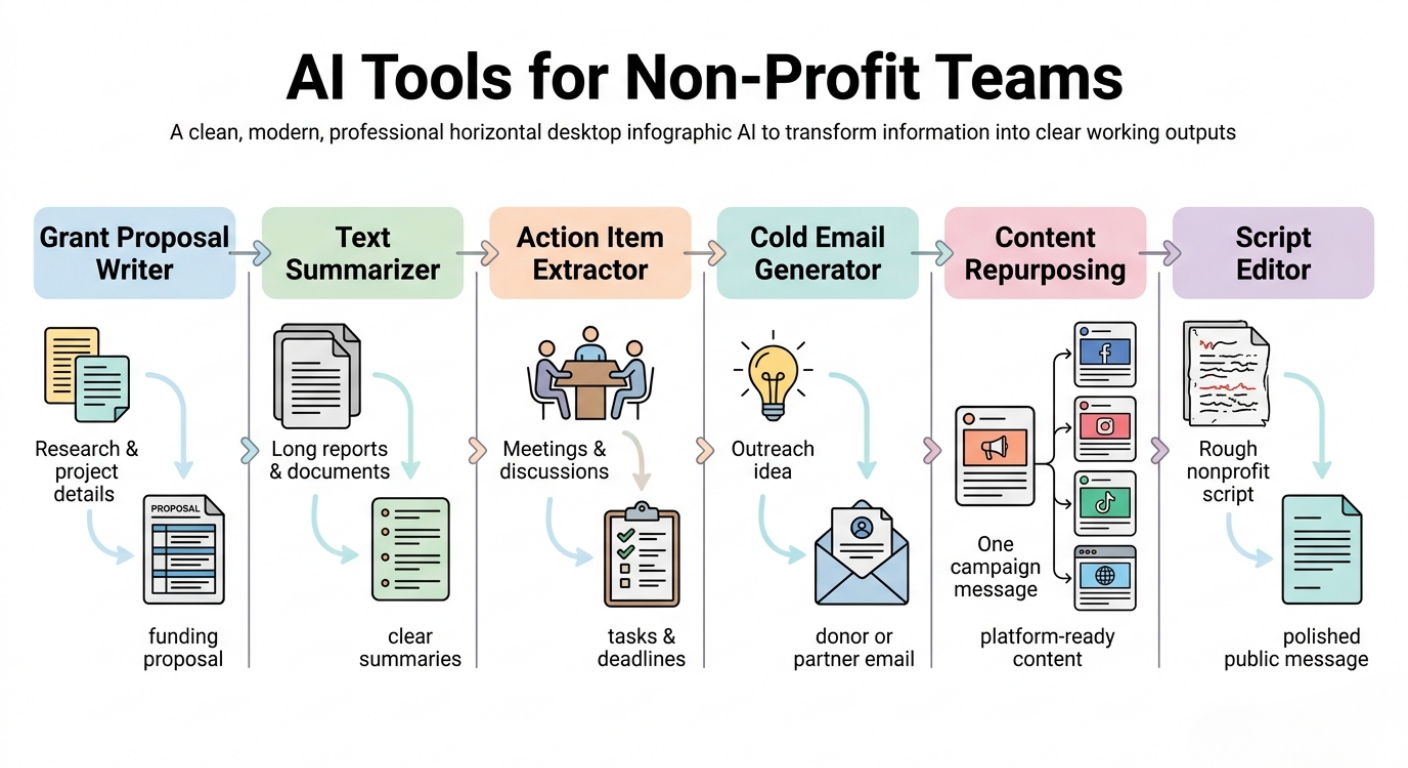
Overall, these use cases show how non-profit teams can use VoiceCraftTool to manage the practical writing, planning, and communication work behind their mission. From preparing grant proposals and summarizing long documents to organizing action items, reaching supporters, repurposing campaign content, and improving scripts, these tools help teams handle important information more clearly, save time on repeated manual work, and stay focused on creating real impact for the communities they serve.
Put this workflow to work
Use the tools directly once you finish reading, so the guide turns into action instead of just reference material.
Non-profit teams who want a cleaner path from recordings to usable output.