How Students Can Turn Lecture Slides to Notes with AI Free

Lecture slides are helpful in class, but they are not always enough when exam time comes. Most slides only show the main points, while the real explanation happens during the lecture. That is why students often end up rewatching recordings or rewriting everything from scratch. With AI, you can turn lecture slides, transcripts, or rough notes into a structured study guide in seconds.
What You Need Before You Start
The quality of your AI-generated notes depends entirely on what you put in. Garbage in, garbage out, as they say. Before opening any tool, get the following ready:
The text from your lecture slides, either copied directly or typed out
Any rough notes you took during the class
A transcript if your professor recorded the lecture or if it was posted online
The subject name and topic, since this helps the AI stay focused
A sense of what format you want: a summary, a detailed breakdown, a list of key terms, or practice exam questions
If you recorded the lecture yourself or have access to a YouTube or course platform transcript, that works even better than slides alone.
Use VoiceCraftTool's Lecture Note Taking AI
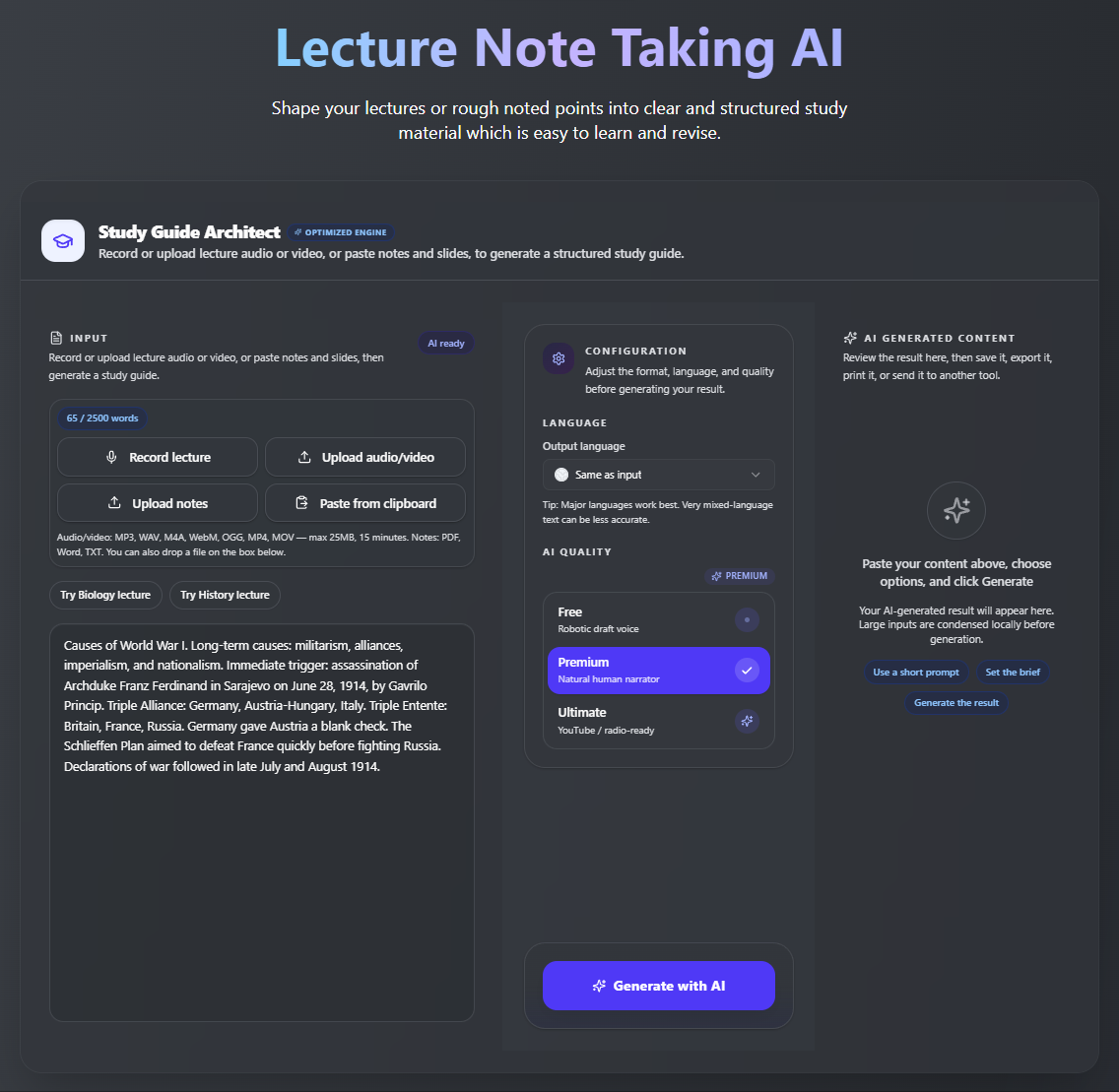
Most AI note tools rely on file uploads or fixed templates. VoiceCraftTool keeps it simpler: paste your lecture transcript, copied slide text, or rough class notes, and the Lecture Note Taking AI turns it into a structured Markdown study guide.
It pulls out main concepts, key terms, theories, dates, and revision points so the content is easier to study. You can also record a lecture with VoiceCraftTool’s Voice Recorder, then paste the transcript into the note-taking tool. It also works with YouTube transcripts, online courses, and webinar recordings.
Key Features of VoiceCraftTool's Lecture Note Taking AI
Study Guide Conversion:
VoiceCraftTool turns raw lecture transcripts, copied slide text, or messy class notes into a clean study guide. Instead of reading through scattered content, students get organized notes that are easier to revise.
Key Concepts and Terms:
The tool identifies main concepts, high-yield topics, important dates, theories, proofs, and key terms from the lecture material. This helps students focus on what matters most instead of treating every line as equally important.
Exam-Ready Review:
VoiceCraftTool can suggest probable exam-style questions based on the content. Students can use these questions to test their recall before exams or turn them into flashcards for practice.
Multilingual Support:
Students can work with lecture content in different languages and make study notes easier to understand. They can also input content in one language and generate notes in another, which is helpful for international students and language learners.
Flexible Lecture Sources:
It works with recorded lecture transcripts, copied slide content, YouTube transcripts, typed notes, and online course material. The output is generated in Markdown, so it can be copied into Notion, Obsidian, Google Docs, or any study notebook.
Practically explore by clicking here, Lecture Slides to Notes by VoiceCraftTool
Step-by-Step Guide to Use AI for Lecture Notes
This is just about four simple steps that include a few clicks and moments.
Step 1: Collect Your Lecture Material
Start with whatever you already have from class: copied slide text, a lecture transcript, YouTube captions, LMS content, or rough notes you typed while listening.
Step 2: Turn Audio into Text
If the lecture is only available as audio or video, create a transcript first. For live classes, you can use VoiceCraftTool’s Voice Recorder. For recorded lessons, check whether YouTube, Coursera, or your course platform already provides captions.
Step 3: Generate the Study Guide
Paste the content into VoiceCraftTool’s Lecture Note Taking AI. Add the subject name or lecture topic at the top so the tool has context. It will turn the material into organized notes with main ideas, key terms, and review questions.
Step 4: Review Before You Revise
Do a quick check before relying on the notes. Formulas, diagrams, dates, and professor-specific exam hints should always be reviewed manually.
Just a few steps and use it in a simple straight way, try now AI Lecture Note Taking by VoiceCraftTool.
Tips to Get Better Notes from Lecture Slides
Keep the lecture order: Paste the content in the same order as the lecture so the notes follow a clear flow.
Add context at the top: Mention the subject, level, and topic, such as “second-year biochemistry lecture on enzyme kinetics.”
Include spoken explanations: Add any professor comments or class notes you have, especially details that were not written on the slides.
Split long lectures: For long classes, process the content in two parts. The tool supports up to 30,000 characters, but shorter inputs usually give cleaner notes.
Ask for exam-focused sections: Request key terms and probable exam questions to make the output more useful for revision.
Review STEM details manually: Check formulas, diagrams, proofs, and technical points yourself before studying from the notes.
Common Mistakes to Avoid
Pasting Only Slide Titles: Titles and short bullets do not give the AI enough context. Add full slide text, lecture notes, or transcript content where possible.
Ignoring Diagrams and Graphs: If a slide is mostly visual, describe what the diagram, chart, or image shows before adding it to the tool.
Skipping the Review Step: AI notes are a study helper, not a final answer sheet. Always read through the output before relying on it.
Using Only Summaries for Hard Topics: For difficult subjects like pharmacology, thermodynamics, or proofs, use summaries as a starting point and then check the original material.
Submitting AI Content as Your Own Work: The tool is for learning and revision, not for submitting generated text as your own assignment.
Pasting Very Long Lectures at Once: Split long recordings or three-hour lectures into smaller parts to get cleaner and more focused notes.
Keep these tips and avoid these mistakes to get really useful results. Try VoiceCraftTool for AI Lecture Note Taking from Slides NOW!
Best Ways to Use the AI Notes Once You Have Them
(1) The study guide is most useful when you actually do something with it rather than just reading it once.
(2) Turn the key terms section into flashcards using Anki or a similar app. The probable exam questions are ready-made practice tests, so treat them like one. Go through each question without looking at the notes, then check your answers.
(3) If you use Notion or Obsidian, paste the Markdown output directly. The formatting will carry over cleanly and you can add your own highlights or links to related material.
(4) For group study, share the notes as a discussion base. Having a structured guide makes it easier to divide topics and quiz each other. This works particularly well for long online courses where group sessions help with retention.
Conclusion
Rewriting slides and re-listening to lectures is a slow way to study. Students who use AI to handle the initial organization step free up time to actually engage with the material, which is where real learning happens.
VoiceCraftTool's Lecture Note Taking AI is practical, straightforward, and built for the kind of content students actually work with. Paste in your lecture transcript, slide text, or rough notes and get back a structured study guide with key terms, main concepts, and exam questions ready to use. The tool does the formatting work and you do the learning. Try it now, Lecture Note Taking.
FAQs
Can AI turn lecture slides into notes for free?
Yes. VoiceCraftTool offers a free tier that includes the Lecture Note Taking AI, so students can try it without paying upfront.
Can I use it for YouTube lectures?
Yes. Copy the YouTube transcript using the auto-caption option, then paste it into the tool. It works the same way as any other transcript.
Does it work with STEM subjects?
It works well for concept-heavy STEM content. For anything involving formulas, proofs, or diagrams, treat the AI notes as a framework and verify the technical details manually.
Can I paste messy notes?
Yes, that is actually one of its strengths. You do not need to clean up your input before pasting.
How does it handle long lectures?
The tool supports up to 30,000 characters per session. For longer lectures, split the content into two parts and run them separately.
Is this safe from plagiarism detectors?
The study guide is for your own revision, not for submission. Do not submit AI-generated content as your own academic work regardless of what any tool claims about detection.
Is my course content private?
Check VoiceCraftTool's current privacy policy for the most accurate answer on data handling.