Transcribe Podcast to Text Free & Fast with AI | 2026 Guide
Apr 24, 2026
9 min read
There is more podcast content being published today than any one person could ever listen to. Whether you are a creator, researcher, marketer, or just someone who wants to get more out of the episodes you love, turning that audio into text has become genuinely useful.
Transcribing a podcast to text simply means converting the spoken audio of an episode into a readable, editable document. It sounds simple, but the ability to search a transcript, copy a quote, or hand a conversation to someone who prefers reading over listening opens up a lot of possibilities. And in 2026, AI has made it faster and more accessible than most people realize, often at no cost.
Key Features You Need
1) Fast Processing Speed
Speed should be one of the first things you look at. You should not have to wait long just to get a transcript. Good tools today can process a full one-hour podcast in just a few minutes, which makes a big difference if you are working regularly with audio content.
2) High Transcription Accuracy
Accuracy matters just as much as speed. A reliable tool should understand natural conversations, pick up most words correctly, and handle different accents or technical terms without forcing you to constantly edit the output.
3) Support for Common Audio Formats
A good tool should work smoothly with files like MP3, WAV, and M4A. It should also handle longer recordings without slowing down or breaking the process.
4) Easy Export and Editing
Once the transcription is ready, you should be able to copy, edit, or download it without extra steps. A simple export process saves time and makes the tool more useful in real work.
5) Simple and Clean Interface
The tool should feel easy to use from the start. You should be able to upload your file and get results without digging through confusing settings. A clean interface makes the whole process faster and more practical.
Use VoiceCraftTool's Podcast Notes Taker AI for Free
VoiceCraftTool fits naturally into your workflow when your podcast audio is ready and you need a quick way to turn it into clean, readable notes. Instead of going through complex tools or manual effort, you can simply upload your audio and get structured podcast notes within minutes.
What makes it especially useful for podcasts is how it handles real, spoken conversations. Podcasts are rarely scripted. They include pauses, filler words, and casual dialogue. Many tools struggle with this, but VoiceCraftTool is built to handle natural speech, so the output feels cleaner and requires less editing.
Another practical advantage is that you can try it without commitment. There is a free tier available, so you can test it with your own podcast episodes and see how well it fits your workflow before relying on it regularly.
Features of AI Podcast Notes
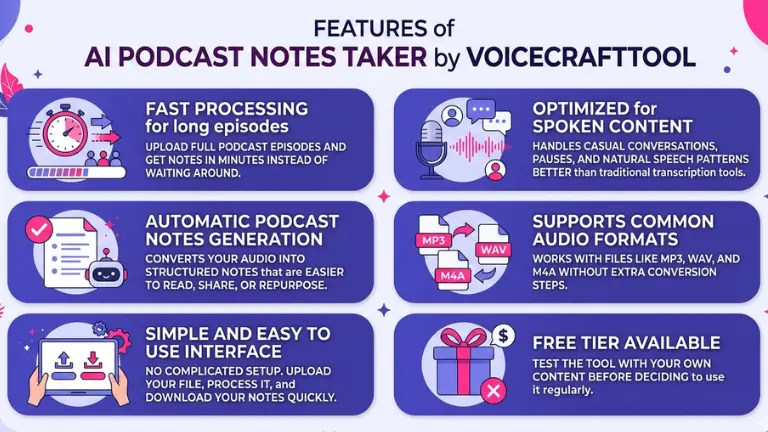
Fast processing for long episodes:Upload full podcast episodes and get notes in minutes instead of waiting around.
Optimized for spoken content:Handles casual conversations, pauses, and natural speech patterns better than traditional transcription tools.
Automatic podcast notes generation: Converts your audio into structured notes that are easier to read, share, or repurpose.
Supports common audio formats:Works with files like MP3, WAV, and M4A without extra conversion steps.
Simple and easy to use interface:No complicated setup. Upload your file, process it, and download your notes quickly.
Free tier available:Test the tool with your own content before deciding to use it regularly.
How VoiceCraftTool Fits for You:
Fits into a fast workflow - You can move from audio to notes quickly without delays, keeping your process smooth.
Minimizes editing effort - The output stays clear and readable, so you do not spend time fixing every line.
Works with your existing files - Upload your audio as it is and continue without extra steps or setup.
Gives ready-to-use notes - The result is easy to read, reuse, and share across your work.
Keeps everything simple - The process stays straightforward from upload to final output.
Easy to test before relying on it - You can try it with your own podcast and see how well it fits your needs.
Steps to Transcribe a Podcast into Text (Using VoiceCraftTool)
Step 1: Open the Podcast Notes Tool
Go to VoiceCraftTool’s Podcast Notes tool in your browser. You do not need a complicated setup to get started.
Step 2: Upload your podcast audio or paste a link
Add your podcast file (MP3, WAV, M4A) or paste a supported link if available. This keeps your workflow simple without extra conversions.
Step 3: Generate podcast notes
Click to start the process. The tool will quickly turn your audio into structured text while you can focus on other tasks.
Step 4: Review and refine the output
Go through the notes once to fix small things like names or specific terms. This quick check makes sure your final content is clean and ready to use.
Check this step-by-step guide to convert Spotify Podcast to Text.
How to Use the Transcribed Text
Once your transcript is ready, you can start using it in simple and practical ways.
Turn it into show notes or blog content:Pick out the main points from the episode and shape them into a clean article or summary. This also helps with SEO since text is searchable.
Create social media content:Pull short, strong quotes from the transcript and use them for posts. A single episode can give you multiple pieces of content.
Use it for learning or research:Instead of replaying audio, you can read, highlight, and search through the transcript to find what you need faster.
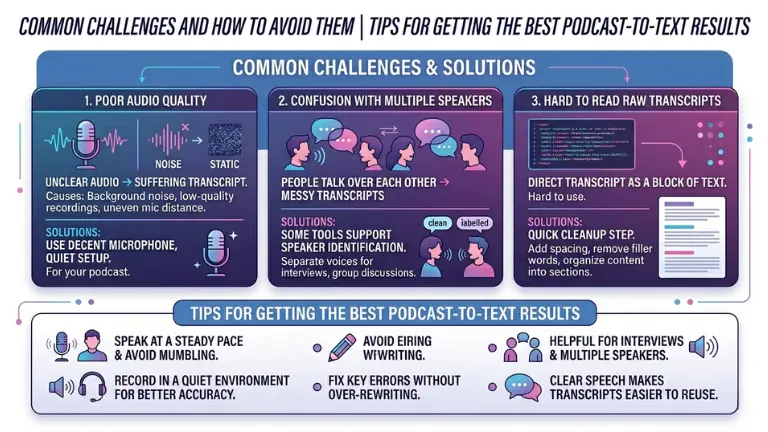
Even with good tools, a few common issues can affect your results. Knowing them upfront helps you get cleaner transcripts with less effort.
Poor audio quality:
If the audio is unclear, the transcript will suffer. Background noise, low-quality recordings, or uneven mic distance can all reduce accuracy. If it is your own podcast, using a decent microphone and a quiet setup can make a noticeable difference.
Confusion with multiple speakers:
When people talk over each other, transcripts can become messy or unclear. Some tools support speaker identification, which helps separate voices. If you often work with interviews or group discussions, this is something worth paying attention to.
Hard to read raw transcripts:
A direct transcript often comes out as a block of text. Adding spacing, removing filler words, and organizing content into sections makes it much easier to use. A quick cleanup step improves readability a lot.
Tips for Getting the Best Podcast-to-Text Results
Speak at a steady pace and avoid mumbling.
Record in a quiet environment for better accuracy.
Fix key errors without over-rewriting.
Helpful for interviews and multiple speakers.
Clear speech makes transcripts easier to reuse.
Conclusion
Turning a podcast into text is now a quick and practical process when you use the right approach and tools. You can convert audio into clean, usable content that helps with SEO, content creation, and learning without spending hours on manual work. With tools like VoiceCraftTool’s AI Podcast Notes Taker handling speed, accuracy, and simplicity, all you need is your audio and a quick review step to get reliable results and make the most out of every podcast episode.
FAQs
Is it really possible to transcribe a podcast to text for free?
Yes. Several tools including VoiceCraftTool offer free tiers that let you transcribe audio without paying anything. There are usually some limits, like a cap on audio length or the number of transcriptions per month, but for occasional use or to test how well a tool works for your audio, free access is genuinely available.
How accurate is AI transcription for podcasts?
For clear audio with a single speaker, modern AI transcription is very good, often in the 90 to 95 percent accuracy range. Accuracy drops with background noise, strong accents, fast speech, or multiple speakers talking over each other. The good news is that even an imperfect transcript is usually much faster to edit than manually typing out an episode from scratch.
Can I transcribe a podcast to text without installing software?
Yes, and this is one of the bigger improvements in the last few years. Most modern transcription tools are fully browser-based. You visit the site, upload your file or paste a link, and download your transcript when it is done. Nothing to install, no compatibility issues to deal with.
What file formats does VoiceCraftTool support?
VoiceCraftTool supports common audio formats including MP3, WAV, and M4A, which covers the vast majority of podcast files you are likely to work with. If you are unsure about a specific format, the tool's help section will have the most current information.
How long does it take to convert a podcast to text with AI?
For most tools, the processing time is a fraction of the actual episode length. A 30-minute episode might take two to four minutes to transcribe. Longer episodes naturally take a bit more time, and processing speed can vary depending on server load, but waiting more than 10 to 15 minutes for a standard episode would be unusual with a well-built tool.
Did you find this helpful?
Share this article with your friends and colleagues.