Generate creative AI videos with voice from text, images and audio.
AI Video Maker
TEXT + IMAGE
Generate creative AI videos with voice from text, images and audio.
AI videoYour voiceover
MAX LENGTH
5s Free
15s Starter
30s Plus
See what you can create
Watch with sound
3D character animation9:16
Product advertising9:16
Anime storytelling9:16
AI explainer video16:9
AI Video History
Saved items for this tool (per account)
AI Video Feedback
Ratings and comments from people who used this tool
No feedback yet for this tool.
AI Video Maker by VoiceCraftTool
VoiceCraftTool's AI Video Maker tool is designed for content creators with social media managers, marketers, and businesses who want to explore video ideas without starting with a camera or recording setup.
You can generate short videos from text, select different visual styles, and adjust the output for your preferred platform. It is particularly useful for creating social media content, testing video concepts, and producing short promotional visuals.
Create videos from text, images & audio
AI Video Maker lets you create videos using written ideas, reference images, or audio content. You can also bring content directly from VoiceCraftTool's Script Editor and Text to Audio tools without preparing everything again.
Turn text into AI videos
Describe the scene, subject, action, or message you want your video to communicate. You can enter a simple idea or provide a detailed prompt explaining the visuals, background, lighting, and movement.
For example, describe a skincare product on a clean countertop with soft lighting and a slow camera movement to generate a product-focused video.
Create videos using reference images
Add an image as a visual reference to help guide your AI-generated video. This is useful when you have a particular product, subject, or visual appearance in mind and want the generated content to reflect it.
Use audio for video creation
Use your voice or available audio options when creating a video. This is helpful for voiceover-based content, promotional clips, and videos where spoken narration is part of the concept.
You can also bring generated audio directly from VoiceCraftTool's Text to Audio tool into the AI Video Maker.
Bring content from VoiceCraftTool's other tools
If you've already prepared a script using VoiceCraftTool's Script Editor, you can take it directly into the AI Video Maker instead of copying or rewriting it.
Similarly, audio generated through the Text to Audio tool can be transferred into the video creation workflow. This helps you move from writing a script to preparing narration and generating video content within the same toolkit.
Key features of AI Video Maker
Ready-made creator packs
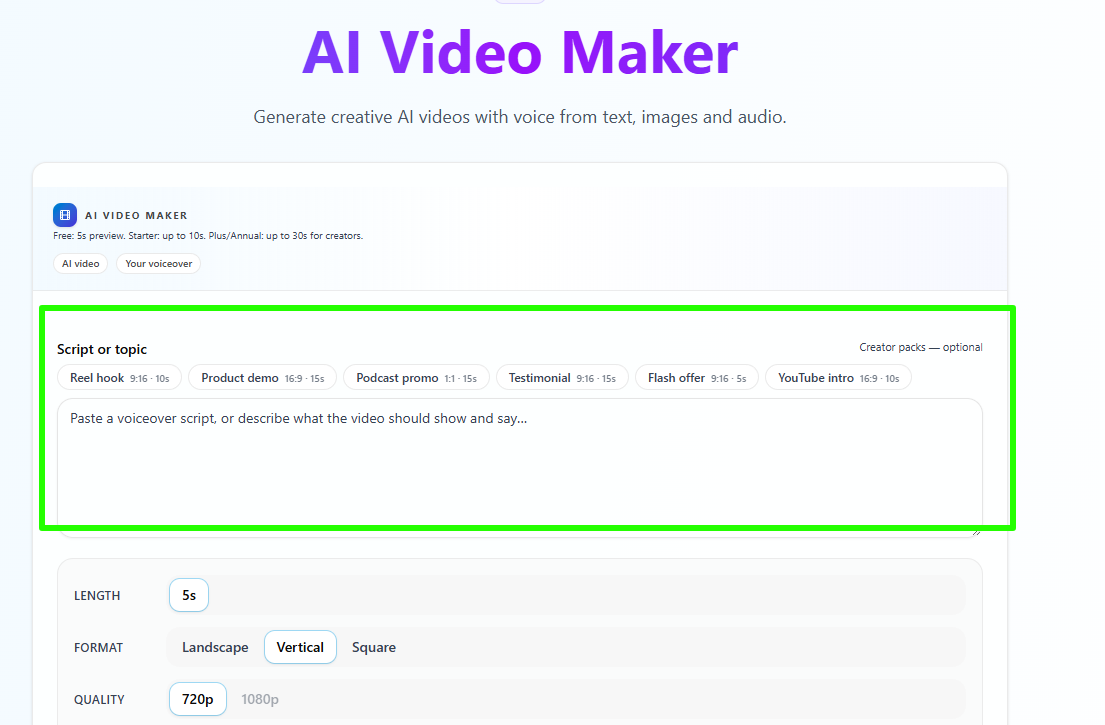
The AI Video Creation Tool includes creator packs for popular short-video formats, including Reel Hooks, Product Demos, Podcast Promos, Testimonials, Flash Offers, and YouTube Intros.
These options provide a starting point for different types of content, helping users choose an appropriate video format without planning every setting individually.
Multiple video formats
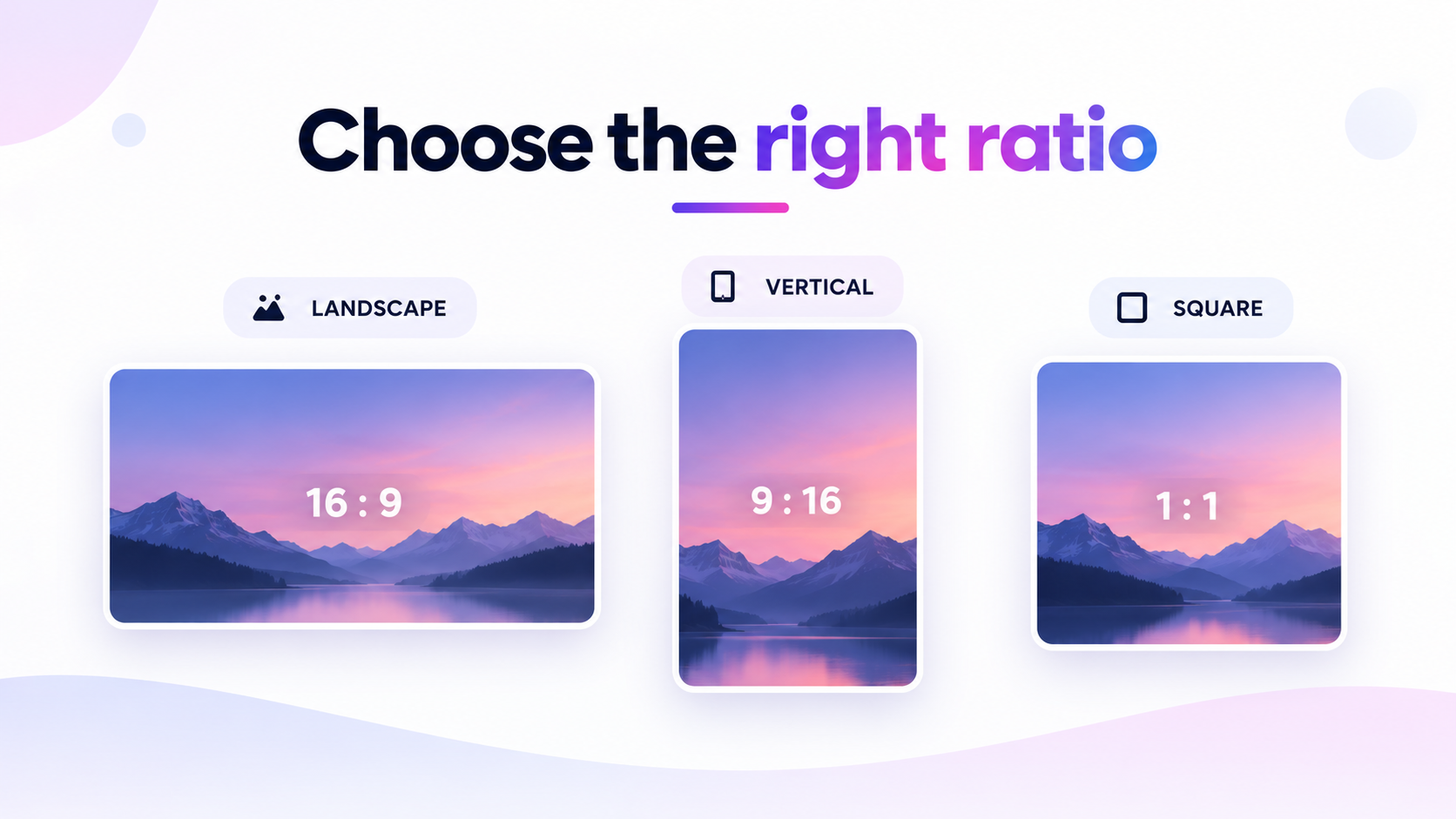
Choose between landscape, vertical, and square video formats depending on where your content will be published.
Whether you're creating a YouTube video, an Instagram Reel, or a square social media post, you can select dimensions suited to your content.
Adjustable video duration
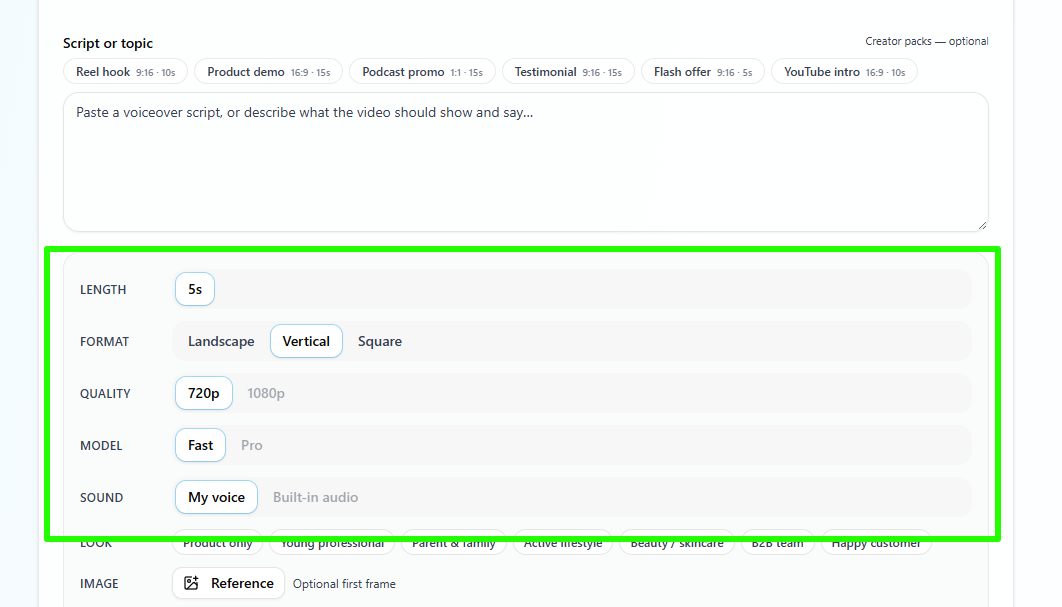
The tool supports short video generation with different duration limits depending on the subscription plan.
Free users can access a 5-second preview, Starter supports videos up to 10 seconds, and Plus/Annual plans support videos up to 30 seconds.
Video quality options
Select between available video resolutions, including 720p and 1080p. Higher-resolution options may depend on your selected plan or model.
Fast and Pro AI models
The tool provides Fast and Pro model options, allowing users to choose between the available AI generation modes according to their content requirements and plan access.
Sound options
Users can choose between the available voice and built-in audio options to guide the sound of their video.
These settings help you consider audio alongside the visual content rather than treating it as a completely separate part of the creation process.
Different visual looks
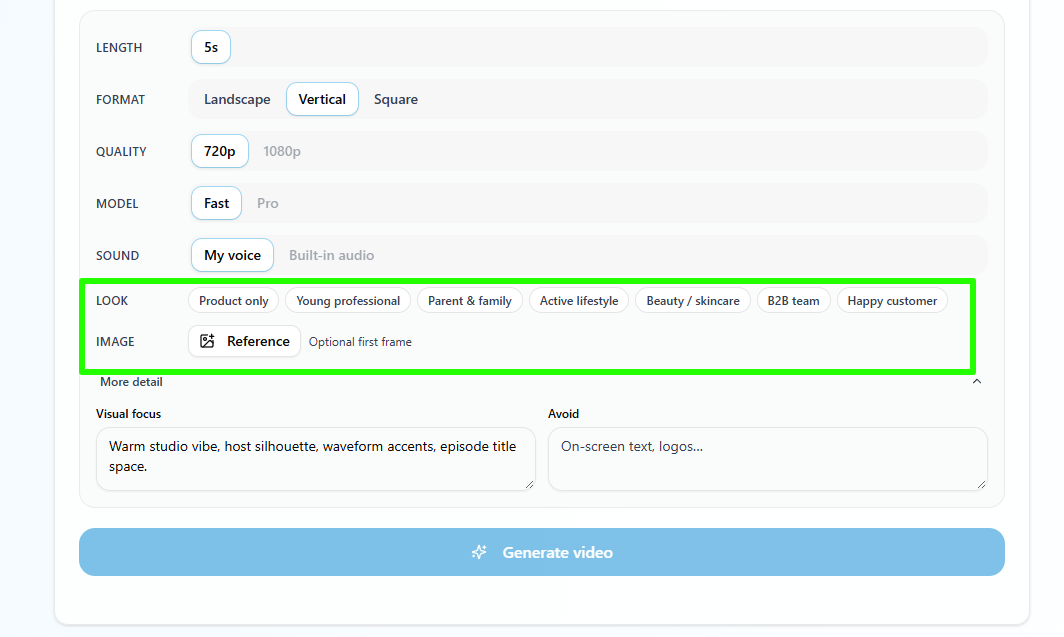
Choose from visual looks such as Product Only, Young Professional, Parent & Family, Active Lifestyle, Beauty/Skincare, B2B Team, and Happy Customer.
These options help guide the subjects and overall appearance of your generated video according to your content idea.
Reference image support
You can add an optional reference image to provide visual guidance for your video.
This can be helpful when working with a particular product, subject, or visual concept that you want the AI to consider during generation.
Choose the video format
Landscape (16:9)
Landscape videos work well for standard YouTube content, website videos, product demonstrations, and presentations where a wider viewing area is useful.
Vertical (9:16)
Vertical videos are suitable for mobile-first platforms such as TikTok, Instagram Reels, Facebook Reels, and YouTube Shorts.
This format works particularly well for short promotional clips, video hooks, and social media content designed for smartphone viewing.
Square (1:1)
Square videos are useful for social media feed posts, product promotions, and content that needs a balanced composition.
Choose the format based on where you plan to publish your video instead of resizing it after generation.
How to use AI Video Maker by VoiceCraftTool
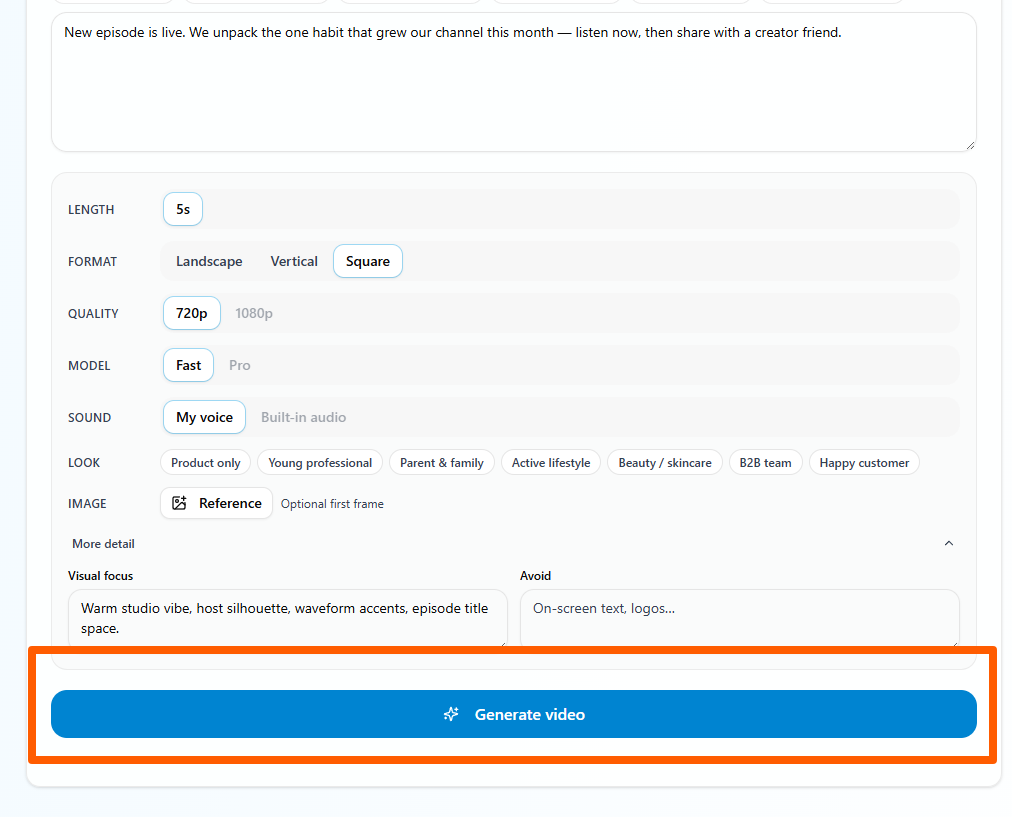
Step 1: Enter your script or video idea
Open the AI Video Maker and write a description of the video you want to create. You can also paste an existing voiceover script or select a creator pack to get started.
Mention the subject, environment, actions, and important visual details whenever possible.
Step 2: Customize the video settings
Choose your preferred video length, format, quality, AI model, and sound options.
For example, select vertical format for an Instagram Reel or landscape format for a standard YouTube video.
Step 3: Choose your video style
Select a suitable visual look, such as Product Only, Young Professional, or Beauty/Skincare.
You can also add a reference image if you have a particular visual you want the AI to use as guidance.
Step 4: Generate and review your video
Click Generate Video to create your content.
Review the generated result to see how well it matches your original idea. If necessary, refine your description or adjust the available settings before generating another version.
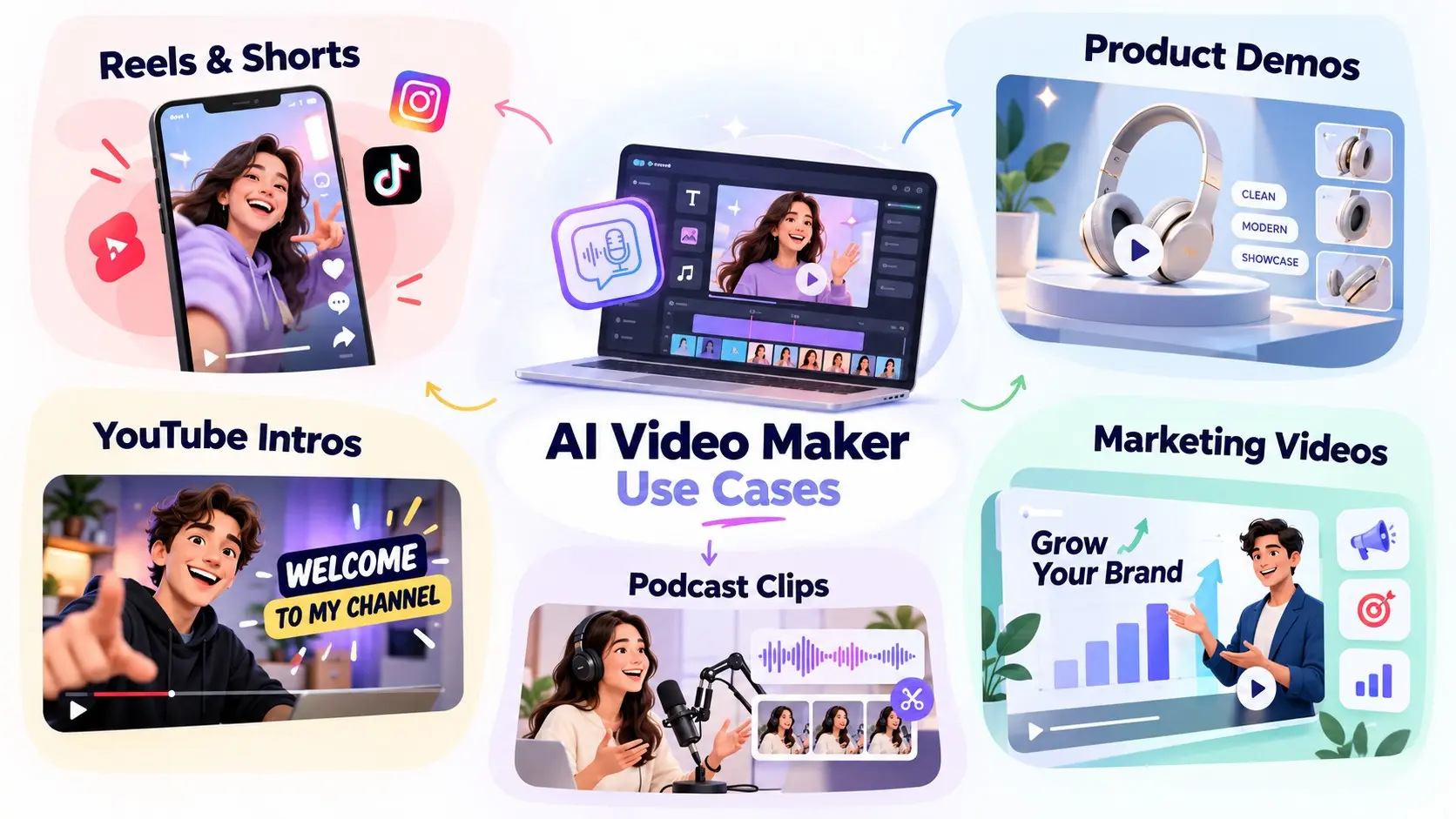
Best use cases for AI Video Maker
Social media Reels and Shorts
Create short visual clips for Instagram Reels, TikTok, Facebook Reels, and YouTube Shorts.
Use the vertical format and describe your intended scenes to develop attention-focused content for mobile audiences.
Product demos and promotional videos
Generate short visuals that introduce a product, highlight its appearance, or support a promotional message.
Product-focused looks and reference images can help guide the visual direction of the video.
YouTube intros and video hooks
Use the YouTube Intro or Reel Hook creator packs to explore opening sequences for your videos.
These can be useful for introducing a topic, presenting a visual concept, or creating a short opening before the main content begins.
Podcast clips
Create short video concepts to promote podcast episodes, introduce upcoming discussions, or support podcast-related social media posts.
You can describe the setting, atmosphere, and message you want the video to communicate.
Marketing and business videos
Businesses and marketing teams can use Text to Video AI to explore visual concepts for product campaigns, service introductions, flash offers, and social media promotions.
It is especially useful for preparing short promotional material when custom video footage is not available.
Tips for creating better AI videos
Write descriptive prompts: Instead of writing "make a product video," describe the product, background, lighting, movement, and action you want to see.
Keep the concept focused: Short videos work better when the prompt concentrates on one main subject or action instead of several unrelated scenes.
Choose the correct format: Use vertical for Reels and Shorts, landscape for standard YouTube videos, and square for feed-based content.
Use reference images when relevant: A suitable reference image can help communicate your visual idea more clearly than text alone.
Match the visual look to the content:For example, Product Only may suit product-focused visuals, while B2B Team may be more relevant to business-oriented scenes.
Review the final result:Check important visual details, scene consistency, audio, and the overall message before publishing or using the generated video in a larger project.
FAQs
Can I create AI videos without recording footage?
Yes. You can use a written prompt or script to generate videos without recording original footage. This is useful for exploring video concepts, preparing promotional visuals, and creating short content when you don't have a camera or filming setup available.
How can I create an AI video from text?
Enter a written description or script into the AI Video Maker, select your preferred video settings, and click Generate Video. The tool uses your text and selected options to create a short video. Clear descriptions of subjects, actions, and visual details can help guide the result.
Can I make AI videos for Instagram Reels, TikTok, and YouTube Shorts?
Yes. The tool supports vertical 9:16 video generation, which is suitable for Instagram Reels, TikTok, and YouTube Shorts. You can also use creator packs such as Reel Hook to start with a format intended for short-form content.
Can I use my own image to create an AI video?
The tool includes an optional reference image feature. You can provide an image to help guide the generated visuals alongside your written description and selected settings.
How long can an AI-generated video be?
The supported duration depends on your plan. The tool currently shows a 5-second preview for Free users, up to 10 seconds for Starter, and up to 30 seconds for Plus/Annual plans. Check the available duration settings before generating your video.
What is the difference between Fast and Pro AI video models?
Fast and Pro are two available generation model options in VoiceCraftTool's AI Video Maker. Their availability depends on the tool's current settings and plan access. You can select the available model when preparing your video.