Voice Message to Email helps corporate professionals record the purpose of an email or upload a recorded message, then turn it into a properly formatted....
Corporate professionals deal with a lot of moving pieces every day, from meetings and emails to reports, reviews, hiring tasks, and important documents. A big part of their work is making sure information is clear, organized, and easy to act on, whether it comes from a conversation, a long document, a quick voice note, or rough written points. This is where voice and text tools can help them save time, reduce manual rewriting, and handle everyday communication with more clarity.
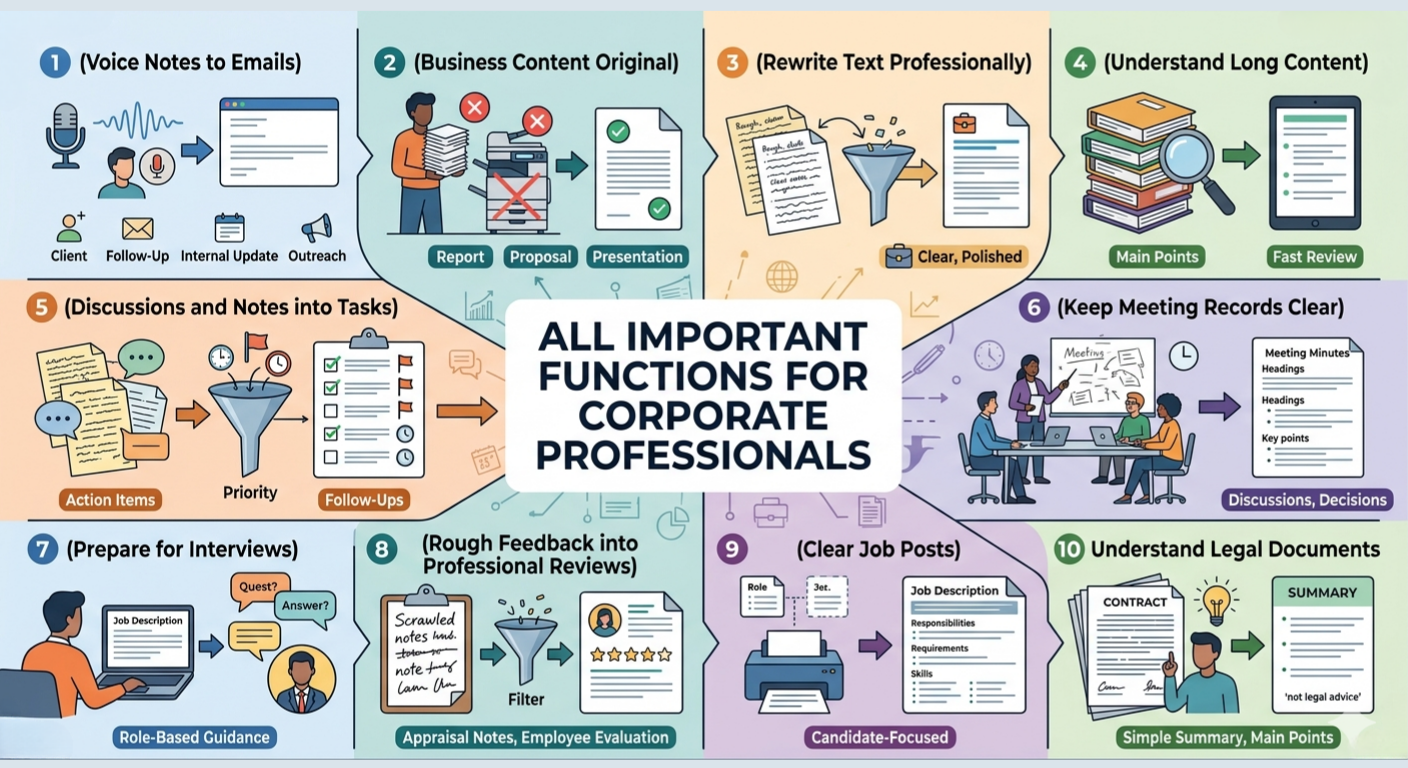
Tools Overview
Tool
Purpose
Best use case
Voice Message to Email
Converts voice notes into properly written emails
Writing follow-ups, client replies, internal updates, or outreach emails
Plagiarism Remover
Makes written content more original while keeping the meaning clear
Improving business content, reports, proposals, or copied reference material
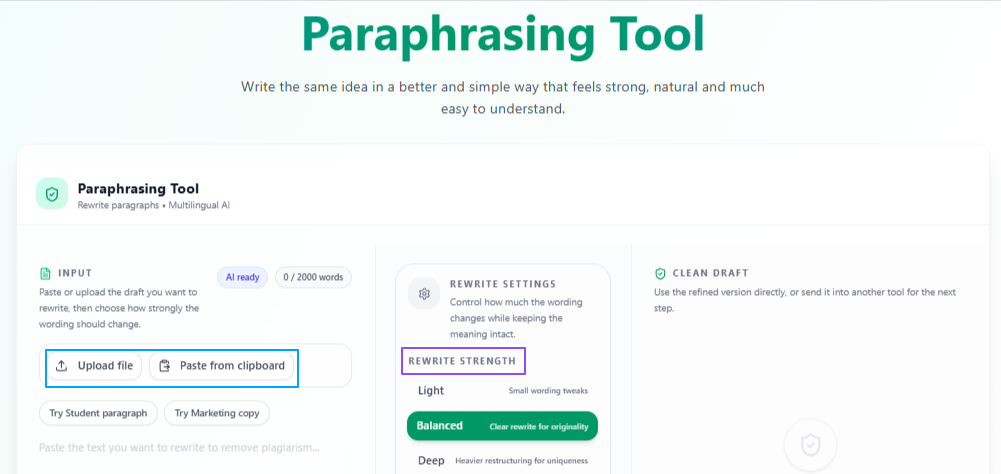
Paraphrasing
Rewrites text in a clearer and more professional way
Polishing emails, reports, messages, proposals, or workplace documents
Text Summarizer
Shortens long content into clear points or paragraphs
Reviewing reports, documents, notes, or internal updates faster
Action Item Extractor
Pulls out tasks, priorities, and deadlines from content
Turning meetings, discussions, or notes into clear task lists
Meeting Minutes Generator
Creates organized meeting minutes from meeting content
Preparing records, decisions, key points, and follow-up notes
Interview Helper
Generates interview guidance, questions, and answers from a job description
Preparing for job interviews, promotions, or role-based discussions
Performance Review Generator
Turns rough feedback into formal performance reviews
Writing employee reviews, appraisal notes, or manager feedback
Job Description Generator
Creates structured job descriptions from basic role details
Preparing hiring posts with clear responsibilities and requirements
Legal Document Summarizer
Simplifies complex legal documents into understandable summaries
Reviewing contracts, agreements, policies, or legal paperwork
All the important functions for Corporate Professionals
Turn quick voice notes into professional emails
Problem
Corporate professionals often know what they want to say, but turning that thought into a properly written email can take extra time. This becomes even harder when they are busy between meetings, client calls, internal updates, or follow-ups and still need the email to sound clear, professional, and relevant.
Solution
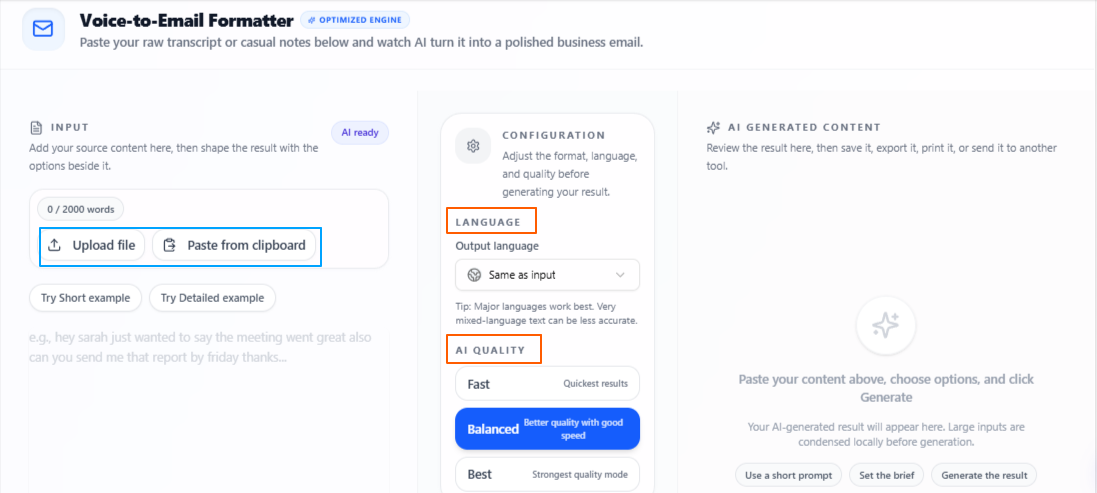
Voice Message to Email helps corporate professionals record the purpose of an email or upload a recorded message, then turn it into a properly formatted email. This makes it easier to prepare client replies, follow-up emails, internal updates, or outreach messages without writing everything manually from the start.
Features
Voice-based input
Users can record the purpose of the email instead of typing the full message manually.
Audio upload
Users can upload a recorded file if they already have the message prepared in voice form.
Email formatting
The tool turns spoken input into a properly structured email with a clear message flow.
Relevant email output
The generated email is written according to the purpose shared in the recording.
Language flexibility
The output language stays the same as the input by default, but users can choose a different output language if needed.
Quality control
Users can choose Fast for quick output, Balanced for a mix of speed and quality, or Best for more focused and deeply prepared results.
Tips to remember
Speak clearly so the tool can understand the email purpose better.
Mention the recipient type, such as client, team member, manager, or applicant.
Add the main goal of the email in your recording.
Use Balanced for regular workplace emails.
Use Best when the email is important, formal, or client-facing.
Review the final email once before sending it.
Make business content original without plagiarism
Problem
Corporate professionals often reuse old drafts, templates, reports, or reference material. Before sharing the content with clients, teams, or management, it needs to sound original, clear, and suitable for professional use.
Solution
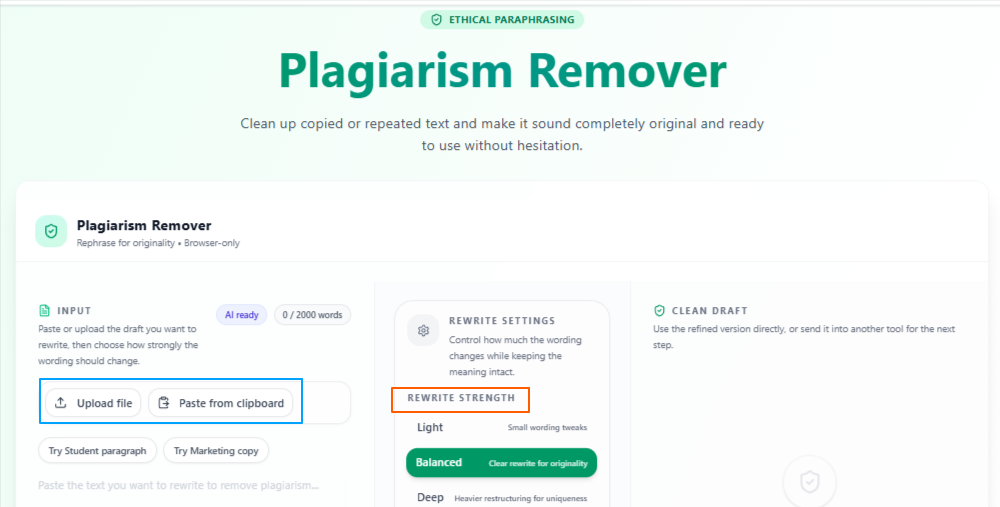
Plagiarism Remover helps rewrite repeated or copied text while keeping the main meaning clear. It can be useful for improving reports, proposals, presentations, formal write-ups, website content, or internal documents before they are shared.
Features:
Simple input
Users can paste text, write it directly, or upload a file to start the process.
Plagiarism removal
Helps reduce copied or repeated wording while keeping the message understandable.
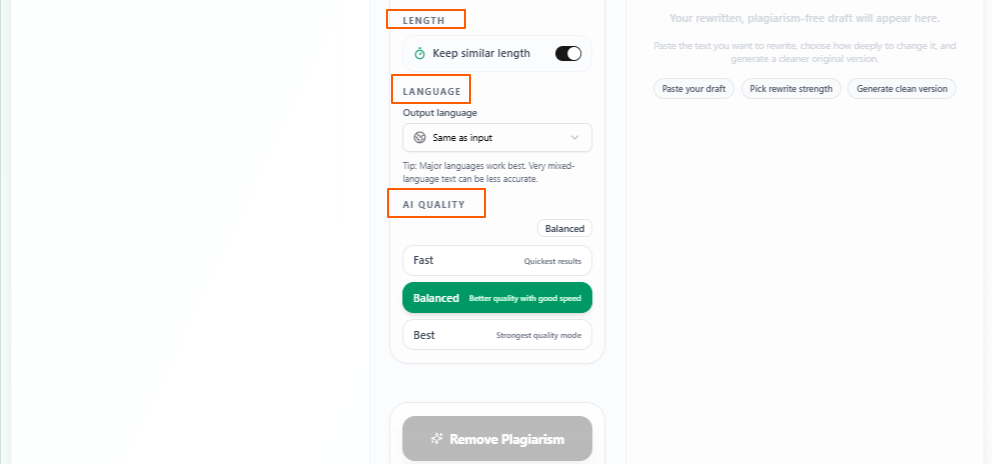
Length control
Users can choose to keep the same length or allow the output length to vary.
Rewriting strength
Light makes small changes, Balanced makes moderate changes, and Deep can restructure the content more strongly.
Language flexibility
The output language stays the same as the input by default, but users can choose a different output language if needed.
Quality control
Users can choose Fast for quick output, Balanced for a mix of speed and quality, or Best for more focused and deeply prepared results.
Tips to remember
Use Light when the content only needs small wording changes.
Use Balanced for regular business documents.
Use Deep when the content feels too close to the original source.
Keep the same length when the document has a fixed format.
Allow length variation when you want the rewritten version to sound more natural.
Review the final content before using it in formal or client-facing work.
Rewrite text in more professional way
Problem
Corporate professionals often have the right message, but the wording may feel unclear, too casual, too long, or not polished enough for workplace use. Emails, reports, proposals, updates, and formal messages often need to be rewritten before they are shared.
Solution
Paraphrasing helps rephrase written content while keeping the original meaning clear. It can be useful for improving business communication, making rough text sound more professional, and adjusting wording without changing the main idea.
Features:
Simple input
Users can paste text, write it directly, or upload a file to start the process.
Text rephrasing
Rewrites the given content in a clearer and more refined way.
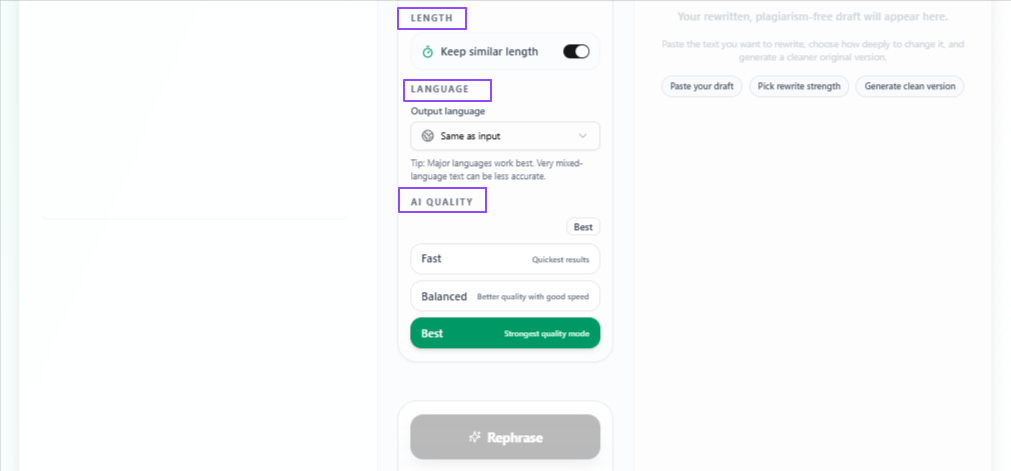
Length control
Users can choose to keep the same length or allow the output length to vary.
Rewriting strength
Light makes small changes, Balanced makes moderate changes, and Deep can restructure the content more strongly.
Language flexibility
The output language stays the same as the input by default, but users can choose a different output language if needed.
Quality control
Users can choose Fast for quick output, Balanced for a mix of speed and quality, or Best for more focused and deeply prepared results.
Tips to remember
Use Light when the text only needs small improvements.
Use Balanced for regular emails, reports, and workplace content.
Use Deep when the text needs stronger restructuring.
Keep the same length when working with fixed-format content.
Allow length variation when you want the output to sound more natural.
Review the final text to make sure the original meaning is still correct.
Understand long content in a simple way
Problem
Corporate professionals often have to review long reports, documents, meeting notes, emails, research material, or internal updates. Reading everything in full can take extra time, especially when they only need the main points or a quick understanding.
Solution
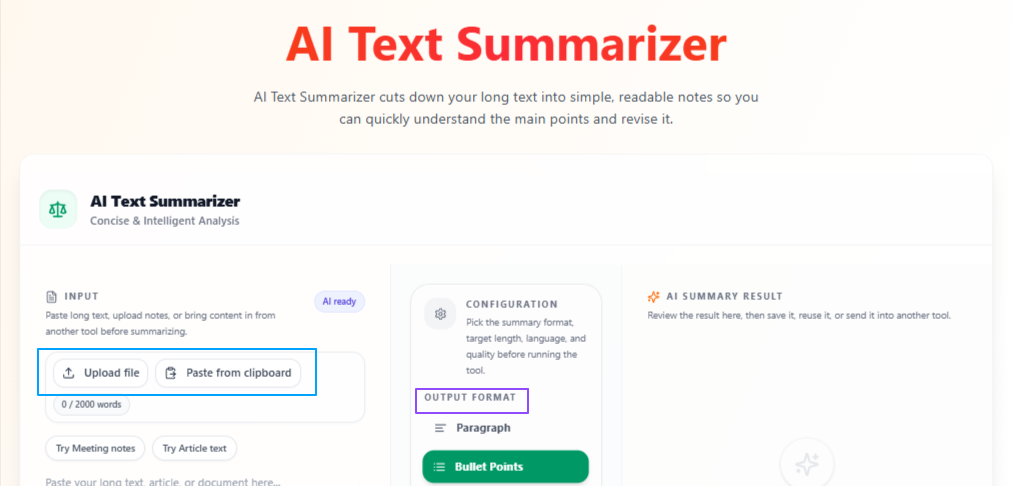
Text Summarizer helps shorten long content into clear and manageable output. It makes it easier to understand important information, review documents faster, and pick out useful points without going through the full text every time.
Features:
Flexible input
Users can paste text, write it directly, or upload a file for summarizing.
Summary generation
Turns long content into a shorter and easier-to-read version.
Output format options
Users can choose the summary in paragraph form or bullet points.
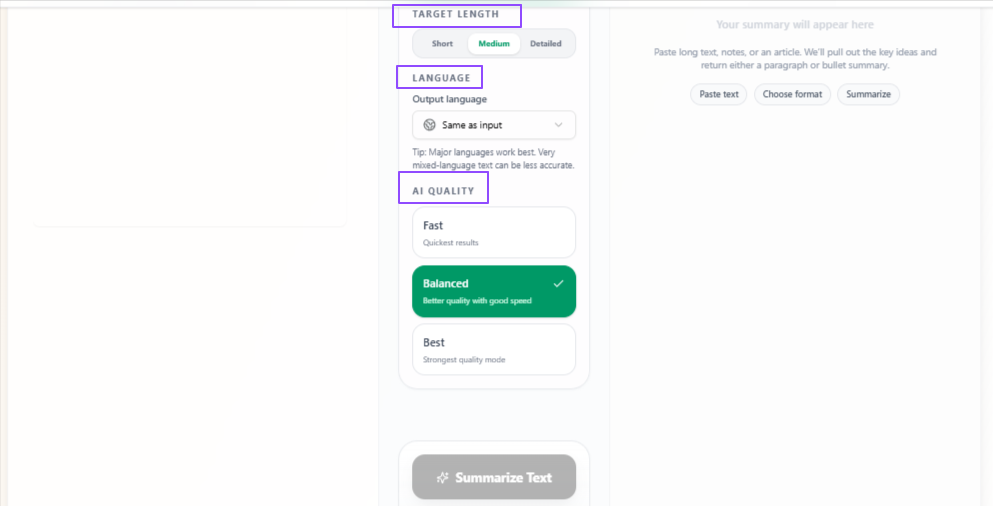
Target length control
The summary can be short, medium, or detailed based on how much information the user wants to keep.
Language flexibility
The output language stays the same as the input by default, but users can choose a different output language if needed.
Quality control
Users can choose Fast for quick output, Balanced for a mix of speed and quality, or Best for more focused and deeply prepared results.
Tips to remember
Use bullet points when you need quick takeaways.
Use paragraph format when you want a smoother summary to read.
Choose short for fast review and detailed when the content needs more context.
Use Balanced for regular workplace documents.
Use Best for important reports, policies, or client-related material.
Review the summary once before using it for decisions or sharing.
Turn discussions and notes into clear tasks
Problem
Corporate professionals often leave meetings, calls, or planning sessions with many points discussed but no clear task list. Important follow-ups, priorities, and deadlines can become hard to track when everything stays inside long notes or rough meeting content.
Solution
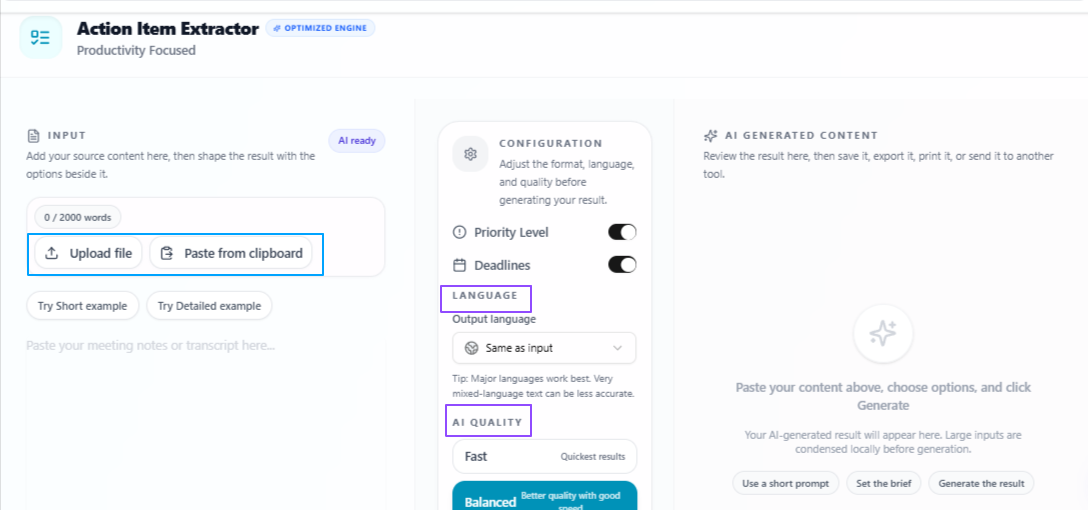
Action Item Extractor helps turn meeting notes, discussions, documents, or uploaded content into clear actionable points. It makes it easier to see what needs to be done, what should be handled first, and which tasks may have deadlines.
Features:
Content upload
Users can upload their content and turn it into actionable output.
Action item extraction
Pulls out tasks and follow-up points from the given content.
Priority level
Organizes tasks based on their priority so users can focus on the most important work first.
Deadline detection
Mentions task ending times or deadlines when they are available in the content.
Language flexibility
The output language stays the same as the input by default, but users can choose a different output language if needed.
Quality control
Users can choose Fast for quick output, Balanced for a mix of speed and quality, or Best for more focused and deeply prepared results.
Tips to remember
Upload clear meeting notes or discussion content for better task extraction.
Use priority level when the content includes many tasks.
Turn on deadlines when timing is important.
Use Balanced for regular team updates and meeting notes.
Use Best for important project planning or client-related tasks.
Review the final action items before assigning or sharing them.
Keep meeting records clear and organized in minutes
Problem
Corporate professionals often attend meetings where many ideas, decisions, updates, and follow-ups are discussed. If the meeting content is not organized properly, important points can be missed or become hard to review later.
Solution
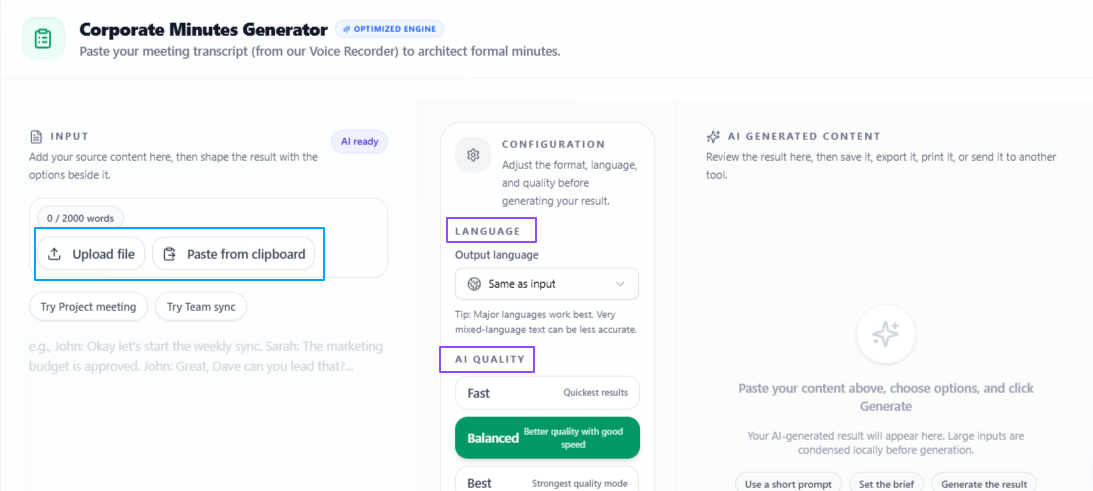
Meeting Minutes Generator helps turn uploaded or pasted meeting content into clear meeting minutes and important points. It makes it easier to keep a proper record of discussions, decisions, updates, and follow-up items after a meeting.
Features:
Meeting content input
Users can upload or paste their meeting content to start the process.
Meeting minutes generation
Turns meeting discussions into organized minutes that are easier to review and share.
Important points
Highlights key points from the meeting so users can quickly understand what was discussed.
Language flexibility
The output language stays the same as the input by default, but users can choose a different output language if needed.
Quality control
Users can choose Fast for quick output, Balanced for a mix of speed and quality, or Best for more focused and deeply prepared results.
Tips to remember
Use clear meeting content for better minutes.
Paste complete notes if you want more detailed output.
Use Balanced for regular team meetings.
Use Best for important client meetings, board meetings, or formal discussions.
Review the final minutes before sharing them with the team.
Add missing decisions manually if they were not clearly mentioned in the original content.
Prepare for interviews with role-based guidance
Problem
Corporate professionals may apply for new roles, promotions, or internal opportunities, but preparing for an interview can be difficult without knowing what questions may come up or what areas to focus on. A job description often contains the clues, but reviewing it properly takes time.
Solution
Interview Helper helps users prepare for interviews by using the job description as the main input. It generates useful guidelines, possible questions, and answer ideas based on the role, requirements, and details mentioned in the description.
Features:
Job description input
Users can add the job description for the role they are applying for.
Interview guidelines
Provides preparation guidance based on the role and its requirements.
Question generation
Creates possible interview questions that may be relevant to the job description.
Answer support
Helps generate answer ideas so users can prepare their responses more clearly.
Role-based output
The output is based on the position, responsibilities, and details mentioned in the job description.
Language flexibility
The output language stays the same as the input by default, but users can choose a different output language if needed.
Quality control
Users can choose Fast for quick output, Balanced for a mix of speed and quality, or Best for more focused and deeply prepared results.
Tips to remember
Use the full job description for better interview preparation.
Review the role requirements before practicing the answers.
Use Balanced for regular interview preparation.
Use Best for important interviews or senior-level roles.
Personalize the suggested answers with your own experience.
Practice the generated questions before the actual interview.
Turn rough feedback into professional reviews
Problem
Corporate professionals often need to write performance reviews, appraisal notes, or employee feedback, but rough points can feel too short, unclear, or informal. Feedback needs to sound balanced, professional, and suitable for a formal workplace setting.
Solution
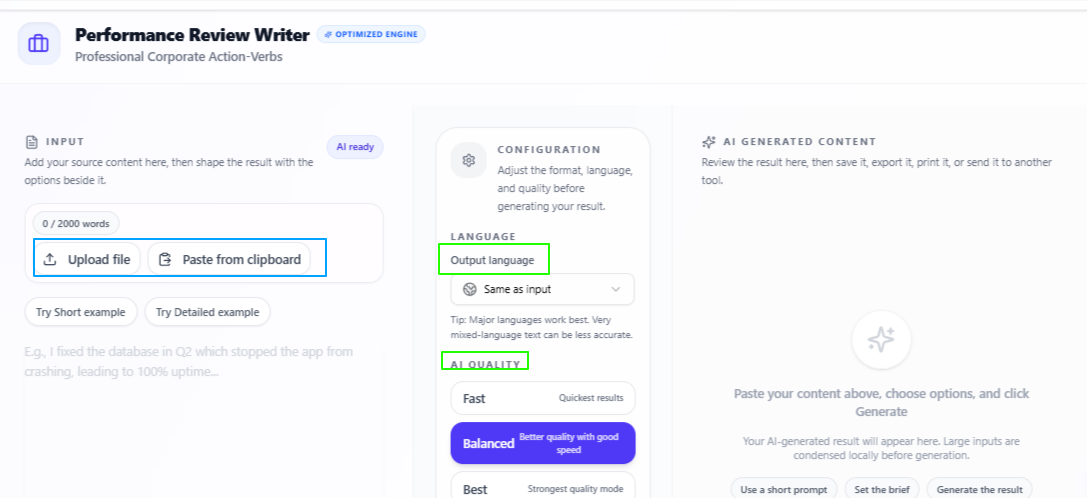
Performance Review Generator helps turn rough feedback points into refined and professional performance reviews. It makes it easier to prepare clear employee reviews, manager feedback, appraisal comments, or formal evaluation notes without writing everything from scratch.
Features:
Data upload
Users can upload their review points or employee-related feedback data to start the process.
Professional review writing
Turns rough points into formal and polished performance review content.
Feedback refinement
Helps make the review sound clear, balanced, and suitable for workplace use.
Formal tone
Creates output that fits professional areas such as appraisals, HR reviews, and manager feedback.
Language flexibility
The output language stays the same as the input by default, but users can choose a different output language if needed.
Quality control
Users can choose Fast for quick output, Balanced for a mix of speed and quality, or Best for more focused and deeply prepared results.
Tips to remember
Add clear feedback points for more accurate review output.
Include both strengths and improvement areas when possible.
Use Balanced for regular performance reviews.
Use Best for formal appraisals or important employee evaluations.
Review the final wording before sharing it with an employee or HR team.
Adjust the review manually if company-specific language is required.
Create clear job posts that gets you the right candidates
Problem
Corporate professionals and hiring teams often need to create job descriptions, but basic role details can be hard to turn into a clear and complete hiring post. If the job description is vague, unorganized, or missing important details, it may attract the wrong candidates.
Solution
Job Description Generator helps turn basic role details into a clean and properly formatted job description. It makes it easier to explain the role, responsibilities, requirements, and expectations in a professional way so relevant candidates can understand the opportunity clearly.
Features:
Role details input
Users can add the basic details they want for the role.
Structured job description
Generates a clean and formatted job description from the provided information.
Candidate-focused writing
Helps present the role clearly so suitable candidates can understand the position better.
Professional formatting
Organizes the content in a way that fits hiring posts and workplace use.
Language flexibility
The output language stays the same as the input by default, but users can choose a different output language if needed.
Quality control
Users can choose Fast for quick output, Balanced for a mix of speed and quality, or Best for more focused and deeply prepared results.
Tips to remember
Add clear role details before generating the job description.
Mention responsibilities, skills, experience level, and work type if possible.
Use Balanced for regular job posts.
Use Best for senior roles or important hiring campaigns.
Review the final job description before publishing it.
Adjust company-specific details manually if needed.
Understand legal documents in simpler language
Problem
Corporate professionals often need to review contracts, agreements, policies, terms, or other legal documents, but the language can be complex and time-consuming to understand. This can make it harder to quickly find the main points, risks, or important details.
Solution
Legal Document Summarizer helps turn complex legal content into a simpler and easier-to-understand summary. It makes it easier to review legal paperwork, understand the main meaning, and get a clearer idea of the document before deeper review or professional legal advice.
Features:
Legal document summary
Summarizes complex written legal documents into clearer and simpler language.
Easy understanding
Helps users understand the main points without going through every legal phrase in detail.
Important details
Makes it easier to notice key information, terms, conditions, or obligations in the document.
Language flexibility
The output language stays the same as the input by default, but users can choose a different output language if needed.
Quality control
Users can choose Fast for quick output, Balanced for a mix of speed and quality, or Best for more focused and deeply prepared results.
Tips to remember
Use Best for important contracts, agreements, or policy documents.
Review the original document along with the summary when the matter is important.
Do not treat the summary as final legal advice.
Use the summary to understand the document faster before deeper review.
Check important terms, dates, obligations, and conditions manually.
Ask a legal professional when the document involves serious business, financial, or legal decisions.
Conclusion
Overall, these use cases show how corporate professionals can use VoiceCraftTool to handle everyday workplace communication and documentation with more ease. From turning voice notes into emails and summarizing long documents to creating meeting minutes, extracting action items, preparing reviews, improving written content, and understanding legal material, these tools support the kind of work that needs clarity, structure, and quick understanding. They help reduce the manual effort behind routine professional tasks, so users can stay more focused on decisions, communication, and meaningful work.
Next step
Put this workflow to work
Use the tools directly once you finish reading, so the guide turns into action instead of just reference material.