Researchers often have to work through long papers, reports, transcripts, and notes, but they do not always need the full text every time. The real difficulty is
Researchers often work with long papers, recorded discussions, source material, reference documents, and early drafts while trying to keep their work clear, organized, and usable at different stages of the research process. Because of that, their work is not only about finding information, but also about reviewing it carefully, simplifying complex material, turning spoken content into usable text, refining written output, and preparing research in a form that is easier to study, present, or submit.
Tools Overview
Tool
Purpose
Best use case
Text Summarizer
Shortens long text into clear and manageable points
Reviewing papers, reports, transcripts, and research material more quickly
Grant Proposal Writer
Turns research information into a properly written grant proposal
Preparing funding proposals for research projects or future study work
Podcast Notes
Converts podcast content into structured notes
Taking useful points from research podcasts, interviews, or expert discussions
Plagiarism Remover
Reduces plagiarism in written content while keeping the meaning intact
Improving originality in drafts, reports, or written submissions
Voice Recorder
Records spoken ideas clearly and can turn them into text
Capturing research thoughts, quick notes, observations, or discussion points
Audio & Video to Text
Changes spoken audio or video into editable text
Transcribing interviews, recorded discussions, lectures, or research videos
Lecture Notes Taker
Creates easier notes from lecture-based content
Reviewing seminars, workshops, lectures, or other learning material
Legal Document Summarizer
Breaks down complex legal text into simpler language
Understanding policies, agreements, consent documents, or legal references
Paraphrasing
Rewrites text in a clearer or different way
Refining research writing, improving readability, or reworking explanations
Script Editor
Improves the tone, flow, and structure of script-based content
Preparing presentation scripts, research explanations, or spoken content
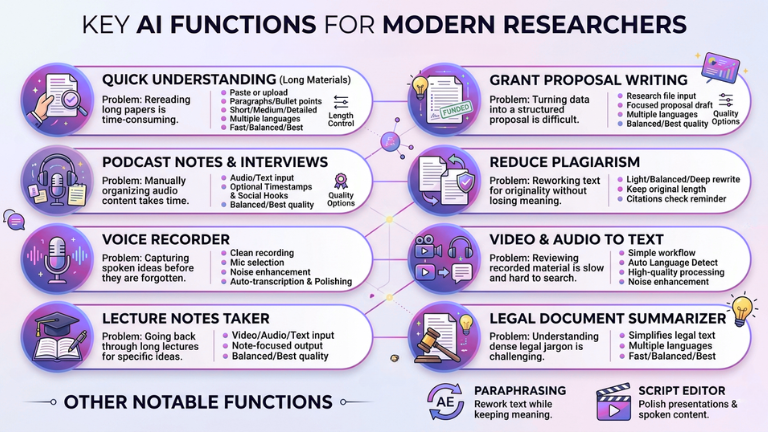
All the important functions for a Researcher
Quick understanding for long research materials
Problem
Researchers often have to work through long papers, reports, transcripts, and notes, but they do not always need the full text every time. The real difficulty is pulling out the important points quickly without spending too much time rereading everything.
Solution
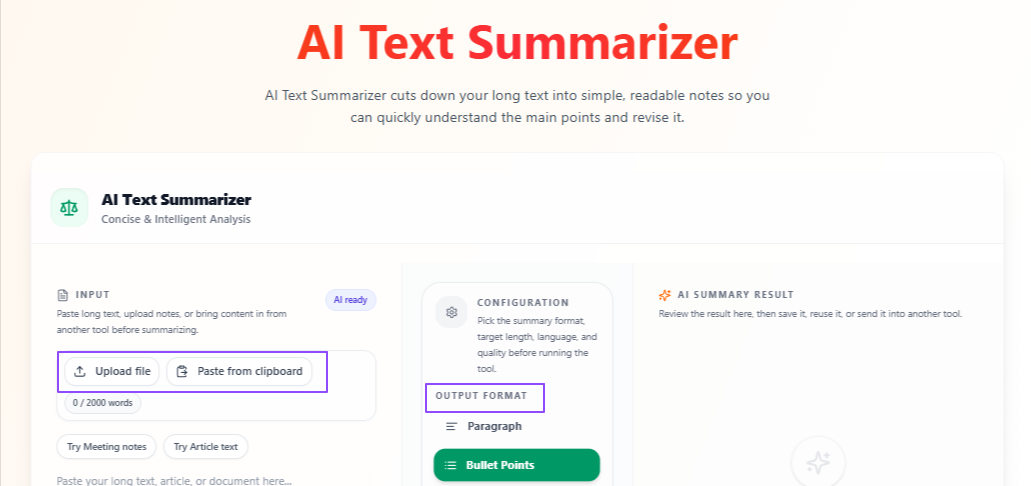
The Text Summarizer helps researchers shorten large amounts of text into a clearer and more manageable version. This makes it easier to review material, compare information, and understand the main point before going back to the full source where needed.
Features:
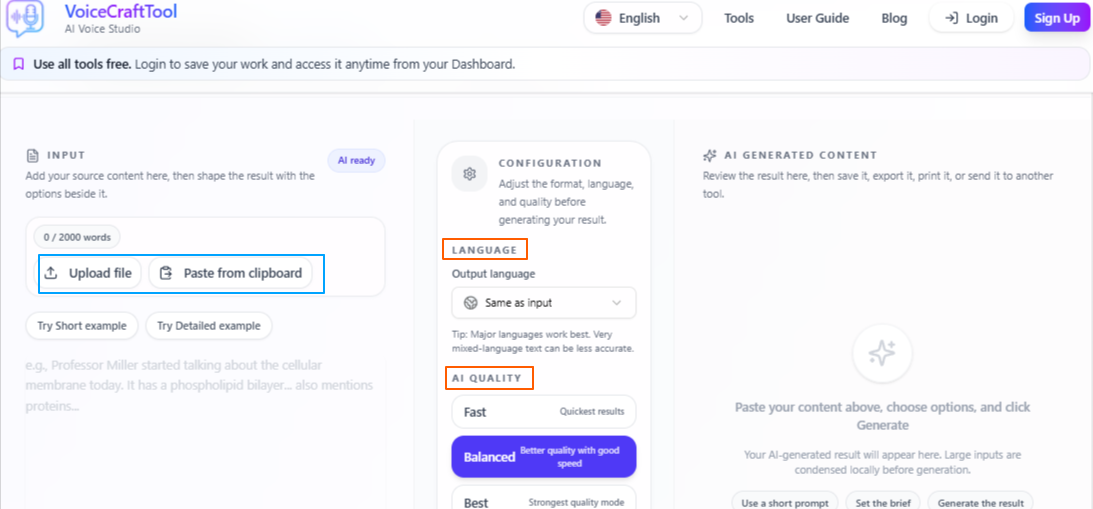
Flexible input: A researcher can paste text, write directly in the tool, or upload a file.
Output format options: The summary can be generated as paragraphs or bullet points, depending on how the material needs to be reviewed.
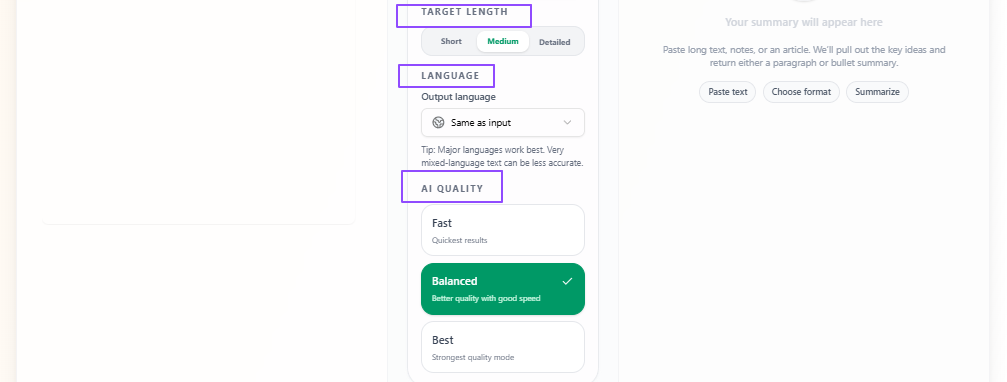
Length control: The output can be kept short, medium, or detailed based on how much context the researcher wants to retain.
Language flexibility: The output stays in the same language as the input by default, but another output language can also be selected.
Quality control: Fast gives a quicker result, Balanced keeps a practical mix of speed and quality, and Best takes more time but gives a more focused and deeply prepared summary.
Tips to remember
Use bullet points when you only want the key takeaways.
Use paragraph format when you want the summary to feel more connected and easier to read.
Choose short for quick review.
Choose details when the source is important and more context needs to stay.
Use Balanced for regular research work.
Use Best when the material needs more careful summarizing.
Review the summary once to make sure no important point is missed.
Turn research work into a proper grant proposal
Problem
Researchers may have strong research data, ideas, or project direction, but turning that material into a properly written grant proposal can still take a lot of effort. The difficulty is often not the research itself, but presenting it in a clear and organized way for funding purposes.
Solution
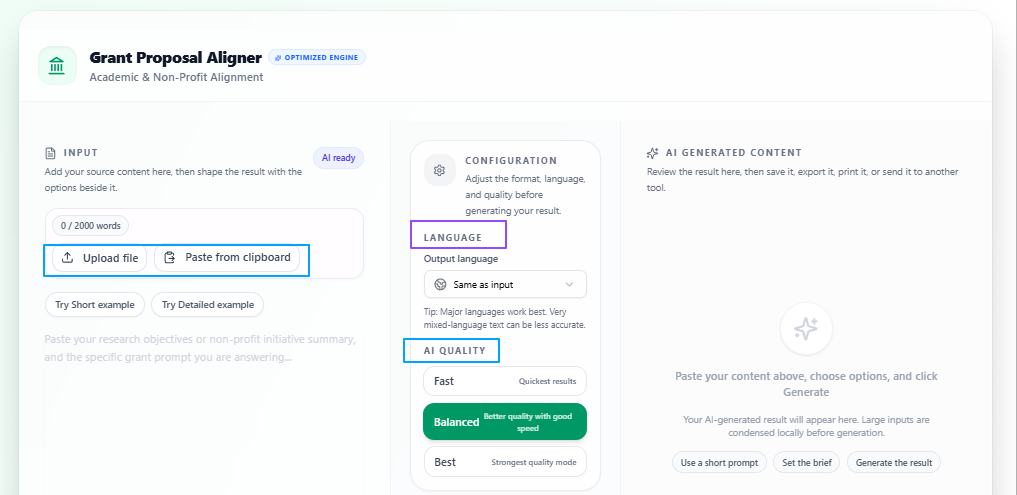
The Grant Proposal Writer helps researchers shape their research material into a more structured proposal. Instead of starting from scratch, they can use their existing data or files to generate a proposal draft that is easier to review, refine, and prepare for submission.
Features:
Flexible input: A researcher can upload research files or paste the research data directly into the tool.
Proposal-focused writing: The tool helps turn research material into a properly written grant proposal draft.
Language flexibility: The output stays in the same language as the input by default, but another output language can also be selected.
Quality control: Fast gives a quicker result, Balanced keeps a practical mix of speed and quality, and Best takes more time but gives a more focused and deeply prepared proposal.
Tips to remember
Paste clear and relevant research information so the proposal stays focused.
Upload supporting material when the research details are too large to enter manually.
Use Balanced for regular proposal drafting work.
Use Best when the proposal is important and needs more careful preparation.
Review the final draft once to adjust wording, goals, or funding-related details.
Make sure the proposal still reflects your actual research direction before submission.
Take clear notes from long podcast discussions and interviews
Problem
Researchers sometimes get useful ideas, explanations, or expert opinions from podcasts, but going back through long audio again to find the important parts takes time. It becomes harder when they want usable notes instead of raw listening material.
Solution
The Podcast Notes tool helps researchers turn podcast content into clearer notes that are easier to review later. This makes it more practical to capture key points from research discussions, interviews, or topic-based episodes without having to manually organize everything from scratch.
Features:
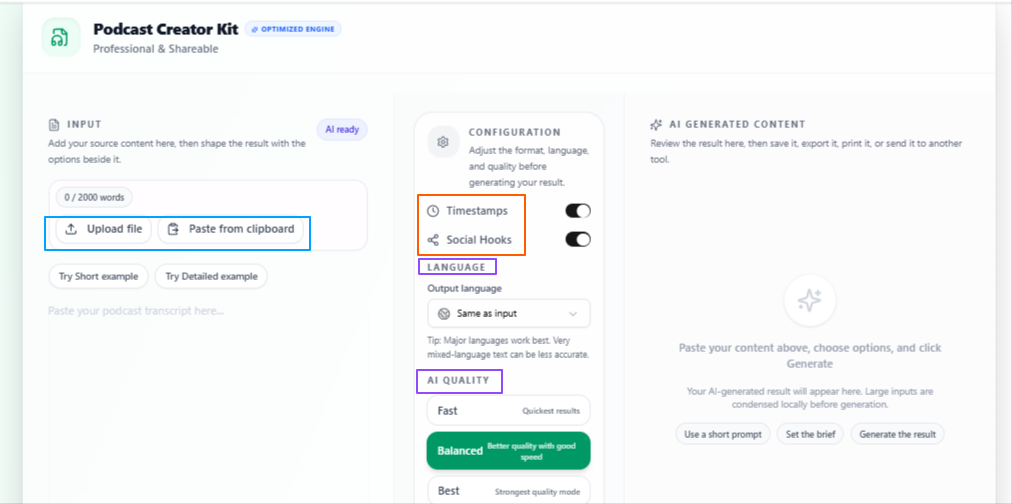
Flexible input: A researcher can upload a podcast file or paste the podcast content if it is already in text form.
Timestamps option: The output notes can include timestamps for easier reference to specific parts of the podcast.
Social hooks option: Users can choose to include social hooks in the output notes when needed.
Language flexibility: The output stays in the same language as the input by default, but another output language can also be selected.
Quality control: Fast gives a quicker result, Balanced keeps a practical mix of speed and quality, and Best takes more time but gives more focused and deeply prepared notes.
Tips to remember
Use timestamps when you may need to return to specific parts of the podcast later.
Keep social hooks off if you only want clean research notes.
Use Balanced for normal note-making work.
Use Best when the podcast contains important discussion that needs more careful notes.
Review the notes once to make sure the most useful points are clearly captured.
Use cleaner podcast audio when possible for better note quality.
Reduce plagiarism in your written work
Problem
Researchers sometimes need to rework written material so it feels more original and does not stay too close to the source wording. The challenge is doing that without weakening the meaning, changing important points, or making the writing feel unnatural.
Solution
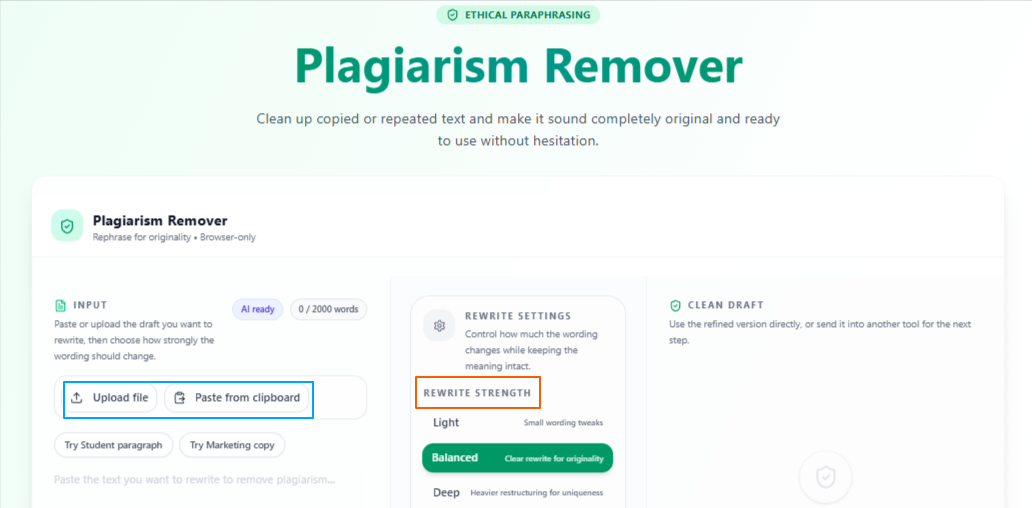
The Plagiarism Remover helps researchers rewrite text into a cleaner and more original version while keeping the main idea in place. This makes it easier to improve drafts, revise supporting material, and work on text that needs a safer level of originality before further use.
Features
Easy input: A researcher can upload a file, paste text, or write directly in the tool.
Length control: The output can stay close to the same length or be adjusted based on how much change is needed.
Rewriting strength: Light makes smaller changes, Balanced gives a moderate rewrite, and Deep can restructure the content more heavily.
Language flexibility: The output stays in the same language as the input by default, but another output language can also be selected.
Quality control: Fast gives a quicker result, Balanced keeps a practical mix of speed and quality, and Best takes more time but gives a more focused and deeply prepared rewrite.
Tips to remember
Use Light when the text only needs small changes.
Use Balanced for regular rewriting work.
Use Deep when the content needs stronger restructuring.
Keep the same length when you want the rewritten version to stay closer to the original flow.
Review the final output carefully to make sure the research meaning has not shifted.
Always check citations and source references separately after rewriting.
Capture spoken research ideas and turn them into usable notes
Problem
Researchers do not always work from written material only. Sometimes ideas come during reading, discussion, observation, or while thinking through a topic, and writing everything down at that moment is not always practical. Basic recordings can also become difficult to use later if the audio is unclear or the spoken notes are not easy to review.
Solution
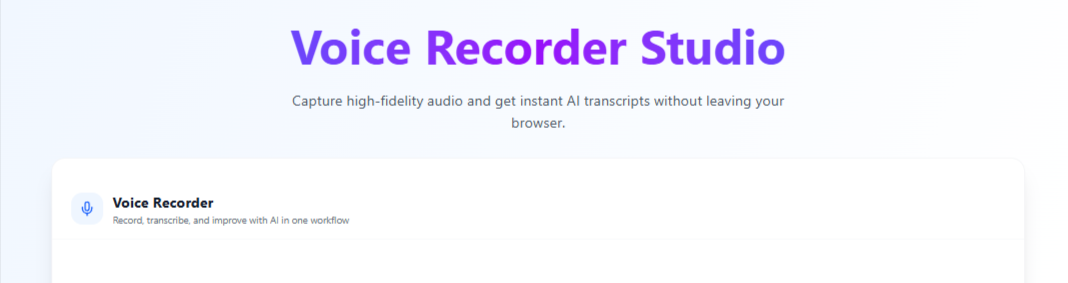
The Voice Recorder helps researchers save spoken ideas in a clearer and more usable way. It not only supports clean recording, but also makes those recordings easier to work with later by offering transcription and polished text output, which is useful when turning spoken thoughts into something easier to revisit.
Features:
Clean recording: The tool supports simple voice recording through a clean and easy-to-use interface.
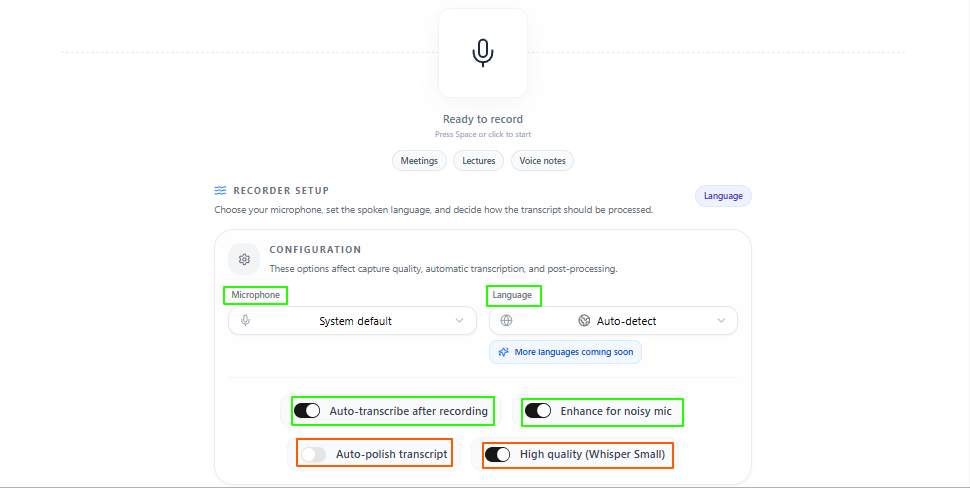
Mic selection: Users can choose the microphone that best fits their recording setup.
Auto noise enhancement: Background sound can be reduced to improve clarity.
High-quality recording: The tool supports clearer voice capture, including low whisper recording.
Auto transcription: Spoken content can be turned into text during the recording process.
Transcript polishing: The transcribed text can also be cleaned up to make it more readable.
Language detection: The spoken language can be detected automatically.
Multilingual support: Users can also select the language themselves from many languages worldwide.
Tips to remember
Choose the correct microphone before starting when multiple options are available.
Use noise enhancement when recording in a place with background sound.
Turn on transcription when you want the spoken notes in text form as well.
Review the polished transcript once before using it in research notes or drafts.
Select the language manually when the speech may not be detected correctly.
Use it for quick idea capture when writing everything down feels too slow.
Convert video & audio into text for analysis
Problem
Researchers often work with recorded interviews, discussions, presentations, or research videos, but spoken material is harder to scan, quote, or review than written text. Going back through audio or video again and again can take extra time, especially when the goal is to pull out useful content quickly.
Solution
The Video to Text tool helps researchers convert spoken material into written text in a simple way. This makes recorded content easier to revisit, search through, organize, and use in notes or further research work without depending only on the original recording.
Features:
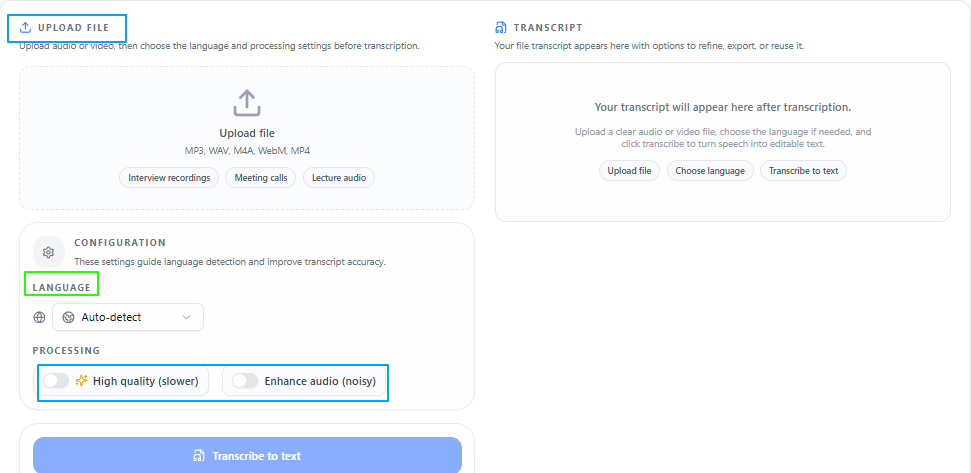
Simple workflow: A researcher can upload the audio or video, start the process, and get the text output in a short time.
Language detection: The tool can automatically detect the spoken language in the file.
Manual language selection: Users can also choose the language themselves from many languages worldwide.
Processing options: Different processing settings are available depending on the level of output needed.
High-quality processing: A deeper and more focused processing option is available for better results, though it may take more time.
Noise enhancement: Users can choose to enhance the audio when background noise affects speech clarity.
Tips to remember
Use high-quality processing when the recording is important and accuracy matters more.
Turn on noise enhancement when the audio has background sound.
Select the language manually if auto detection may not be reliable.
Review the final text once before using it in notes, drafts, or references.
Use cleaner audio or shorter files when you want quicker and more manageable results.
Keep the original recording as well when you may need to check context later.
Turn lecture-based material into memorable notes
Problem
Researchers often learn from lectures, seminars, recorded sessions, or explained material, but going back through the full content every time can be slow. It is easier to work with the material when it is turned into clear notes that are simpler to review later.
Solution
The Lecture Notes Taker helps researchers turn lecture content into more accessible and revisable notes. This makes it easier to study important ideas, go back to key explanations, and keep lecture-based material in a form that is more manageable for learning and research use.
Features:
Flexible input: A researcher can upload lecture content in the form of video, audio, or text.
Note-focused output: The tool turns full lecture material into notes that are easier to review and study.
Language flexibility: The output stays in the same language as the input by default, but another output language can also be selected.
Quality control: Fast gives a quicker result, Balanced keeps a practical mix of speed and quality, and Best takes more time but gives more focused and deeply prepared notes.
Tips to remember
Use Fast when you only need quick notes from the lecture.
Use Balanced for regular study and review work.
Use Best when the lecture is important and you want more careful notes.
Change the output language only when you need the notes in another language.
Review the final notes once to make sure the key ideas are clearly captured.
Use it for long lecture material when full recordings feel too time-consuming to revisit.
Understand tough legal documents easily for your research
Problem
Researchers sometimes have to read legal, policy, compliance, or agreement-based documents that are important to their work but difficult to understand in their original form. The language can be dense, formal, and time-consuming to go through, especially when the main need is to quickly understand what the document is saying.
Solution
The Legal Document Summarizer helps researchers turn complex legal text into a simpler and more understandable version. This makes it easier to review important documents, grasp the main points, and work with legal material without getting stuck in overly technical wording.
Features
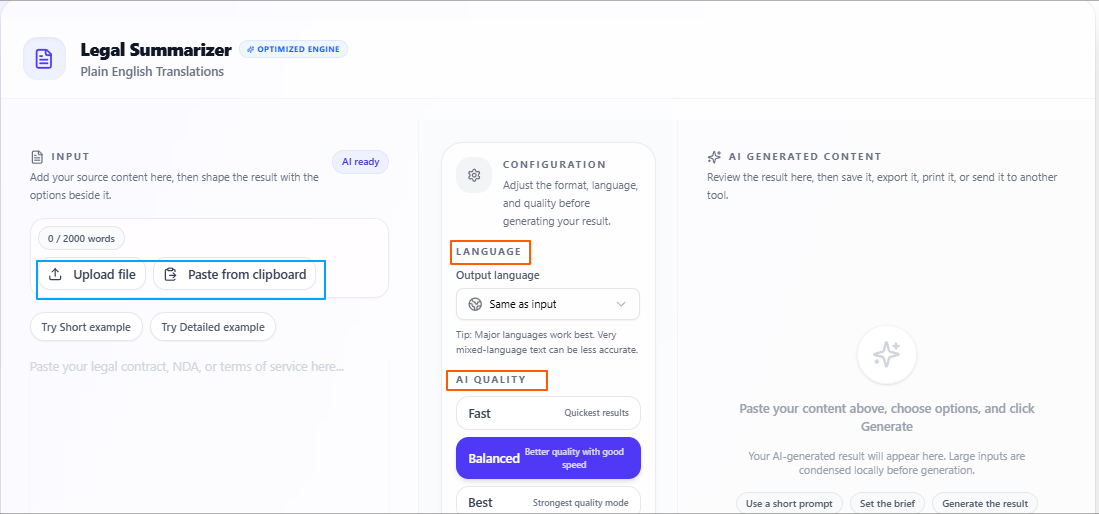
Simple legal summarizing: The tool helps break down complex legal documents into clearer and easier language.
Language flexibility: The output stays in the same language as the input by default, but another output language can also be selected.
Quality control: Fast gives a quicker result, Balanced keeps a practical mix of speed and quality, and Best takes more time but gives a more focused and deeply prepared summary.
Tips to remember
Use Fast when you only need a quick understanding of the document.
Use Balanced for normal review work.
Use Best when the legal document is important and needs more careful summarizing.
Change the output language only when you need the summary in another language.
Review the final summary once to make sure the key legal meaning is still clear.
Keep the original document with you when exact wording may still need to be checked later.
Other notable functions for Researchers
Paraphrasing
Paraphrasing is useful when researchers want to rework text without changing the actual meaning. It helps make writing clearer, improve readability, and adjust wording when a section feels too close to the original phrasing. With options for input method, rewriting strength, output length, language, and quality level, it gives enough control without making the process complicated.
Script Editor
Script Editor can help when researchers are preparing presentations, recorded explanations, or any research-based spoken content that needs a cleaner flow. It improves structure, tone, and overall script quality, while also allowing different input methods, tone choices, and quality settings depending on how polished the final version needs to be.
Conclusion
Overall, these use cases show how researchers can use VoiceCraftTool to handle the time-heavy parts of research work in a more practical way. From summarizing dense material and turning recordings into usable text to improving drafts, understanding complex documents, and preparing stronger proposals, the tools help reduce repetitive manual effort and make research content easier to review, refine, and use with more clarity.
Next step
Put this workflow to work
Use the tools directly once you finish reading, so the guide turns into action instead of just reference material.