
User Guide for Sales & Marketers
Sales calls often contain useful details, but it can be hard to review everything clearly after the call ends. A salesperson may not always notice where the conversation became....

Sales and marketers often work with calls, outreach messages, campaign ideas, customer conversations, product details, and performance feedback while trying to turn every interaction into something clear, useful, and action-focused. Their work is not only about reaching people, but also about understanding what was said, improving communication, writing stronger messages, creating better sales content, and keeping follow-up tasks organized so opportunities are not missed.
Overview Table
All the important functions for Sales & Marketers
Understand the working & improvement points in sales call
Problem
Sales calls often contain useful details, but it can be hard to review everything clearly after the call ends. A salesperson may not always notice where the conversation became weak, where the customer showed interest, or where the pitch, objection handling, or closing approach could have been better.
Solution
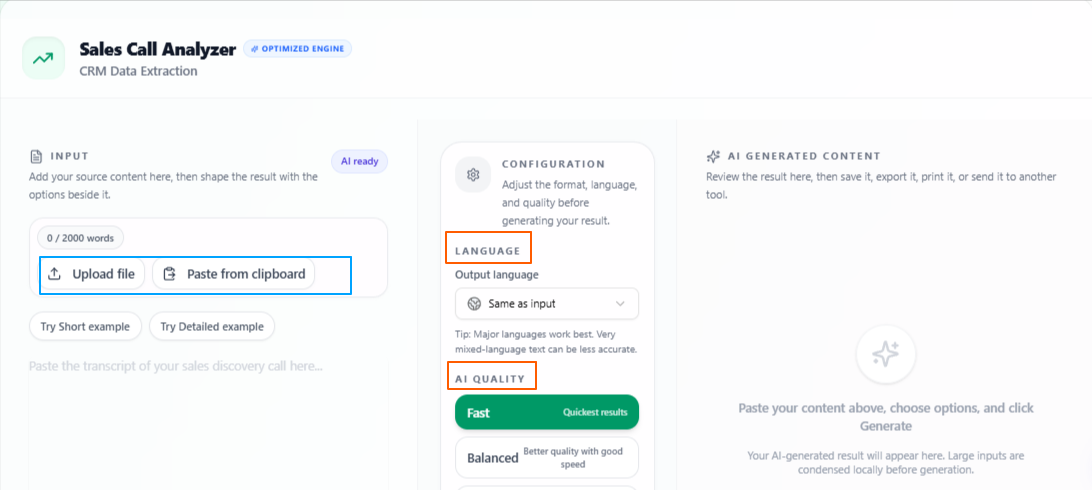
The Sales Call Analyzer helps sales and marketing teams review a call from a professional sales perspective. Users can upload a sales call audio file, paste a call transcript, or add a sales script, and the tool analyzes the conversation to show the call’s strengths and the areas that can be improved.
Features
Audio or text input: Users can upload a sales call audio file or paste the call transcript or script directly into the tool.
Sales-focused analysis: The tool reviews the call from a sales perspective, not just a general writing or grammar view.
Strength detection: It highlights the parts of the call that worked well, such as clear messaging, strong questions, good objection handling, or useful closing points.
Improvement suggestions: It shows where the call can be improved, so the user can understand what to change in future conversations.
Language flexibility: The output language stays the same as the input by default, but users can also select another language if needed.
Quality control: Users can choose Fast for quick analysis, Balanced for a mix of speed and quality, or Best for deeper and more focused results.
Tips to remember
Use the full call transcript when you want a more complete analysis.
Upload clear audio when working with recorded sales calls.
Use Balanced for regular call reviews.
Use Best when analyzing an important client call or high-value lead conversation.
Review the improvement points before your next sales call so the feedback becomes practical.
Keep past call analysis notes to compare how your sales conversations improve over time.
Write cold emails that grab and convert
Problem
Sales and marketing teams often need to reach new leads, but writing a cold email from scratch can take time. The message needs to be short, professional, relevant, and strong enough to make the reader pay attention without sounding forced or too promotional.
Solution
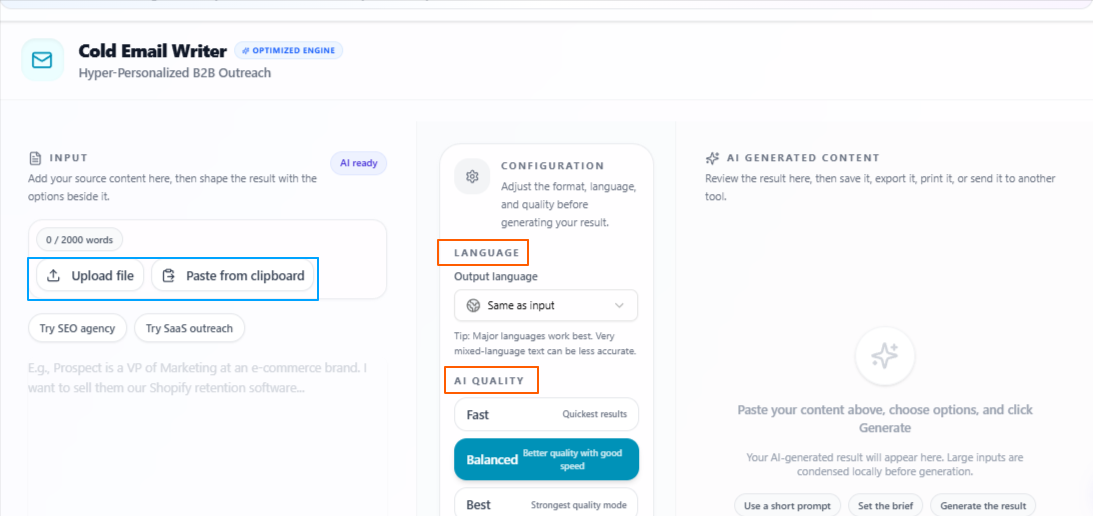
The Cold Email Generator helps users turn a rough idea, source content, or basic email direction into a more polished cold email. It gives them a clear and professional message that can be used for outreach, lead generation, follow-ups, or sales campaigns.
Features
Flexible input: Users can upload source content, paste existing material, or write the basic idea they have in mind for the cold email.
Professional email writing: The tool turns rough input into a properly written cold email that feels clear and suitable for sales outreach.
Attention-focused opening: It helps create a stronger start so the email has a better chance of catching the reader’s interest.
Sales-driven structure: The output is written with a sales purpose in mind, helping users present the offer, value, or message more clearly.
Language flexibility: The output language stays the same as the input by default, but users can also select another language if needed.
Quality control: Users can choose Fast for quick output, Balanced for a mix of speed and quality, or Best for deeper and more focused results.
Tips to remember
Add enough detail about the product, service, or offer before generating the email.
Keep the goal clear, such as booking a call, getting a reply, or introducing an offer.
Use Balanced for regular outreach emails.
Use Best when writing emails for important leads or high-value prospects.
Review the final email once to make sure it sounds natural and matches your brand tone.
Personalize the opening line before sending when reaching out to a specific person or company.
Turn property details into listing content to get better leads
Problem
Real estate sales often depend on how clearly a property is presented. Even when the property has strong features, the listing can feel plain, incomplete, or too generic if the details are not written in a way that helps buyers understand the value quickly.
Solution
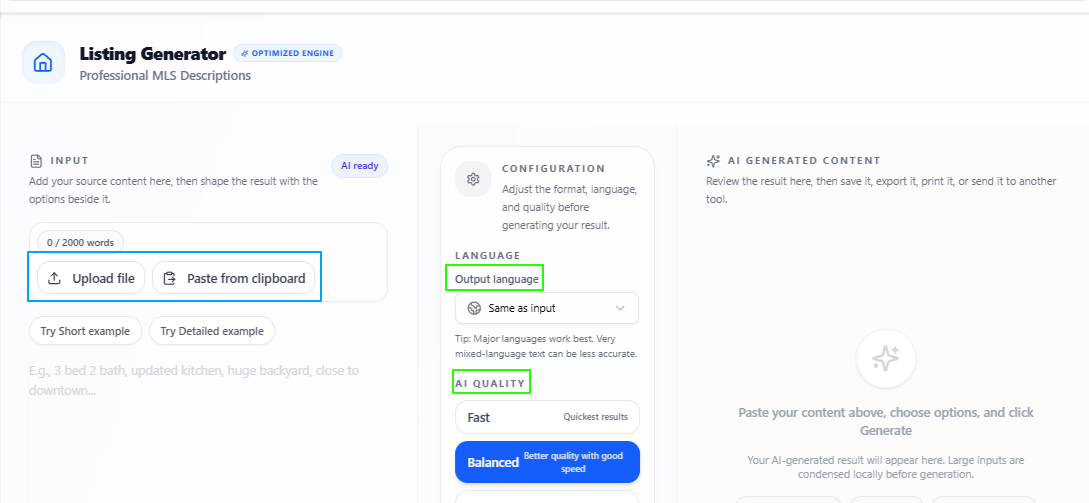
The Real Estate Listing Generator helps users turn property data into clearer and more useful listing content. By uploading real estate details, sales and marketing teams can create property descriptions that highlight the right information and make the listing more suitable for attracting interested buyers.
Features
Property data input: Users can upload real estate data and use it as the base for the listing content.
Listing content generation: The tool turns property information into clear and relevant listing copy.
Lead-focused writing: The output is written to make the property easier to understand and more appealing to potential buyers.
Sales-friendly structure: It helps present important property details in a way that feels organized and useful for marketing.
Language flexibility: The output language stays the same as the input by default, but users can also select another language if needed.
Quality control: Users can choose Fast for quick output, Balanced for a mix of speed and quality, or Best for deeper and more focused results.
Tips to remember
Upload complete property details for a stronger listing.
Include important points like location, size, features, price, and nearby facilities.
Use Balanced for regular property listings.
Use Best when preparing listings for high-value properties.
Review the final content once to make sure all property details are accurate.
Adjust the tone if the listing needs to feel more premium, simple, or buyer-friendly.
Turn feedbacks into professional reviews
Problem
Sales and marketing teams often need to review performance, but feedback notes can be rough, scattered, or too informal at first. This can make it difficult to prepare reviews that sound fair, structured, and suitable for a professional setting.
Solution
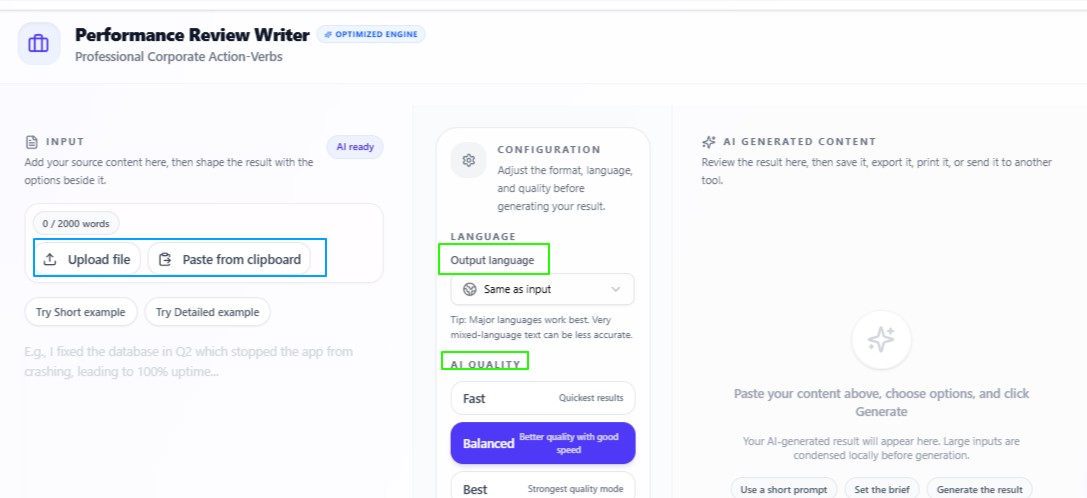
The Performance Review Generator helps users turn rough points or uploaded data into formal and refined feedback reviews. It makes performance feedback easier to organize, especially when managers, team leads, or sales heads need to prepare clear reviews for team members.
Features
Rough notes input: Users can upload their data or add rough feedback points as the base for the review.
Professional review writing: The tool turns simple notes into a polished and formal performance review.
Formal tone: The output is written in a way that fits workplace, team, and professional review settings.
Clear feedback structure: It helps organize performance points so the review feels more complete and easier to understand.
Language flexibility: The output language stays the same as the input by default, but users can also select another language if needed.
Quality control: Users can choose Fast for quick output, Balanced for a mix of speed and quality, or Best for deeper and more focused results.
Tips to remember
Add clear performance points before generating the review.
Include both strengths and improvement areas for a balanced review.
Use Balanced for regular team feedback.
Use Best when preparing formal reviews for important evaluations.
Review the final output to make sure the feedback feels fair and accurate.
Adjust any sensitive wording before sharing it with a team member.
Create stronger opening lines for campaigns and posts
Problem
Sales and marketing content often needs to catch attention quickly, especially in ads, social posts, reels, emails, or short campaign messages. Even when the main content is useful, a weak opening line can make people scroll past it before they understand the offer or message.
Solution
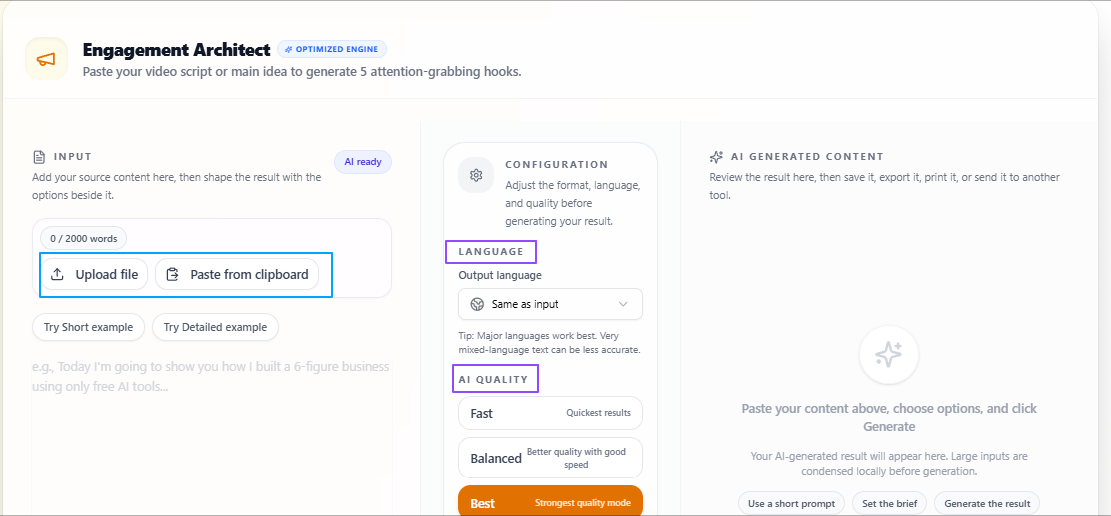
The Social Hook Generator helps users create more engaging hook options from their existing content. Users can upload a script file or paste the content directly, and the tool suggests relevant opening lines that can make the message feel stronger and more attention-focused.
Features
Flexible input: Users can upload a content script file or paste their content directly into the tool.
Content analysis: The tool analyzes the provided content before suggesting hook options.
Relevant hook suggestions: It creates hooks that match the topic, message, and purpose of the content.
Engaging opening lines: The output focuses on creating stronger starts for posts, ads, reels, and campaign content.
Language flexibility: The output language stays the same as the input by default, but users can also select another language if needed.
Quality control: Users can choose Fast for quick output, Balanced for a mix of speed and quality, or Best for deeper and more focused results.
Tips to remember
Paste enough content so the hooks stay relevant to the actual message.
Use hooks that match the platform where the content will be posted.
Use Balanced for regular posts and campaign ideas.
Use Best when creating hooks for important ads or launches.
Test more than one hook when possible to see which one gets better attention.
Review the final hook to make sure it does not overpromise or sound unnatural.
Make actionable steps from calls and meeting notes
Problem
Sales and marketing work often creates a lot of discussion, ideas, client requests, and follow-up points. After a call or meeting, it can be easy to miss an important task, forget the priority, or lose track of what needs to be done next.
Solution
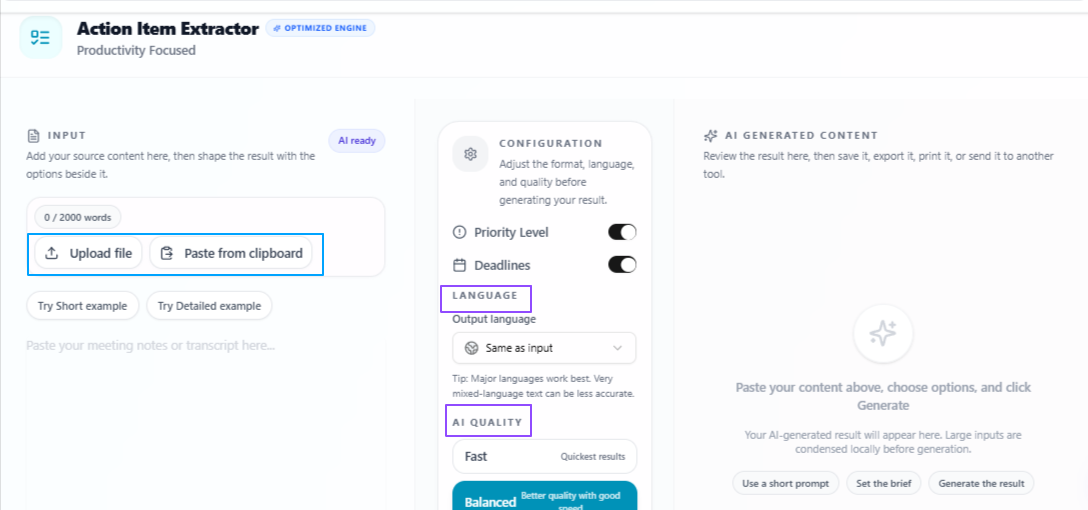
The Action Item Extractor helps users turn uploaded content into clear and actionable tasks. It can pull useful action points from meeting notes, call transcripts, campaign discussions, or planning content, so sales and marketing teams can move from conversation to execution more easily.
Features
Content upload: Users can upload their content and use it as the base for extracting action items.
Actionable output: The tool turns general content into clear tasks that are easier to follow.
Priority level: Users can choose priority settings so the output can show tasks in a more useful order.
Deadline support: The deadline option helps mention ending times or due points for the extracted tasks.
Language flexibility: The output language stays the same as the input by default, but users can also select another language if needed.
Quality control: Users can choose Fast for quick output, Balanced for a mix of speed and quality, or Best for deeper and more focused results.
Tips to remember
Upload complete meeting notes or call content for better task extraction.
Use priority level when the content has many tasks.
Use deadlines when follow-ups are time-sensitive.
Use Balanced for regular sales or marketing meetings.
Use Best when extracting tasks from important client calls or campaign planning sessions.
Review the final action list and assign tasks to the right team members.
Create speech pitches from text scripts
Problem
Sales and marketing content may look fine when written, but it can sound different when spoken. Scripts, ad copy, product messages, and outreach content sometimes feel too long, unclear, or unnatural once they are read out loud.
Solution
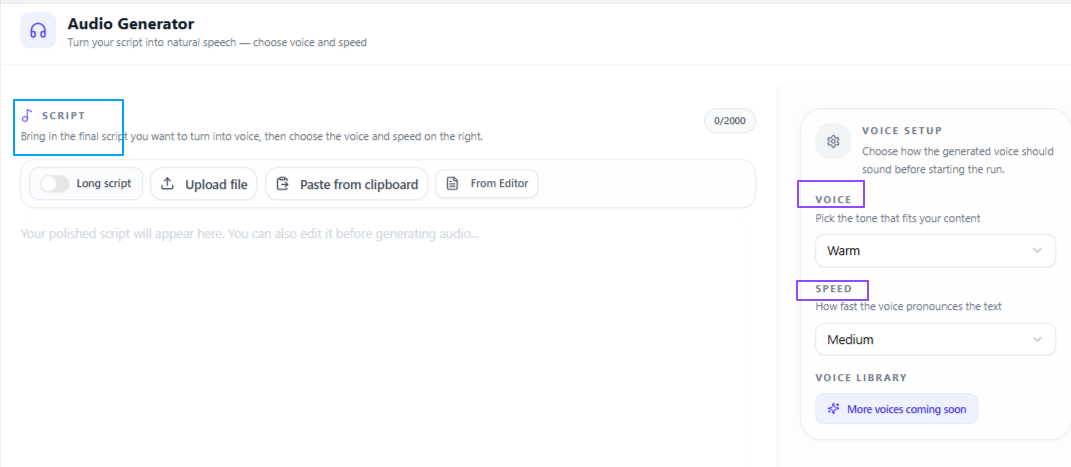
The Text to Audio tool helps users turn written content into spoken audio. Sales and marketing teams can paste text, upload a text file, or bring content from the site’s editor tool to listen to it, review the flow, and check how the message sounds before using it in calls, ads, videos, or voiceovers.
Features
Flexible text input: Users can paste text, write directly, upload a text file, or bring content from the site’s editor tool.
Voice selection: The tool offers different voice styles such as warm, deep, and soft for different content needs.
Male and female voices: Users can choose between male and female voice options based on the tone they want.
Speech speed control: Users can select slow, medium, or fast speed depending on how they want to review or present the content.
Audio-based review: It helps users listen to written content and notice parts that may sound unclear, too long, or weak when spoken.
Tips to remember
Use it to test sales scripts before recording or presenting them.
Try medium speed first if you are unsure which pace works best.
Use a slower speed for important messages or detailed scripts.
Test different voice styles to see which one matches the campaign tone.
Listen once fully before using the text in ads, calls, videos, or voiceovers.
Edit any line that sounds unnatural when spoken out loud.
Record clean voice for pitches and recordings
Problem
Sales and marketing ideas often come during calls, meetings, travel, planning sessions, or quick customer conversations. If those thoughts are not captured clearly, important details can be forgotten, and teams may lose useful insights, follow-up points, or campaign ideas.
Solution
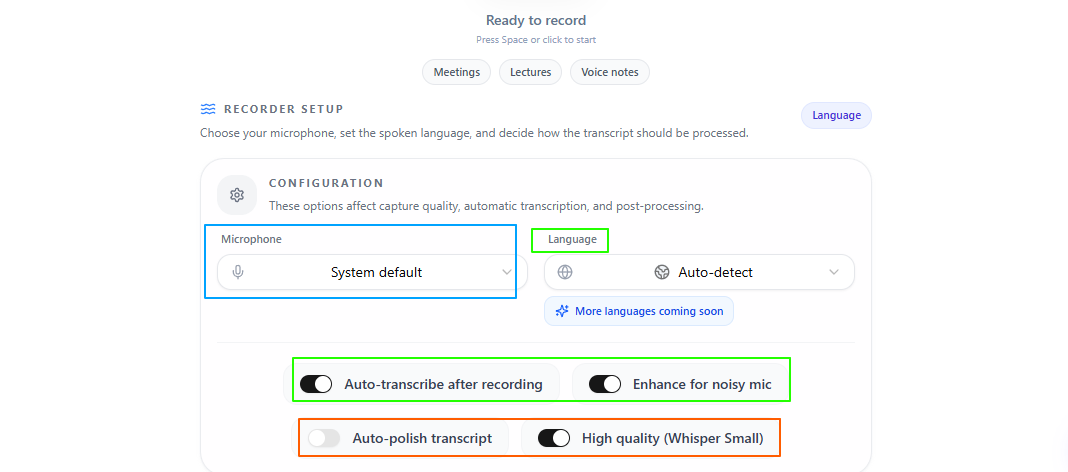
The Voice Recorder helps users record clean voice notes in a simple way. Sales and marketing teams can use it to capture customer insights, meeting notes, campaign thoughts, sales ideas, or quick spoken drafts, with options to transcribe and polish the recording into cleaner text.
Features
Clean voice recording: Users can record voice notes through a simple and clean interface.
Mic selection: The tool lets users choose the microphone that works best for their recording setup.
Auto noise enhancement: It helps reduce background noise so the recording sounds clearer.
High-quality recording: The tool supports clear voice capture, including low whisper recording.
Auto transcription: Users can turn recorded speech into text along with the audio.
Transcript polishing: The tool can make the transcribed text cleaner and easier to read.
Language detection: The speech language can be detected automatically during use.
Multilingual support: Users can also manually select from many languages worldwide.
Tips to remember
Use it right after sales calls to capture quick follow-up thoughts.
Select the right microphone before starting the recording.
Turn on noise enhancement when recording in a busy place.
Use transcription when you want the voice note in text form as well.
Polish the transcript before using it in emails, notes, or campaign planning.
Check the language setting when recording multilingual conversations.
Conclusion
Overall, these use cases show how sales and marketers can use VoiceCraftTool to handle the practical work around outreach, calls, listings, reviews, campaign content, and follow-ups in a more organized way. From analyzing sales conversations and writing cold emails to creating stronger hooks, extracting action items, and capturing quick ideas, these tools help reduce the extra manual effort behind daily sales and marketing work so teams can communicate clearly, respond faster, and stay focused on turning opportunities into real progress.
Put this workflow to work
Use the tools directly once you finish reading, so the guide turns into action instead of just reference material.
Sales and Marketers who want a cleaner path from recordings to usable output.