Content writers often use videos, webinars, interviews, tutorials, or recorded discussions as source material. But watching the full video again and again to find useful....
Content writers often work with research material, rough drafts, articles, scripts, interviews, notes, and client requirements while trying to keep the final content clear, original, readable, and useful for the target audience. Because of that, their work is not only about writing from scratch, but also about understanding source material, improving structure, rewriting weak sections, summarizing long information, repurposing content for different platforms, and preparing polished drafts without losing the main meaning.
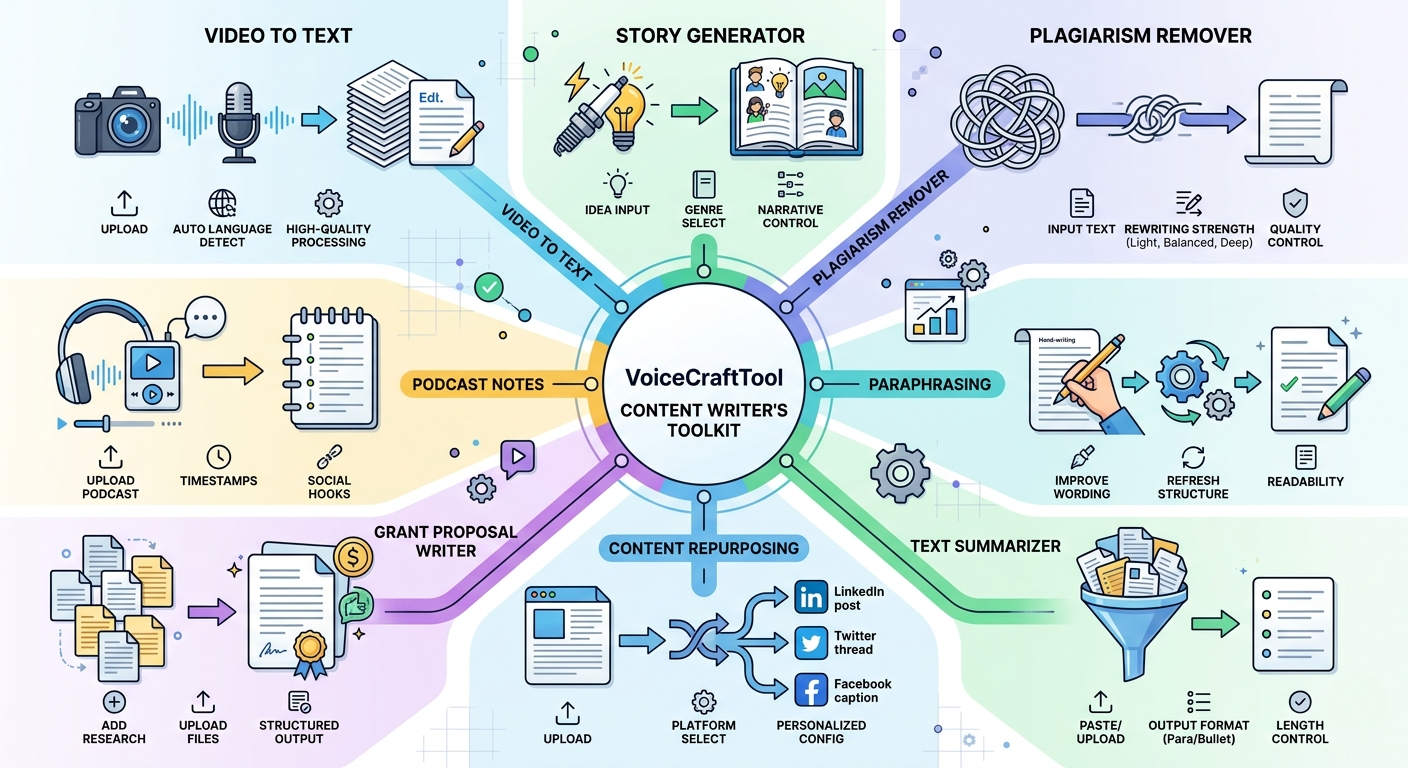
Tools Overview
Tool
Purpose
Best use case
Video to Text
Converts spoken content into editable text
Using videos, interviews, or webinars as writing material
Story Generator
Turns simple ideas into creative story drafts
Writing stories, examples, or narrative content
Plagiarism Remover
Helps make content more original
Fixing plagiarism in articles, blogs, or drafts
Paraphrasing
Rewrites text in a fresh and clearer way
Improving wording, flow, or sentence structure
Text Summarizer
Shortens long content into key points
Understanding research, notes, or references faster
Content Repurposing
Changes one piece of content into different formats
Turning blogs into posts, threads, hooks, or captions
Grant Proposal Writer
Turns research details into a proper proposal
Preparing funding or project proposals
Podcast Notes
Creates useful notes from podcast content
Taking ideas from expert talks, interviews, or discussions
All the important functions for a Content Writer
Turn video & audio references into writing material
Problem
Content writers often use videos, webinars, interviews, tutorials, or recorded discussions as source material. But watching the full video again and again to find useful points can take a lot of time. It also becomes harder when the writer needs exact wording, key ideas, quotes, or notes from spoken content.
Solution
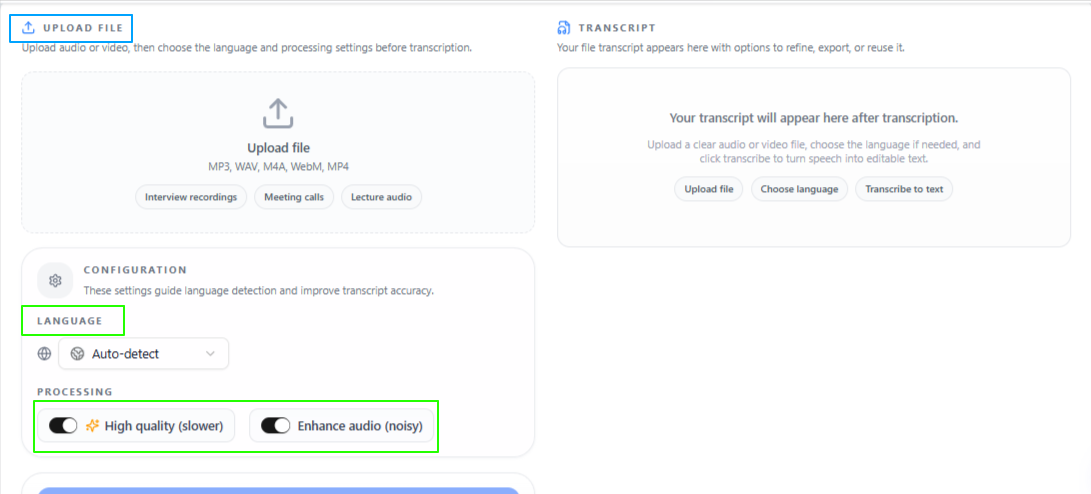
Convert spoken video content into readable text with Video and Audio to Text tool. Instead of manually typing what they hear, they can upload the video, process it, and get the text in a more useful format. This makes it easier to review ideas, collect references, prepare drafts, or use video content as research material.
Features:
Simple upload process
The writer can upload the video, start the process, and get the text without a complicated setup.
Quick text output
Spoken content can be converted into text in just a few moments, depending on the file and processing option.
Auto language detection
The tool can automatically detect the spoken language in the video.
Manual language selection
Writers can also select the language themselves from many languages across the world.
High-quality processing
A deeper processing option is available for more focused and accurate results, especially when the content is important.
Audio noise enhancement
The writer can choose audio enhancement to improve clarity when the video has background noise or unclear sound.
Tips to remember
Use high-quality processing when the video is important for research or article writing.
Turn on noise enhancement if the speaker’s voice is not very clear.
Select the language manually if the video has mixed accents or auto detection may not work well.
Review the final text once before using it in an article, blog, or client draft.
Use shorter video clips when you only need a specific part of the content.
Turn simple ideas into creative story drafts
Problem
Content writers do not always start with a complete story, scene, or narrative structure. Sometimes they only have a basic idea, a random thought, or a rough direction, but turning that into a proper story can take time. This becomes harder when the content needs a specific genre, writing style, point of view, or length.
Solution
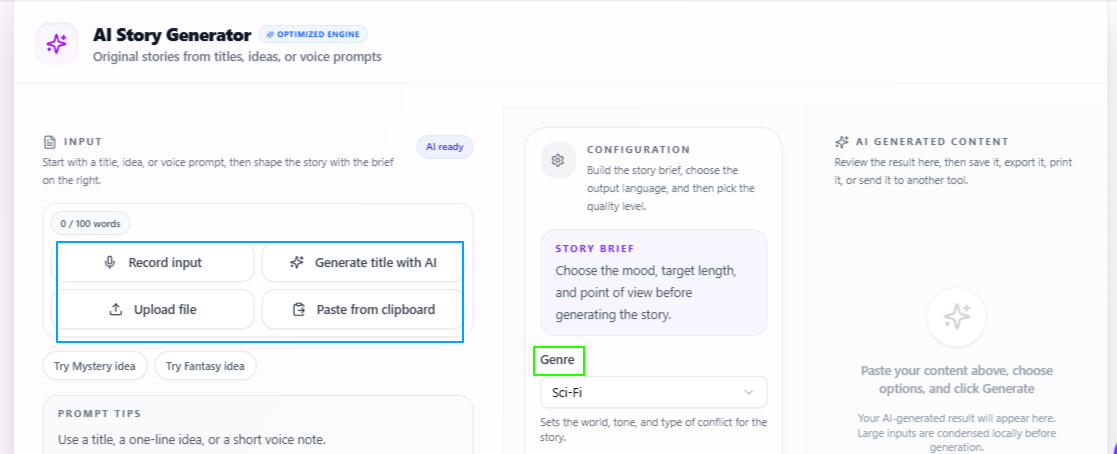
Story Generator tool helps content writers turn early ideas into more developed story drafts. A writer can enter the main idea, choose the story style, select the narrative point of view, and decide the length. This makes it easier to move from a rough concept to a usable creative draft without starting from a blank page.
Features:
Idea-based story creation
Writers can enter a simple idea or thought as the main prompt for the story.
Genre selection
Different genres can be selected based on the type of story or creative direction needed.
Narrative control
The story can be written in different narrative styles, such as first person or third person.
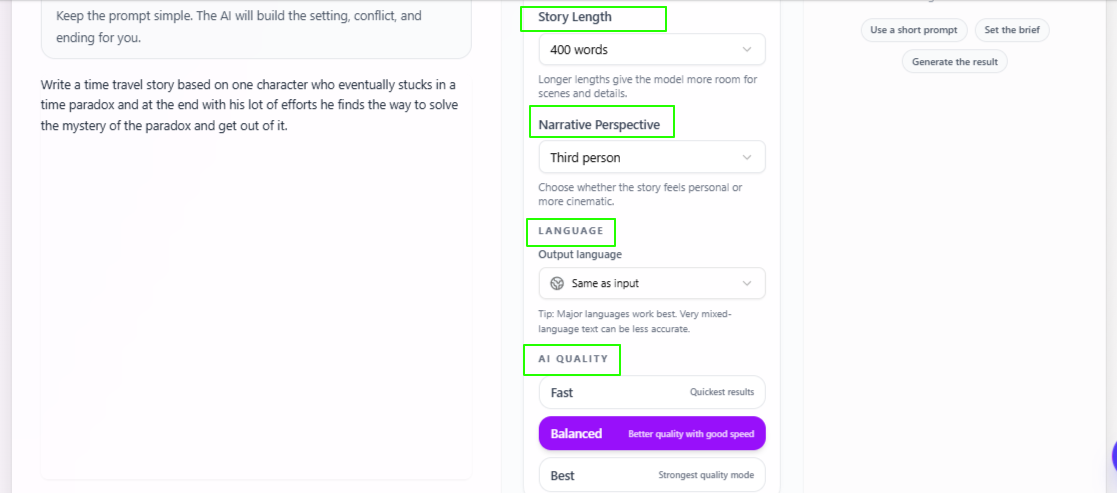
Story length options
Writers can choose from different length ranges depending on how short or detailed they want the story to be.
Language flexibility
The output language stays the same as the input by default, but writers can also select a different output language.
Quality control
Writers can choose Fast for quick results, Balanced for a mix of speed and quality, or Best for more focused and deeply prepared output.
Tips to remember
Start with a clear idea so the story stays close to your intended direction.
Choose the genre carefully because it affects the tone and structure of the story.
Use first person when you want the story to feel more personal.
Use third person when you want a more traditional storytelling style.
Select Best when the story needs more depth, detail, and polish.
Make written content original without plagiarism
Problem
Content writers often work with drafts, references, research material, or rewritten content that may still feel too close to the original source. This can create problems when the content needs to be submitted, published, or shared with a client. Even when the meaning is correct, the wording may need to be improved to make the content more original and safe to use.
Solution
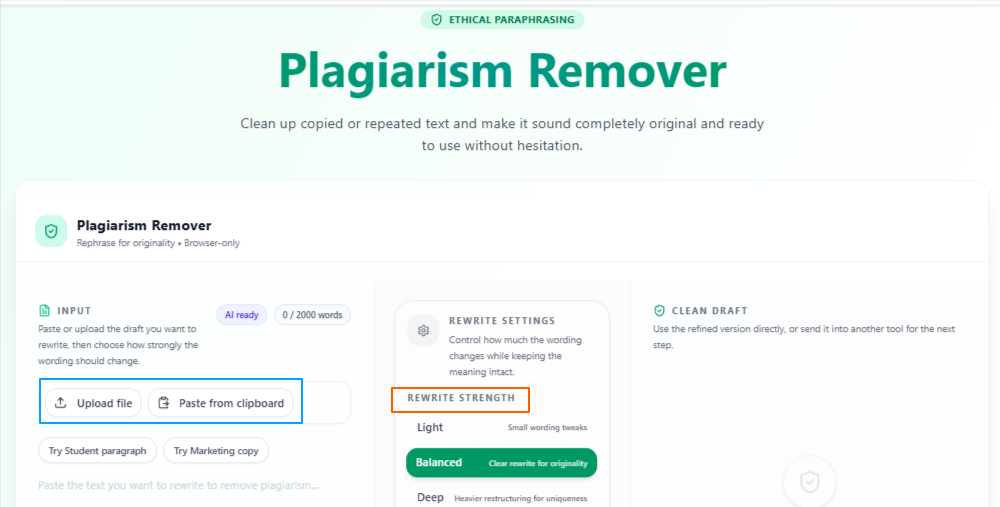
Content writers can reduce plagiarism from their text with Plagiarism Remover tool while keeping the main meaning clear. Writers can paste, write, or upload their content, choose how strongly they want the text rewritten, and generate a cleaner version that feels more original and ready for further editing.
Features
Simple input
Writers can upload a file, paste the content, or write the text directly into the tool.
Clean interface
The process is simple, with no complicated steps before starting.
Length control
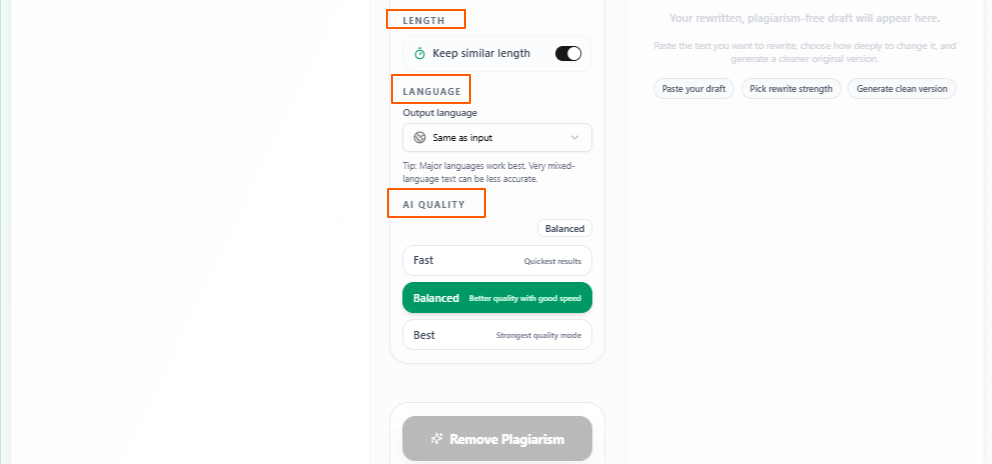
Writers can choose to keep the same length or allow the output length to vary.
Rewriting strength
Light makes small changes, Balanced makes moderate changes, and Deep can restructure the content more strongly.
Language flexibility
The output language stays the same as the input by default, but writers can select a different language if needed.
Quality control
Writers can choose Fast for quick results, Balanced for a mix of speed and quality, or Best for more focused and deeply prepared output.
Tips to remember
Use Light when the content only needs small wording changes.
Use Balanced when you want a safer rewrite without changing the structure too much.
Use Deep when the content is too close to the original source.
Keep the same length if you are working with a fixed word count.
Review the final version once to make sure the meaning still matches your original point.
Rewrite weak paragraphs with your voice & context
Problem
Content writers often need to improve existing text that may sound repetitive, unclear, too simple, or too close to the original wording. Rewriting everything manually can take time, especially when the writer only wants to improve the flow, change the wording, or make the content easier to read without losing the main idea.
Solution
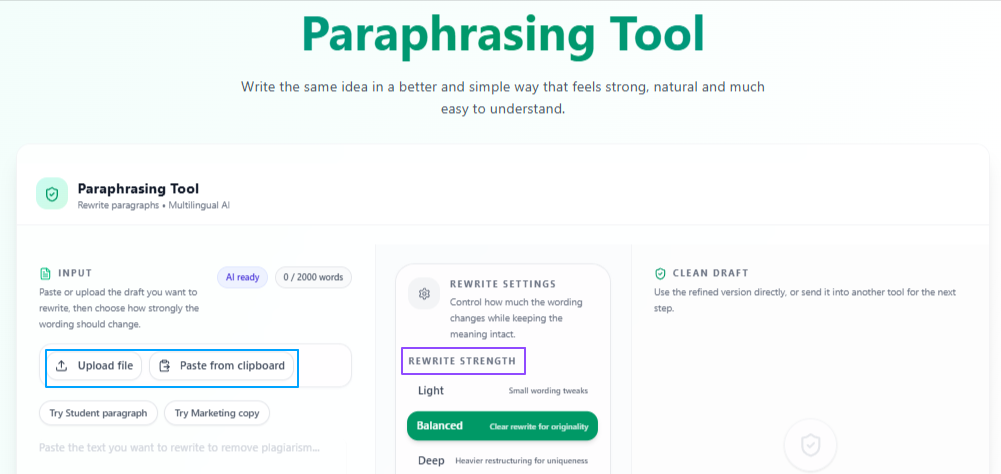
This helps content writers rephrase written content in a cleaner and more useful way. Writers can paste, write, or upload their text, choose how much rewriting they want, and get a refreshed version that keeps the meaning but improves the wording, structure, or readability.
Features
Simple input
Writers can upload a file, paste the text, or write the content directly into the tool.
Clean interface
The tool is easy to use and does not require a complicated setup.
Length control
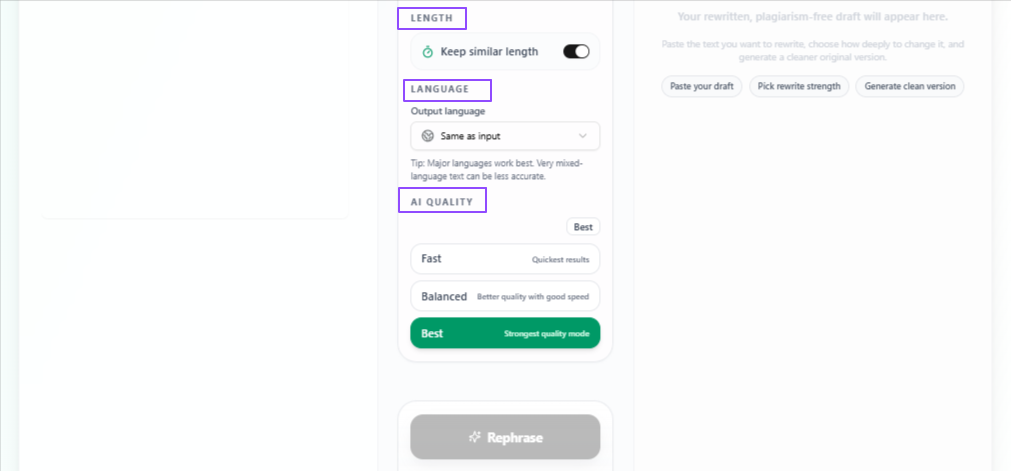
Writers can choose to keep the same length or allow the output length to vary.
Rewriting strength
Light makes small wording changes, Balanced gives a moderate rewrite, and Deep can restructure the content more strongly.
Language flexibility
The output language stays the same as the input by default, but writers can choose a different language if needed.
Quality control
Writers can choose Fast for quick results, Balanced for a mix of speed and quality, or Best for more focused and deeply prepared output.
Tips to remember
Use Light when the paragraph only needs small wording improvements.
Use Balanced when you want better flow without changing the content too much.
Use Deep when the text feels weak, repetitive, or poorly structured.
Keep the same length when working with fixed content requirements.
Review the final version once to make sure it still sounds natural and matches your writing purpose.
Understand long content without reading everything line by line
Problem
Content writers often deal with long articles, research notes, transcripts, reports, references, or rough drafts. Reading the full content every time can slow down the writing process, especially when they only need the main idea, key points, or useful details before starting a draft.
Solution
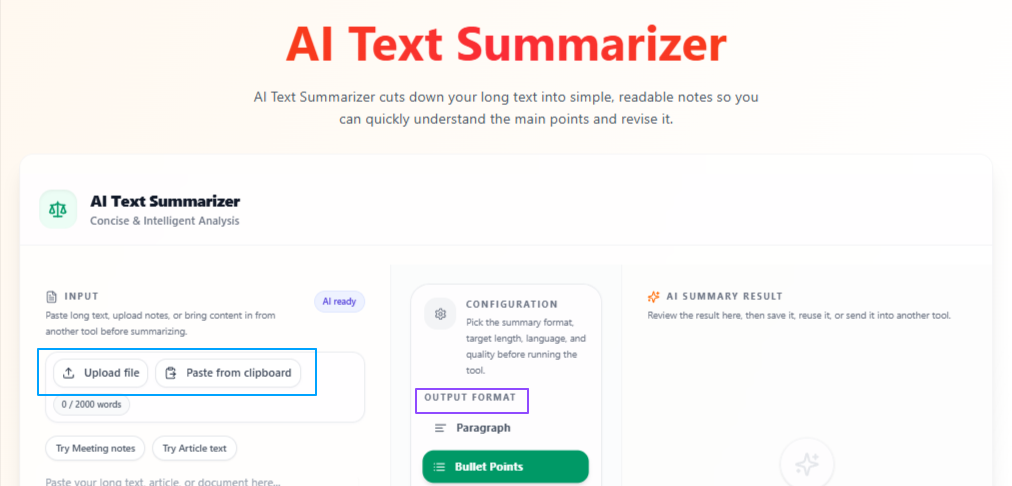
Text Summarizer shorten long text into a clearer and more manageable version. Writers can paste, write, or upload the content and choose whether they want the output in paragraphs or bullet points. This makes it easier to review research, collect important points, and prepare writing material faster.
Features
Flexible input: Writers can paste text, write content directly, or upload a file for summarizing.
Output format options: The summary can be created in paragraph form or bullet points.
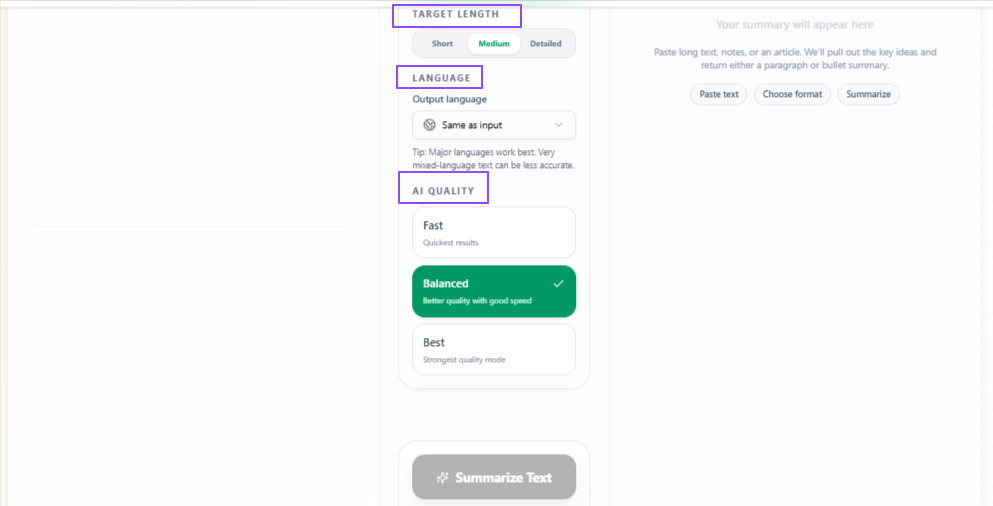
Target length control: Writers can choose short, medium, or detailed summaries depending on how much information they want.
Language flexibility: The output language stays the same as the input by default, but writers can select a different language if needed.
Quality control: Writers can choose Fast for quick results, Balanced for a mix of speed and quality, or Best for more focused and deeply prepared output.
Tips to remember
Use bullet points when you want quick takeaways.
Use paragraph format when you want a smoother summary.
Choose short when you only need the main idea.
Choose detailed when the content is important for research or planning.
Review the summary once before using it in your final writing.
Turn one draft into content for different platforms
Problem
Content writers often create one strong article, script, or content piece, but then need to reshape it for different platforms. A blog may need to become a LinkedIn post, a Twitter thread, a short hook, or a caption. Doing this manually can take extra time because every platform needs a different tone, length, and format.
Solution
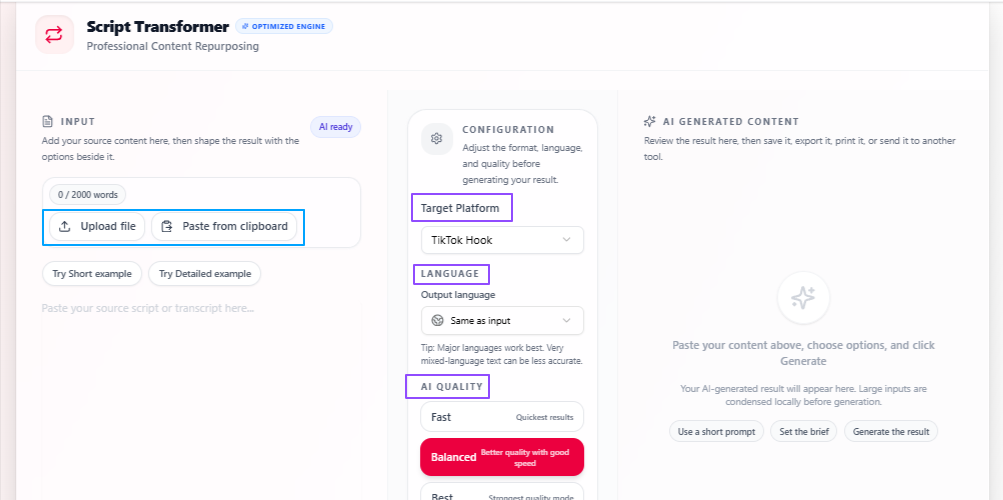
AI Content Repurposer helps content writers reuse the same content in different ways. Writers can upload or paste their content, choose the platform or format they need, and generate a version that fits that specific use. This makes it easier to get more value from one piece of writing without rewriting everything from scratch.
Features:
Platform-based repurposing
Writers can turn one script or content piece into formats like TikTok hooks, LinkedIn posts, Twitter threads, and more.
Simple input
Writers can upload their content or paste it directly into the tool.
Personalized configurations
Writers can select settings based on the type of repurposed output they want.
Language flexibility
The output language stays the same as the input by default, but writers can select a different language if needed.
Quality control
Writers can choose Fast for quick results, Balanced for a mix of speed and quality, or Best for more focused and deeply prepared output.
Tips to remember
Choose the platform carefully so the output matches where you want to publish it.
Use Balanced for regular repurposing work.
Use Best when the content is important or client-facing.
Keep the original content clear so the repurposed versions stay useful.
Review the final output once to make sure it fits the platform tone and audience.
Prepare research details into a proper proposal draft
Problem
Content writers sometimes need to write formal proposals from research notes, project details, study material, or scattered information. This can take time because a grant proposal needs clear structure, purpose, background, expected outcome, and a professional writing flow. When the source material is unorganized, preparing the first draft becomes even harder.
Solution
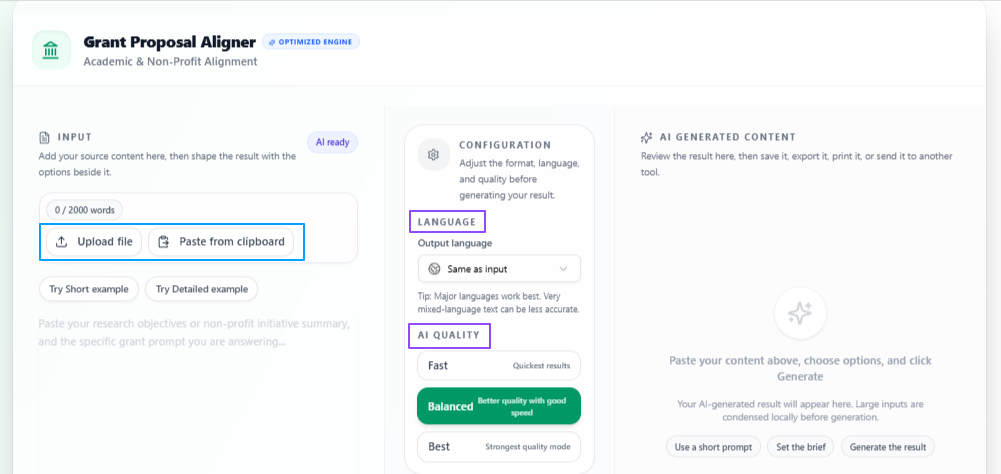
AI Grant Proposal Writer helps content writers turn research data or project information into a properly written grant proposal. Writers can upload research files or paste the data directly, then use the output as a structured proposal draft that can be reviewed, improved, and prepared for submission.
Features:
Research-based input
Writers can add research data, project details, or supporting information for the proposal.
File upload option
Writers can upload research files instead of manually typing everything.
Direct paste option
Writers can paste the data directly into the tool for quick proposal generation.
Structured proposal output
The tool prepares the information in a more organized proposal format.
Language flexibility
The output language stays the same as the input by default, but writers can select a different language if needed.
Quality control
Writers can choose Fast for quick results, Balanced for a mix of speed and quality, or Best for more focused and deeply prepared output.
Tips to remember
Add clear research details so the proposal has enough useful information.
Use uploaded files when your research data is already prepared in documents.
Use Best when the proposal is important or needs a more polished structure.
Review the final draft carefully before submitting it anywhere.
Add any missing budget, timeline, or eligibility details manually if required.
Take useful writing ideas from podcasts and expert talks
Problem
Content writers often use podcasts, interviews, expert discussions, or audio conversations as source material. But listening to a full podcast again just to find useful points can take a lot of time. Important ideas, examples, quotes, and content angles can easily get missed when everything stays in audio form.
Solution
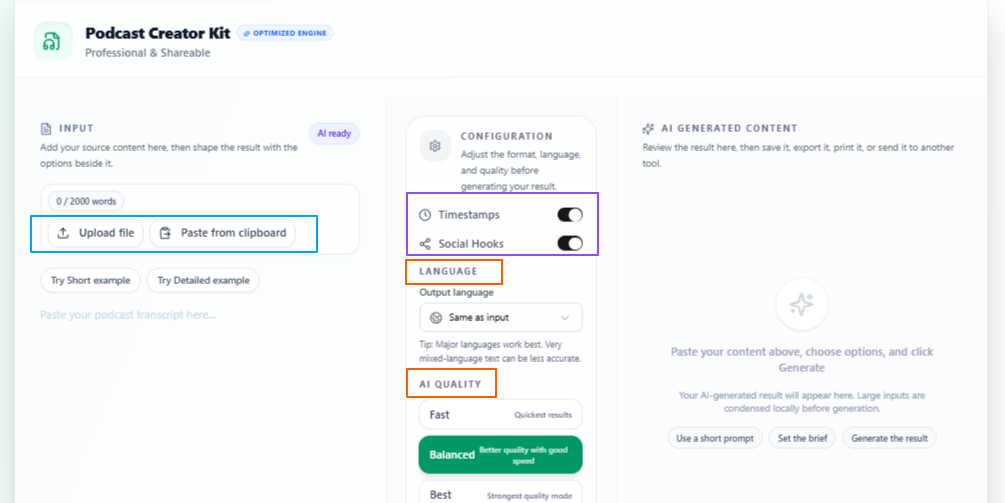
Podcast Notes Taker tool helps content writers turn podcast content into organized notes. Writers can upload a podcast file or paste the podcast text, then generate notes that are easier to review and use in articles, blogs, scripts, newsletters, or research-based content.
Features:
Podcast upload
Writers can upload a podcast file and turn it into useful notes.
Text input option
Writers can also paste the podcast content if they already have it in text form.
Timestamp option
Timestamps can be added to the notes so writers can track where important points appear.
Social hook option
Writers can include social hooks in the output notes for easier content repurposing.
Language flexibility
The output language stays the same as the input by default, but writers can select a different language if needed.
Quality control
Writers can choose Fast for quick results, Balanced for a mix of speed and quality, or Best for more focused and deeply prepared output.
Tips to remember
Add timestamps when you need to refer back to specific podcast moments.
Use social hooks if you plan to turn podcast ideas into posts or short-form content.
Use Balanced for regular note-taking work.
Use Best when the podcast is long, detailed, or important for research.
Review the notes once before using them in your final article or draft.
Conclusion
To conclude, these use cases show how content writers can use VoiceCraftTool to make different parts of the writing process easier, from turning videos and podcasts into usable notes to summarizing long material, rewriting weak sections, improving originality, repurposing drafts, and shaping creative or formal content. It helps reduce the extra manual work that often slows writers down, so they can focus more on understanding ideas, improving clarity, and preparing content that is ready to edit, publish, or share.
Next step
Put this workflow to work
Use the tools directly once you finish reading, so the guide turns into action instead of just reference material.