Script to Video AI Free: Turn a Script into Short AI Videos (2027 Guide)
Nov 30, 2026
13 min read
Can you turn written content into a video using free AI tools? Yes. AI video generators can transform scripts or text prompts into short visual clips, often with voiceovers or uploaded audio.
VoiceCraftTool's AI Video Maker lets you create short videos from text prompts or reference images, with a free 5-second video preview. This guide explains how to use it, explore its features, and understand its free-plan limitations.
What Is Script-to-Video AI?
Script-to-video AI uses written content to help generate videos. Depending on the platform, it may create visuals, add narration, or turn a short description into a video clip. Some tools support longer narrated videos, while others focus on generating short clips from prompts.
VoiceCraftTool follows the short-clip approach, combining text-to-video and image-to-video generation with voiceover and audio options.
How to Create Short AI Videos with VoiceCraftTool
VoiceCraftTool provides an AI Video Maker for creating short clips from text prompts or reference images. You can also use VoiceCraftTool audio features to add narration or sound to your video.
Here is a practical walkthrough using one example.
Example idea: "Discover three simple ways to make your daily workspace more productive."
Step 1: Prepare Your Script
Start with a short idea or script. Since the AI Video Maker is designed for short clips, focus on one subject or action rather than trying to fit several scenes into one video.
If you need help preparing your content, VoiceCraftTool offers different writing tools:
Voiceover Script Writer: Helps prepare text for spoken narration.
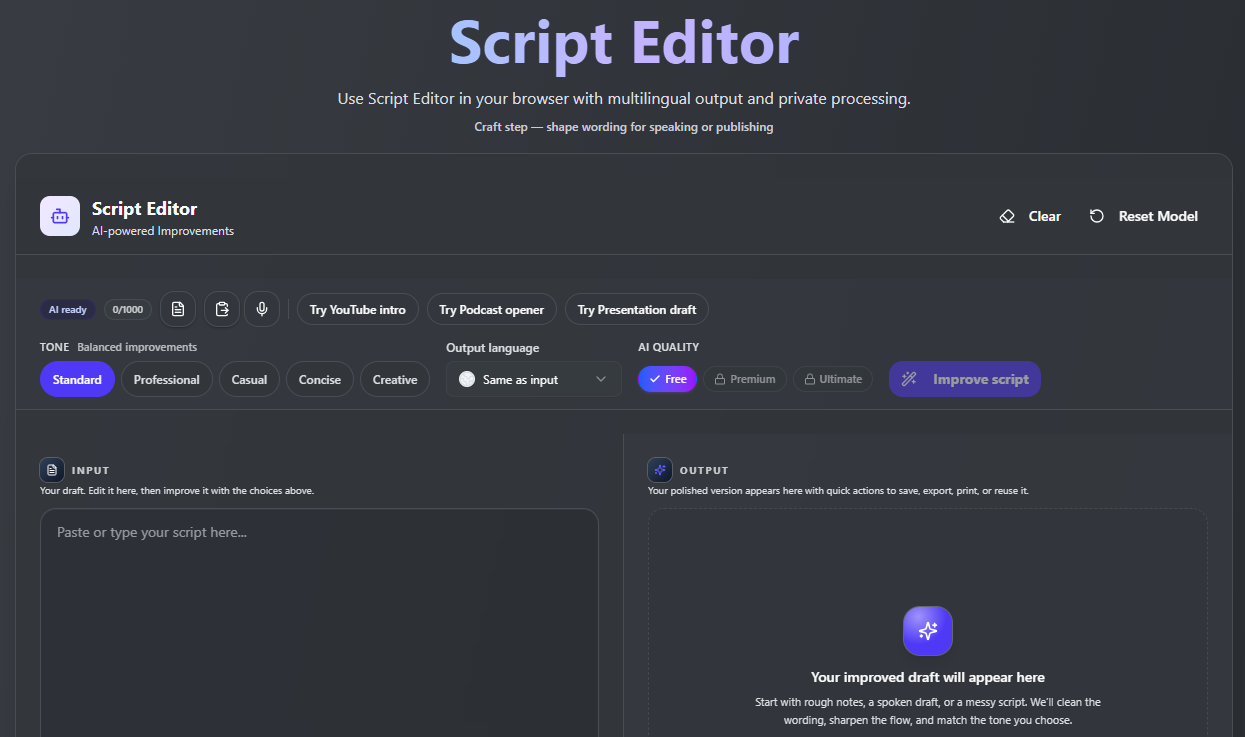
Script Editor: Helps improve grammar, clarity, and flow.
Social Hook Generator: Helps create opening lines for short-form content.
For our example, the main message is about improving workspace productivity. A short, direct sentence is easier to use in a brief video than a long explanation.
Step 2: Choose Your Voiceover
VoiceCraftTool's AI Video Maker supports AI voiceover, uploaded audio, and AI sound effects.
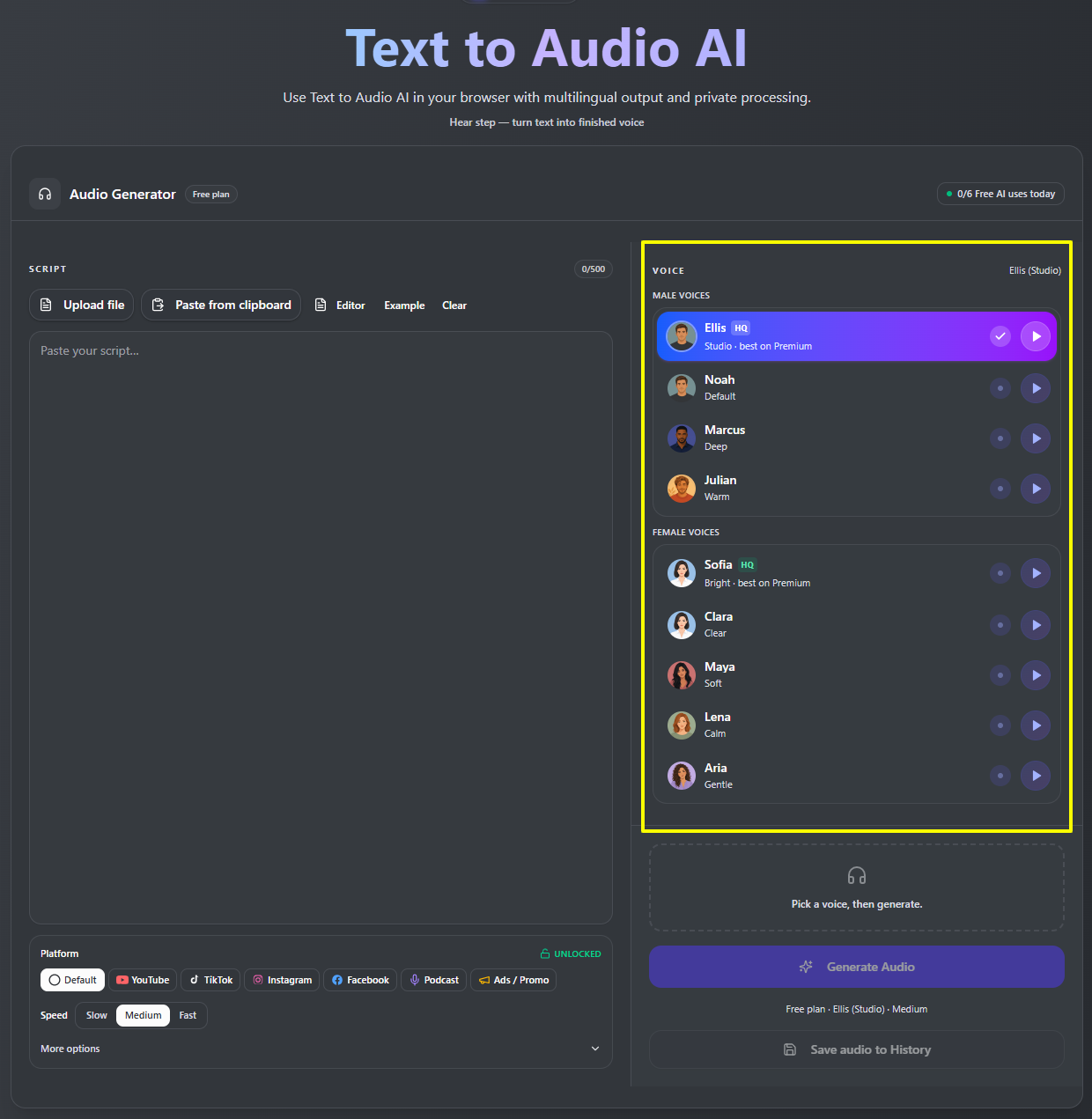
You can use the built-in voiceover option or prepare your narration separately with Text to Audio AI. This gives you an opportunity to review the spoken content before using it in your video.
Remember that the visual description and voiceover serve different purposes:
Visual description: Tells the AI what should appear on screen.
Voiceover text: Tells it what the narration should communicate.
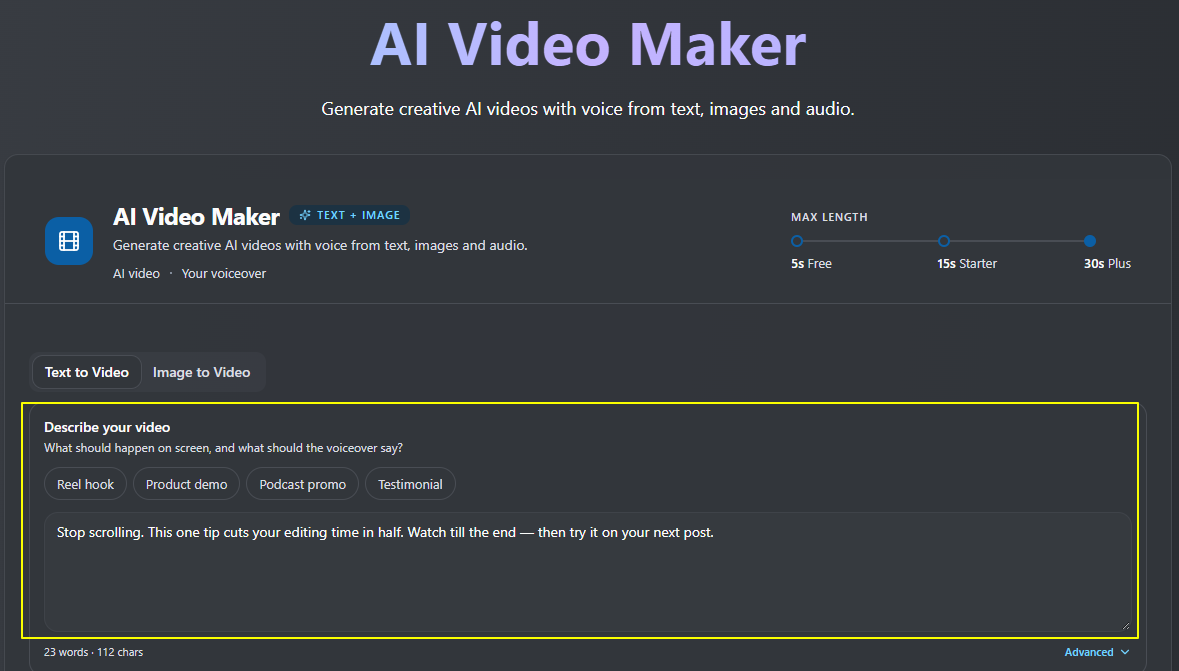
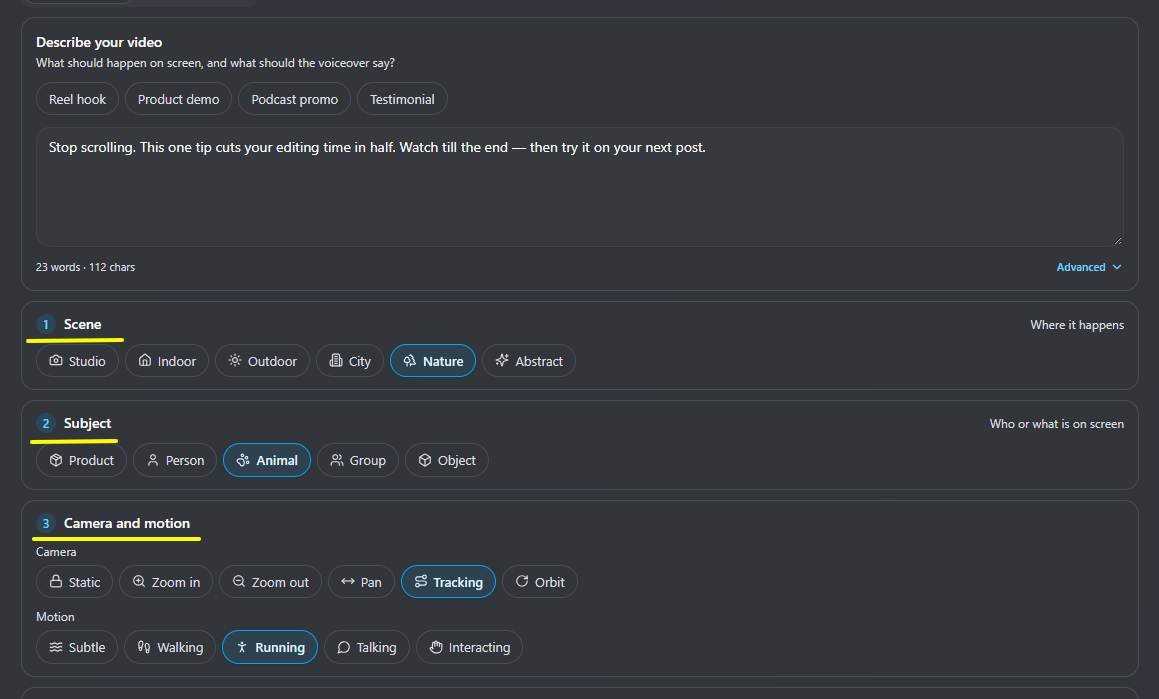
Step 3: Open the AI Video Maker and Describe Your Video
Open VoiceCraftTool's AI Video Maker and select the creation method you want to use:
Text to Video: Describe the scene you want to generate.
Image to Video: Use a reference image to guide the visual result.
You can also choose a creator pack to start with a ready-made content format. Available options include Reel Hook, Product Demo, and Podcast Promo.
For our workspace example, a simple visual prompt could be:
Basic prompt:
"A person working at a desk."
Improved prompt:
"A young professional at a minimalist desk, soft morning light, slow camera push-in."
The improved prompt gives the AI a clearer subject, setting, and camera direction without adding unnecessary details.
VoiceCraftTool's interface recommends shorter prompts for 5-second clips. Therefore, focus on one clear scene instead of describing an entire video in a single prompt.
Step 4: Set the Scene, Subject, Camera, and Motion
After preparing your description, use the available settings to guide the visual output.
VoiceCraftTool provides options such as:
Scene: Studio, Indoor, Outdoor, City, Nature, or Abstract.
Subject: Product, Person, Animal, Group, or Object.
Camera: Static, Zoom in, Zoom out, Pan, Tracking, or Orbit.
Motion: Subtle, Walking, Running, Talking, or Interacting.
For the workspace example, you could select Indoor as the scene, Person as the subject, Zoom in as the camera movement, and Subtle for motion.
These choices help guide the generated clip without making the text prompt unnecessarily long.
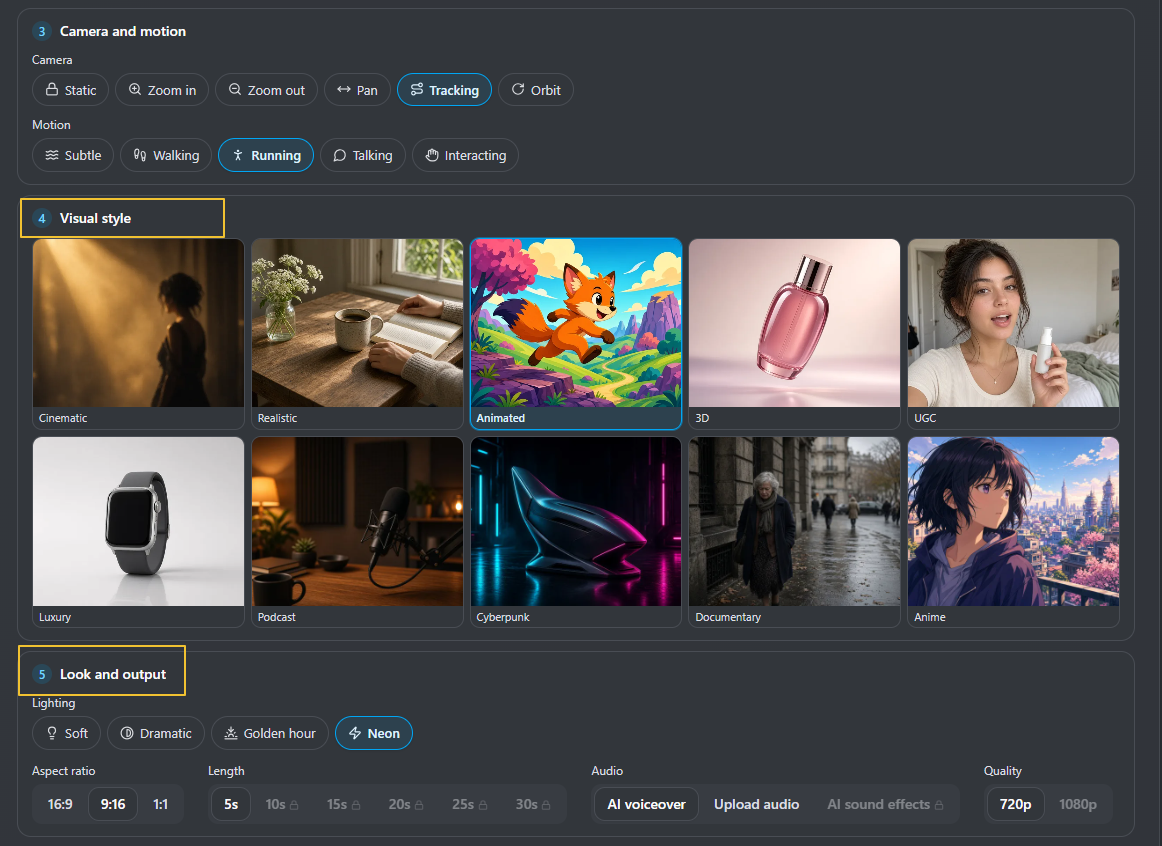
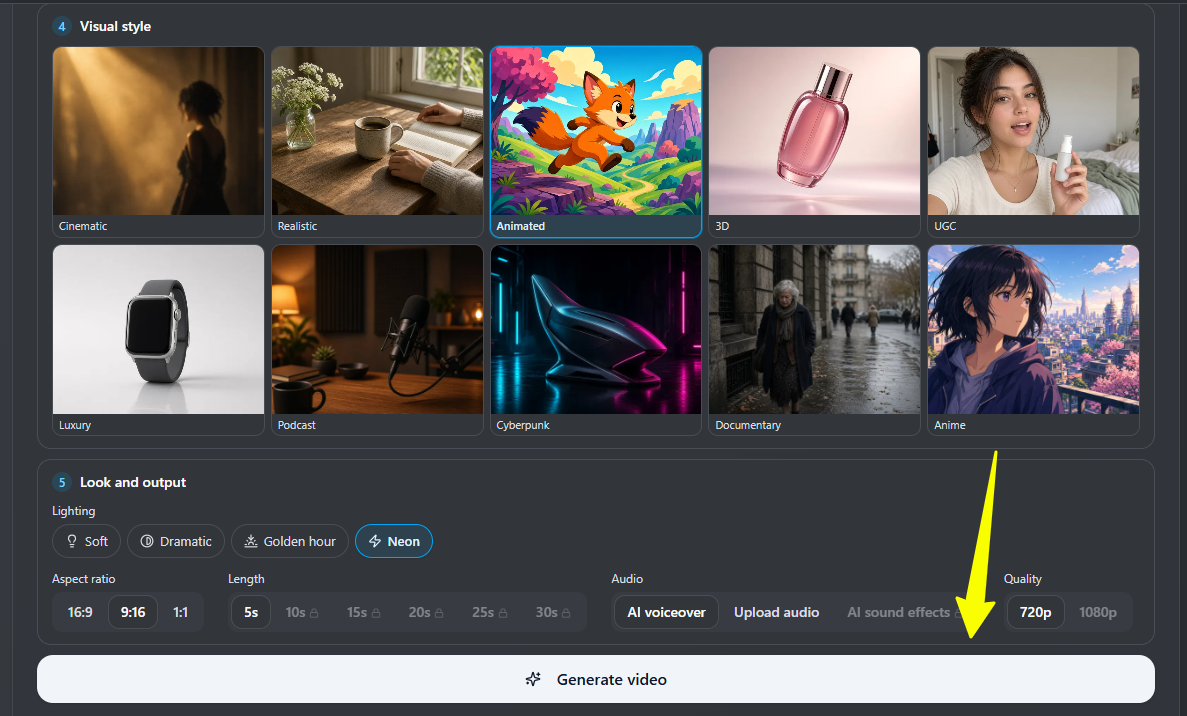
Step 5: Choose the Visual Style and Output Settings
Next, select a visual style that matches your content. Options include Cinematic, Realistic, Animated, 3D, UGC, Luxury, Podcast, Cyberpunk, Documentary, and Anime.
You can also select lighting options such as Soft, Dramatic, Golden Hour, or Neon.
Then configure the output settings:
Aspect ratio: Choose 9:16 for Reels, Shorts, and TikTok; 16:9 for standard YouTube videos; or 1:1 for square posts.
Video length: The free plan offers a 5-second preview. Longer options are available on paid plans.
Audio: Choose AI voiceover, uploaded audio, or AI sound effects.
Quality: Available options include 720p and 1080p. Access may depend on your plan or selected model.
Model: Depending on your plan, Fast and Pro options may be available.
For our workspace example, Realistic style, Soft lighting, and a 9:16 aspect ratio would be suitable for a vertical social media clip.
Step 6: Generate and Review Your Clip
Once your prompt and settings are ready, select Generate Video.
After generation, review the result carefully:
Does the main subject match your description?
Is the setting appropriate for your idea?
Does the camera movement look natural?
Does the voiceover communicate the intended message?
Are there any visual inconsistencies?
If the result does not match your expectations, adjust the description or settings and try again.
Do not assume that every generation will be perfect. A small change to the prompt or visual settings can make a difference.
Is Script-to-Video AI Really Free?
Yes, some AI video generators offer free access, but their features and usage limits vary. A free plan may restrict video duration, daily generations, output quality, or access to advanced models.
In VoiceCraftTool, the maximum video length depends on the subscription plan:
Plan
Maximum video length
Free
5 seconds , 720P
Starter
Up to 10 seconds
Plus / Annual
Up to 30 seconds
The free 5-second preview is useful for testing a visual idea, prompt, or style before deciding whether you need longer clips. However, it is not intended to replace a complete, publish-ready video.
Video duration is not the only restriction to consider. Available generations, credits, and additional features may depend on your subscription. Check the current VoiceCraftTool Pricing page for the latest plan details before starting multiple generations.
Who is the free plan suitable for?
The VoiceCraftTool free plan includes one 5-second video preview at 720p. Starter supports videos up to 10 seconds, while Plus and Annual plans offer longer video options of up to 30 seconds, with additional features depending on the subscription
What to check before choosing a free AI video tool:
How long can the free video be?
What resolution is available?
Does the exported video include a watermark?
Are there daily usage limits or generation credits?
Can the generated videos be used commercially?
Does the tool support voiceovers and your preferred aspect ratio?
Check the current plan details and terms of service for watermark and commercial-use information before publishing your video.
What Types of Videos Can You Create?
Short AI video clips are useful when each video has one clear purpose. Here are some practical examples:
Instagram Reels, TikTok, and YouTube Shorts: Use the 9:16 vertical format to create short hooks, introductions, and visual content.
Product demos: Generate a short product-focused visual. A reference image can help guide the appearance of the product.
Podcast promotions: Create short promotional clips to introduce an upcoming episode or highlight a topic.
Testimonials and flash offers: Use relevant creator packs as starting points for short promotional content.
YouTube intros: Experiment with a short opening sequence before the main video begins.
Concept testing: Try a visual idea before investing time in filming or producing a longer video.
Choose the aspect ratio according to where you plan to publish. Vertical videos are suitable for mobile-first platforms, while landscape videos work better for standard YouTube content and many website placements.
Tips for Getting Better Results from AI Video Generators
The quality of an AI-generated video depends partly on how clearly you describe your idea. These tips can help you get more useful results.
1. Focus on one idea per clip.
Avoid combining several unrelated actions in a short video. A focused scene is easier to generate and review.
2. Describe the visuals clearly.
Mention the main subject, setting, action, and camera movement. For example, describe a person working at a desk rather than simply asking for a productivity video.
3. Keep prompts concise.
Long descriptions are not always better. For short clips, a focused prompt can communicate the main visual idea more clearly.
4. Use reference images when needed.
If you want to guide the appearance of a particular product or visual concept, a reference image can provide additional context.
5. Match the style to your content.
A Product Demo may need a different visual approach from a Podcast Promo or a customer testimonial. Select a style that supports the purpose of the clip.
6. Choose the format before generating.
Decide whether you need vertical, landscape, or square video before starting. This helps you prepare the content for its intended platform.
7. Write narration for the ear.
Short, conversational sentences are generally easier to follow in voiceovers. Review the script for clarity and pronunciation before generating the audio.
8. Review before publishing.
Check the visuals, voiceover, and message. You can also prepare captions using Audio Captions and create publishing details with VoiceCraftTool's Title, Tags & Description Generator.
Limitations of AI-Generated Videos
AI video generators can save time, but their results are not always accurate. The generated visuals may differ from your prompt, and you may need multiple attempts to get a suitable result.
Text, hands, and small objects can sometimes appear incorrectly. AI voiceovers may also have pronunciation or pacing issues, particularly with unusual names or complex sentences.
Another limitation is video duration. Short clips are useful for visual hooks and promotional content, but they may not be enough to communicate a complete story.
For these reasons, treat AI-generated videos as content that needs review rather than assuming every output is ready to publish. Check the visuals and audio carefully, especially before using a clip in business or product-related content.
Conclusion
AI video generators make it easier to turn short ideas and written prompts into visual content without recording every scene yourself. However, the right tool depends on whether you need a short AI clip or a complete video based on a longer script.
If you want short, voiceover-driven clips for social media, product teasers, or video hooks, VoiceCraftTool's AI Video Maker offers a practical way to experiment with prompts, visuals, and audio.
Start with a focused script, prepare your voiceover, select the right video settings, and review the generated result before publishing.
Frequently Asked Questions
Can I turn a script into a video for free?
Yes. Some AI video tools provide free plans or previews. VoiceCraftTool offers a 5-second video preview on its free plan, allowing you to test a prompt and explore the video-generation process.
Can I create a complete video from a long script?
VoiceCraftTool's AI Video Maker is designed for short clips rather than automatically converting a long script into a complete video. You can create separate clips for different parts of your content and combine them using a video editor.
Can AI generate videos with a voiceover?
Yes. VoiceCraftTool supports AI voiceover, uploaded audio, and AI sound effects. You can also prepare narration separately using Text to Audio AI.
Can I make YouTube Shorts or Instagram Reels from a script?
Yes. You can create short AI clips and select the 9:16 vertical format, which is suitable for YouTube Shorts, Instagram Reels, and TikTok.
Can I use my own image or audio?
Yes. VoiceCraftTool's AI Video Maker supports reference images and uploaded audio. A reference image can guide the visual output, while uploaded audio lets you use your own recording.
How long can an AI-generated video be?
The available duration depends on the tool and subscription plan. In VoiceCraftTool, the free plan offers up to 5 seconds, Starter offers up to 10 seconds, and Plus or Annual plans offer up to 30 seconds.
Can I use AI-generated videos commercially or without a watermark?
Check the current plan details and terms of service for commercial-use rights and watermark information before publishing your video.
Did you find this helpful?
Share this article with your friends and colleagues.